|
In this section: |
Data quality analysis is a process of verifying data values against known rules to ascertain if the values accurately represent the real world entity. Rules are an implementation of an underlying service and rules are generally associated with a data class. There are several built-in rules available for data quality analysis. These rules can be mapped to a single data attribute or a group of data attributes.
During data analysis, one or more of the following steps are executed:
|
In this section: |
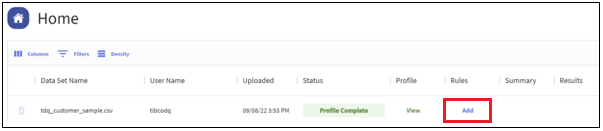
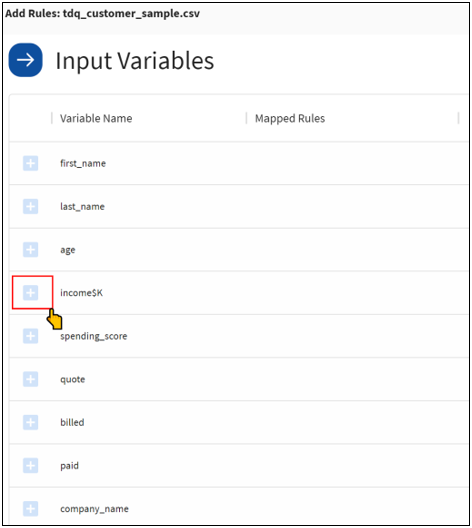
To add (assign) rules when analyzing data:


The Select Rule dialog opens, as shown in the following image.

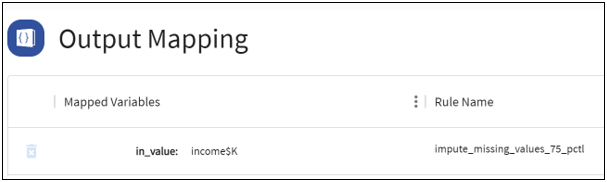
These rules need one input and once selected, the input data variable is automatically mapped to the rule input (for example, income$K).
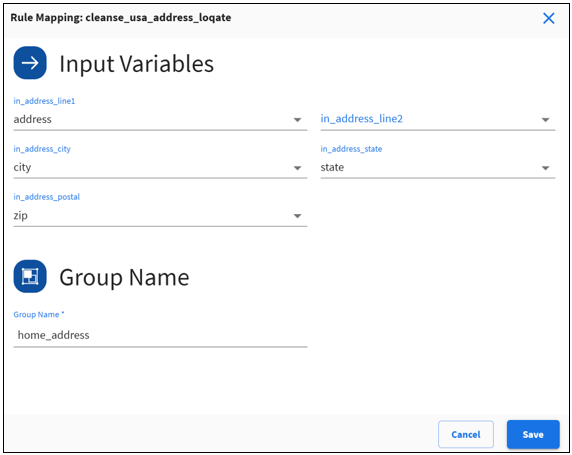
These rules require multiple inputs.
Note: The group name is used to generate the output results file name, so make sure you provide a unique group name.
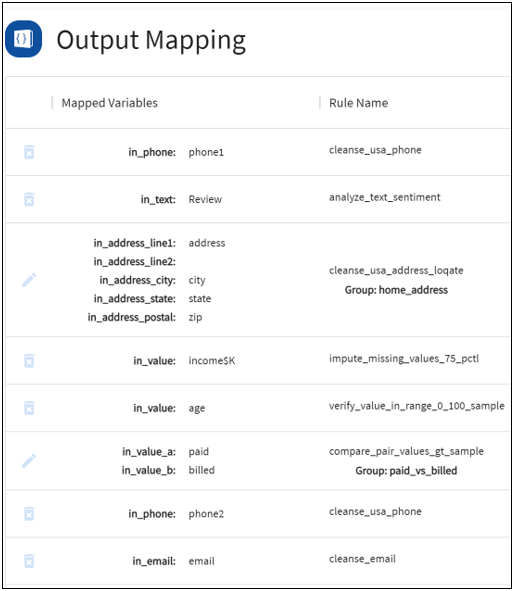
Some columns may have a preassigned rule based on the data class discovered by the profiler. You can delete and reassign a different rule if the assigned rule is not appropriate for the input variable.

Verify all the rules associated with the input variables before submitting the data for processing.

The analysis progress bar displays the current processing status, as shown in the following image.

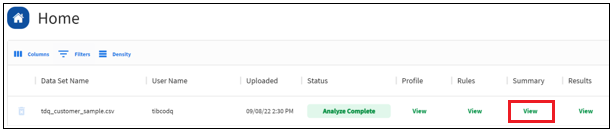
You can view a summary of analysis results by clicking View under Summary, as shown in the following image.

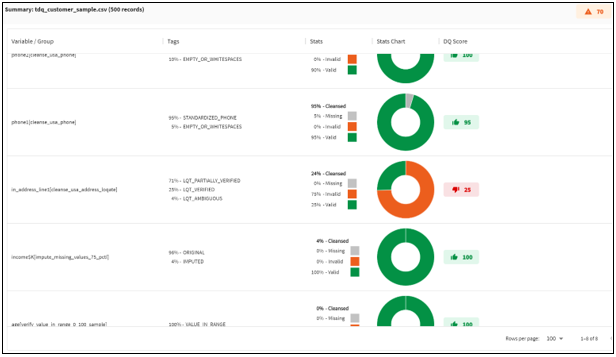
Summarized results contain:
|
Result |
Description |
|---|---|
|
Overall DQ Score |
Data Quality (DQ) score for the entire data set. This score will be in the range 0 to 100 (100 is the best). |
|
Rule based DQ Score |
Data Quality (DQ) score for each rule applied to a variable or a group of variables. This score will be in the range 0 to 100 (100 is the best). |
|
Tags |
List of issues or reportable facts identified during the data quality analysis. |
|
Stats & Stats Chart |
Summarized stats for final outcome of the analysis.
|
The following is a sample summary of analysis report.

|
In this section: |
You can download the detailed results of the Data Quality (DQ) analysis by clicking View under Results.
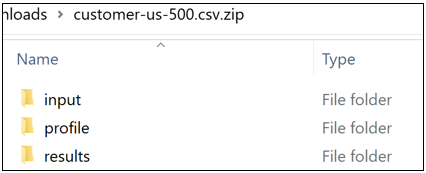
The .zip file that is generated contains the following folders:
For example:

The results folder contains analysis results.
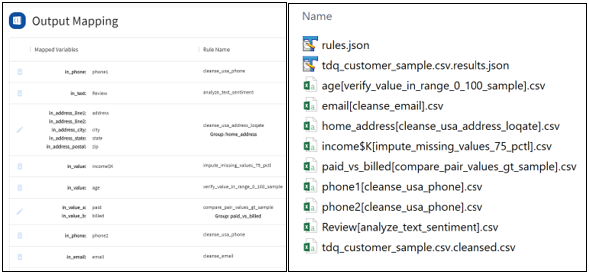
In the following example, a user submitted eight rules for execution, and the results folder contains:

rules.json - Summary of rules mapped by the user.
|
Value |
Description |
|---|---|
|
Rule Name |
Name of the rule selected by the user. |
|
Group Name |
Group name provided by the user for mapping multiple variables into a single Rule. |
|
Input Map |
Mapping of input variables to rule inputs. |
|
Variable Options |
Data expectations by the user for each variable.
|
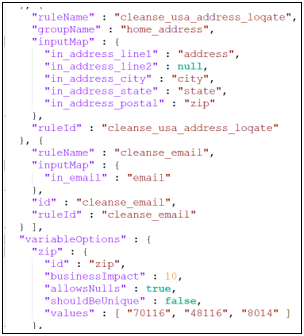
The following is a sample rules.json file for reference.

<<input_data_set_name>>.results.json - JSON output with summarized results of the DQ analysis.
|
Value |
Description |
|---|---|
|
Input File |
Input file that contains the input data set uploaded by the user. |
|
Output File |
Output file that contains cleansed output values of all the variables in the input data set. |
|
Overall DQ Score |
Data Quality (DQ) score for the entire data set in the range 0 to 100 (100 is the best). |
|
Rule based DQ Score |
Data Quality (DQ) score for each variable in the range 0 to 100 (100 is the best). |
|
Tags |
List of issues or reportable facts identified during the data quality analysis. |
|
Count Processed |
Total number of data values processed by a Rule. |
|
Count Valid |
Total number of valid output values generated by a Rule. |
|
Count Invalid |
Total number of values that failed validation and could not be fixed by a Rule. |
|
Count Missing |
Total number of empty or missing values. |
|
Count Cleansed |
Total number of cleansed output values generated by a Rule. |
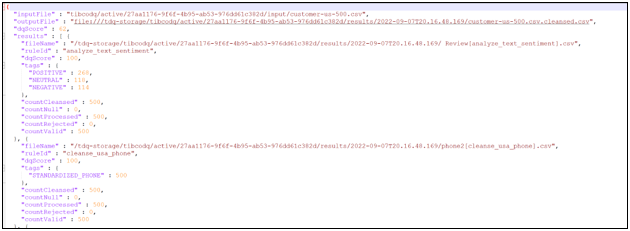
The following is a sample <<input_data_set_name>>.results.json file for reference.

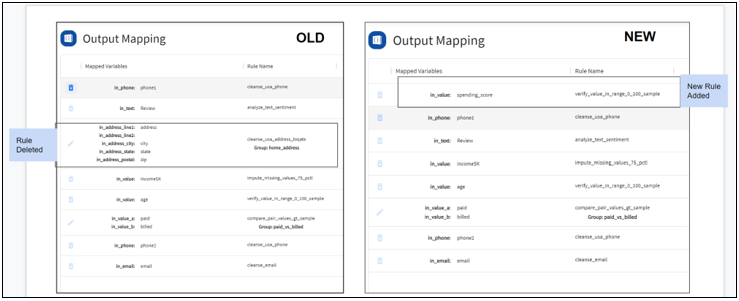
After analyzing your data through Rules for the first time, you can re-analyze the same data with a different set of Rules, allowing you to skip the data upload and profiling steps. A new record is generated that displays at the top of the home page for each rerun.


A new row with the latest results will be available at the top of the home page with the previous results listed in the order of execution, as shown in the following image.