Adding New Rules
|
In this section: |
There are two ways to add new rules.
Defining a New Rule
To define a new rule:
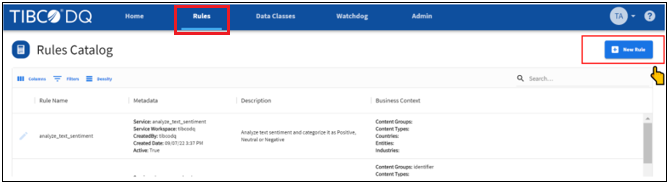
- Go to the Rules tab (Rules Catalog) and click on New Rule, as shown in the following image.
- Enter the rule information.
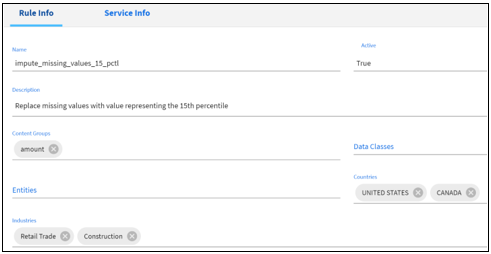
- A unique name for the rule.
- Set Active status to True if you want to publish the rule for active use.
Note: If you accept the default status as False, then the rule cannot be used for DQ analysis.
- A brief description of the rule.
- Add rule metadata (optional):
- Content Group. Select from the list of available values or add a new value. Content groups are a higher level classification of data classes. For example, data classes email and phone_number belong to content group contact, us_ssn and us_dea belong to content group identifier.
- Data Class. Select a data class from the list of available data classes.
- Entity. Select one or more values from the list of available entities or add a new value.
- Country. Select one or more countries from the list of available countries.
- Industry. Select one or more industries from the list of available industries.
- Enter service information.
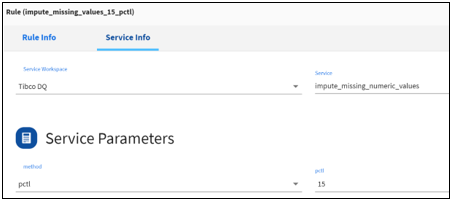
- Select workspace. Tibco DQ represents prebuilt services delivered with the product. Custom represents services registered by your developers in this TIBCO DQ instance.
- Select service. Search and select the appropriate service. Depending on the service you select, you will be presented with service parameters to set.
- Service parameters. These are service-specific parameters. Refer to service parameter definitions on how to set them up.
- Click Finish and verify the rule is available for use in the catalog.
Verifying a New Rule
To verify a new rule:
- Go to the Rules tab (Rules Catalog) and verify that the rule is available for use in the catalog. Ensure the active flag is set to True, as shown in the following image.

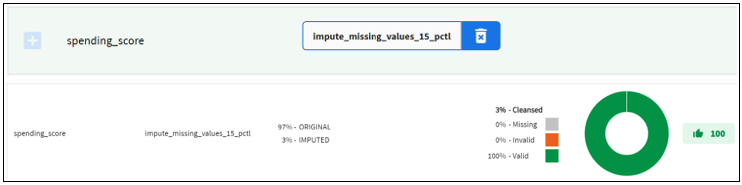
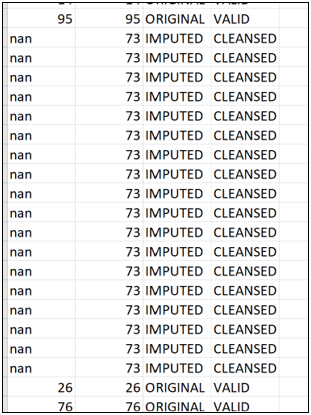
- Upload data and attach the rule to a data variable to execute the rules-based DQ analysis, as shown in the following image.