|
| Copyright © Cloud Software Group, Inc. All Rights Reserved |
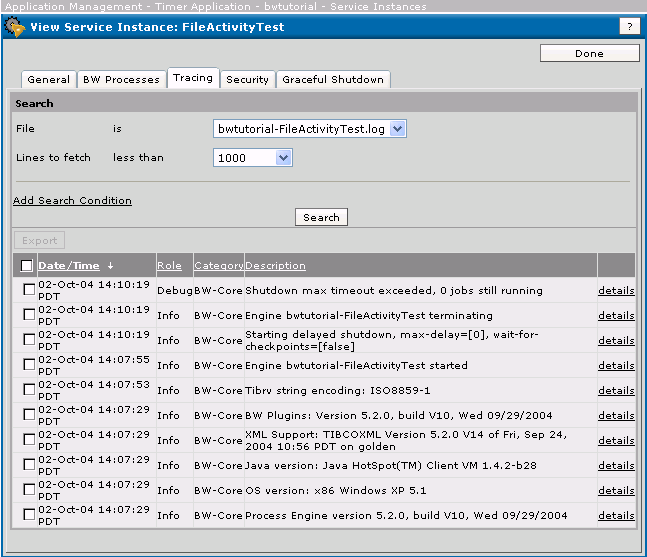
1. Choose Application Management> Timer Application > tutorial > Service Instances and select the <machine>-FileActivitiesTest service instance, and then the Tracing tab.
2. In the Search box, make sure that the log for your application (in this case tutorial-FileActivityTest.log) is selected, and then click Search.
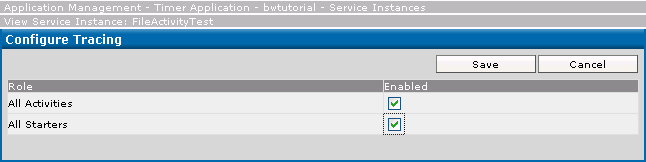
3. To make the default monitoring information more detailed, click the Configure Tracing button.
In addition to tracing, TIBCO Administrator allows you to specify that you wish to be alerted if certain conditions are met. This section gives one example. A detailed discussion of tracing is included in Adding a Rulebase to a Process or Service.
1. Choose Application Management> Timer Application > tutorial > Configuration.
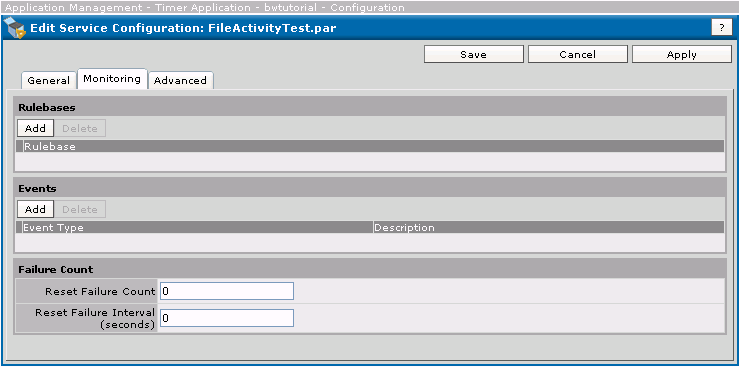
2. In the Configuration Builder panel, expand the tutorial application and select the FileActivityTest.par, and then choose the Monitoring tab.
3.
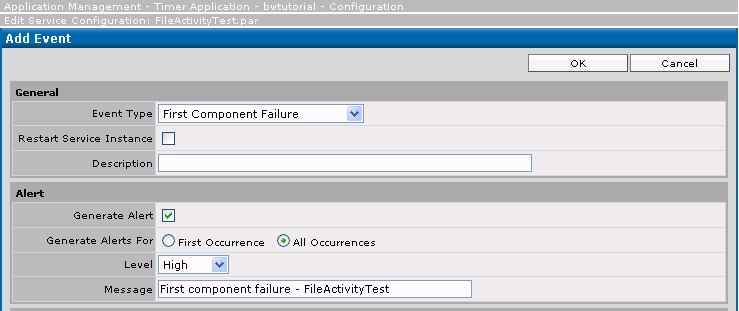
b. In the Alert pane, select the check box next to Generate Alert.
d.
e.
5. When you are returned to the Configuration Builder notice that it indicates that services require deployment. Click Deploy and the changes will take effect.
|
| Copyright © Cloud Software Group, Inc. All Rights Reserved |