Copyright © Cloud Software Group, Inc. All Rights Reserved


TIBCO ActiveMatrix BusinessWorks Getting Started : Creating the FileTest Process

Creating the FileTest Process
This section guides you through creating a simple process definition. The process, which will be named FileTest, polls a directory for a specified file and writes a new file to the same directory each time the file changes. The new file’s name includes the type of change that occurred to the original file (create, modify, or remove). The new file’s content is the same as the polled file’s content, but the time of the change in the file is appended to the end of the file. The time of the file change is represented as the number of milliseconds since January 1, 1970.
The tutorial uses a variable file name to illustrate how to use the TIBCO BusinessWorks mapping capabilities.
To create the FileTest process, follow these steps:
1.
2.
If no palettes are in the palette panel, click the Switch Palette Mode icon to display the palettes.
3.
4.
In the configuration panel, type the name FileTest in the Name field to rename the process. Then click Apply.
5.
Save your project by choosing Project > Save from the menu.
See Also
For introductory information about processes, see TIBCO BusinessWorks Concepts. For detailed information about processes, see the TIBCO ActiveMatrix BusinessWorks Process Design Guide.
To add activities to the process, follow these steps:
1.
The Start and End activities should be displayed in the design panel.
2.
If the File palette is not one of the available palettes, choose Palettes > Activities > File to make the palette available.
3.
The Start activity is replaced by the File Poller activity.
4.
a.
Name the File Poller TestFilePoller.
b.
Click the Browse button to the right of the File Name field and select the file you want to poll. Use the Select File dialog to locate the directory and file you created.
c.
d.
Click the Apply button.
5.
6.
7.
8.
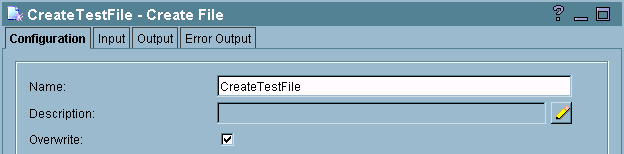
Name the Write File activity WriteToTestFile, then click the Apply button.
9.
10.
The result should appear as follows:
11.
Choose Project > Save from the menu.
The process now includes appropriately connected activities. However, no information about the name and content of the files is included. To set those, you use the TIBCO Designer mapping facilities.
The goal in this exercise is to create a file that has the name File<changeType>.txt, where <changeType> is the type of change that occurred to the original file (create, modify, or remove). The contents of the changed file is then written to the new file, and the time the change in the file occurred is appended to the end of the contents. For example, if the text in the changed file is "The cherry blossoms are beautiful." the content of the new file will be "The cherry blossoms are beautiful. 1017163931036"
To map the data flow between activities, follow these steps:
1.
2.
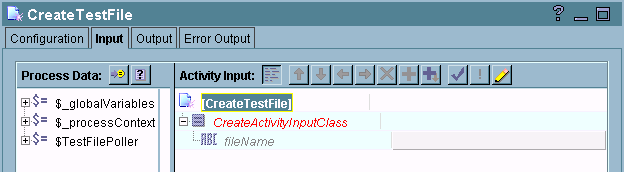
Each activity’s output is available to subsequent activities in the process definition. You can use data from previous activities to specify the input of the current activity. For example, you can use the content of the original text file as the content of the new text file.
The left panel of the Input tab contains a list of data from all activities preceding the current activity in the process diagram. Each activity’s name appears with a dollar sign ($) in front of it to indicate that this is a process variable.
The right panel of the Input tab lists the current activity’s input.
3.
4.
5.
a.
The display in the right panel changes to display a concat XPath expression.
b.
Replace << string1 >> with "c:\tibco\test\File" (include the quotes).
c.
In the left panel, select the Data tab, choose the $TestFilePoller/EventSourceOutputTextClass/action element and drag it over << string2 >>. A red box appears over << string2 >> indicating you can release the data over this item and the correct XPath expression will appear.
d.
The expression should look like the following:
      concat("c:\tibco\test\File",
      $TestFilePoller/EventSourceOutputTextClass/action, ".txt")
6.
Click the Apply button to accept the formula and dismiss the XPath Formula Builder by clicking Close. Then click the Apply button in the Input tab of the activity.
7.
8.
a.
You do not need to use the XPath Formula Builder to map this item because you do not need to use XPath functions. The content of the field is exactly the same as the value of the $CreateTestFile/CreateActivityOutputClass/fileInfo/fullName process variable.
b.
c.
d.
Add " ", between <<string1>> and <<string2>> so that there is a space between the two strings in the concat function.
e.
Click the Data tab and drag $TestFilePoller/EventSourceOutputTextClass/fileContent/textContent over <<string1>>.
f.
The formula should look like this:
      concat($TestFilePoller/EventSourceOutputTextClass/
      fileContent/textContent," ",$TestFilePoller/
      EventSourceOutputTextClass/timeOccurred )
g.
Click the Apply button to accept the formula and dismiss the XPath Formula Builder by clicking Close.
9.
Click the Apply button on the activity’s Input tab, then choose Project > Save to save your project.
You are now ready to test the project.

Copyright © Cloud Software Group, Inc. All Rights Reserved