Copyright © Cloud Software Group, Inc. All Rights Reserved


Chapter 5 General Activities Palette : Label

Label
Graphic Tool
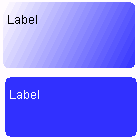
The Label resource allows you to create a generic label so that you can provide documentation and comments in your process definition. The Label is not an activity, because you cannot draw transitions to or from it, and it does not perform any action. You use the label to create a descriptive tag that you can place anywhere in a process definition.
Labels can also be resized to cover an area. You can apply a border to the area by selecting a value in the Border Type and Border Thickness fields. You can also apply a background color to the area by selecting a color in the Background color field. This allows you to annotate your process definition and provide colors and borders to visually group related activities in your process definition.
The text of the label remains in the top left of the label area, but you can edit the text either in the design panel or by editing the Description field.
Configuration
The Configuration tab has the following fields.
Allows you to pick a color for the text and border of the label. Use the Chose Color button to bring up a dialog to select a color.
Allows you to pick a font for the text of the label. Use the Choose Font button to bring up the Font Panel dialog.
Allows you to pick a background color for the area the label covers. Use the Chose Color button to bring up a dialog to select a color.

Copyright © Cloud Software Group, Inc. All Rights Reserved