|
| Copyright © Cloud Software Group, Inc. All Rights Reserved |
You can add custom code to your process definition with the Java Code activity. This activity allows you to write standard Java code that can manipulate any of the process data or perform any action you choose.
The Java Code activity automatically creates an invoke() method in which you place the code you want to execute. This method is called when the engine processes the Java Code activity.
Use Edit>Preferences>Other to specify the Java editor you want to use to edit source code.See Common Features of Java Code and Java Method for more information about features available in the Java Code activity.
• Type — Datatype of the parameter. Specify one of the supplied Java primitive types, or specify Object Reference if you are accepting a Java object from another Java Code activity as input. See Passing Java Objects Between Java Code Activities for more information about passing Java objects between Java Code activities.
• Type — Datatype of the parameter. Specify one of the supplied Java primitive types, or specify Object Reference if you are passing a Java object to another Java Code activity as output. See Passing Java Objects Between Java Code Activities for more information about passing Java objects between Java Code activities.You can choose to display the full Java class or display only the invoke() method body of the class. Choose the appropriate option at the top of the Code tab for the code you want to display.
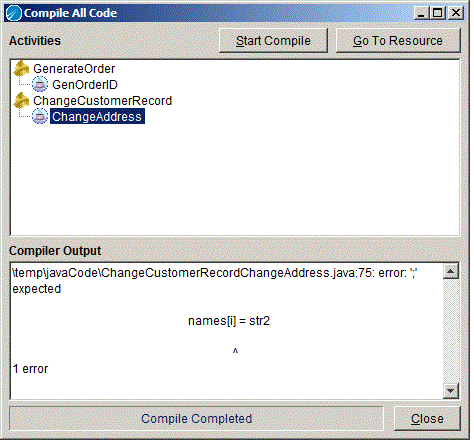
Specify the code you want to execute in the automatically generated invoke() method. The get/set methods for the input and output parameters are automatically generated and displayed when you choose the Full Class option above the code window.When the Java code is run by the engine, the automatically generated get/set methods are called, then the invoke() method in the Java class is called. After compilation, the source and compiled java code are placed into the lib/palettes/javaCode directory in the TIBCO ActiveMatrix BusinessWorks installation directory. Use Edit>Preferences>Other to specify the Java editor you want to use to edit source code.Note: On MS Windows platforms, a temporary file is created to hold the Java code when you edit your code with this button. This file is located in either C:\temp or C:\tmp or your working directory. If your working directory contains a space (for example C:\Documents and Settings\...), there may be problems opening the temporary file. Make certain either the C:\temp or C:\tmp directory exists to avoid this issue.When you use the Compile All Code menu item, the Compile All Code dialog appears. Figure 13 illustrates this dialog.Figure 13 Compile All Code dialogYou may create instances of Java objects in your Java code or by using the Java Method or XML To Java activities. You can pass these Java objects using an output parameter to another activity later in the process definition. The Java Code activity receiving a Java object accepts the object into an input parameter and you must map the output Java object to the input object of the receiving Java Code object.
Figure 14 illustrates two Java code activities. The CreateObject activity creates a Java object and passes a reference to the object in the output parameter named out_object. The UseObject activity defines an input parameter named in_object of type ObjectReference and maps the CreateObject activity’s output object reference to its input parameter of type ObjectReference.The UseObject activity can invoke methods on the input object as it would for any other object. For example, if you want to call a method named getInteger() that returns an integer, you would use the following code in the UseObject activity:See TIBCO ActiveMatrix BusinessWorks Process Design for more information about mapping and transforming input data.
The TIBCO ActiveMatrix BusinessWorks error message. See TIBCO ActiveMatrix BusinessWorks Error Codes for more information. The TIBCO ActiveMatrix BusinessWorks error code. See TIBCO ActiveMatrix BusinessWorks Error Codes for more information. The Java exception class name. The value of this element is obtained by calling the <exception>.getClass().getName() method. The Java exception message. The value of this element is obtained by calling the <exception>.getMessage() method.
|
| Copyright © Cloud Software Group, Inc. All Rights Reserved |