|
| Copyright © Cloud Software Group, Inc. All Rights Reserved |
The Java Event Source allows you to create a custom process starter written in Java. For example, you may want to start a TIBCO ActiveMatrix BusinessWorks process when an application inserts a row into a database table. Your custom process starter would observe the database for insert events, then call the onEvent() method with the desired data as input when an insert occurs. The Java Event Source process starter creates a process when the onEvent() method is invoked and the object passed to the method is passed to the process definition.
This process starter uses an abstract class to define the interface. You can either write and compile your custom Java code in your own code editor and upload the class to TIBCO ActiveMatrix BusinessWorks, or you can use the Code tab to add your implementation code to the appropriate methods. See JavaProcessStarter Abstract Class for more information about the methods required by this class.
If you want to use the Edit Class button on the Code tab, select Edit>Preferences>Other to specify the Java editor you want to use to edit source code.
Use this field to specify an AliasLibrary resource that is used to locate the Java class files. See TIBCO Designer Palette Reference for more information about AliasLibrary resources. The compiled Java class that implements the JavaProcessStarter abstract class. Use the Show Class Browser button to select the class from the specified Class Library. The init() method for the class. This field is automatically populated when you use the Show Class Browser button. See JavaProcessStarter Abstract Class for more information about the init() method.Note: You can hover the cursor over this field to display the signature of the selected method. This table allows you to specify default values for the input parameters of the init() method. Each input parameter has three fields:
• init() — this method is called when the process engine starts up. This method should initialize any resource connections. You could also specify a Java Global Instance on the Advanced tab that initializes resource connections. Java Global Instances are also loaded and initalized during process engine start up. You can call this.getJavaGlobalInstance() to obtain the Java Global Instance resource in your process starter code.
• onStart() — this method is called by the process engine to activate the process starter. This method should activate any event notifier or resource observer code. The notifier or observer code can then call the onEvent() method to start a process instance.
• onStop() — this method is called by the process engine to deactivate the process starter. This method should deactivate any event notifier or resource observer code.
• onShutdown() — this method is called by the process engine when the engine shuts down. This method should release any resources and resource connections and perform any required clean up operations.
• onEvent(Object object) — this method is called when a listener or resource observer catches a new event. The input to this method is a Java object containing the event data.
• getGlobalInstance() — this method returns an object reference to the Java Global Resource specified on the Advanced tab of the process starter. This is useful if you want to place initialization code or other shared information in a Java Global Resource instead of in the init() method of this class.
• onError() — this method throws the exception specified in the input parameter. Use this method to propagate an error to the TIBCO ActiveMatrix BusinessWorks process instance when a listener or resource observer fails to generate an event.
•
•
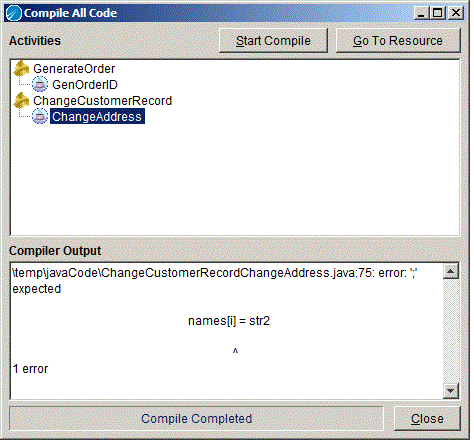
• After compilation, the source and compiled java code are placed into the lib/palettes/javaCode directory in the TIBCO ActiveMatrix BusinessWorks installation directory. Use Edit>Preferences>Other to specify the Java editor you want to use to edit source code.Note: On MS Windows platforms, a temporary file is created to hold the Java code when you edit your code with this button. This file is located in either C:\temp or C:\tmp or your working directory. If your working directory contains a space (for example C:\Documents and Settings\...), there may be problems opening the temporary file. Make certain either the C:\temp or C:\tmp directory exists to avoid this issue.When you use the Compile All Code menu item, the Compile All Code dialog appears. Figure 13 illustrates this dialog.Figure 15 Compile All Code dialog
A Java Global Instance resource. Specify a value in this field if you want to reference a Java Global Instance resource in your JavaProcessStarter implementation class. You can use the getGlobalInstance() method to obtain a reference to the Java Global Instance resource.See Java Global Instance for more information about Java Global Instance resources. When this field is unchecked, the object passed to the onEvent() method is output by this process starter as a Java object reference. You can use the Java To XML activity to render the Java object as an XML tree, if desired.Check this field if you want the data of the input object to the onEvent() method to be converted to an XML tree in this process starter’s output.Then, the object you pass into the input parameter of the onEvent() method must be a String.
See TIBCO ActiveMatrix BusinessWorks Process Design for more information about controlling the execution order of process instances and about XPath expressions.
The Java object that was passed to the onEvent() method. By default, this element is a Java object reference. If the Convert Output Object to XML field is checked on the Advanced tab and the output class is specified in your implementation class, the output is represented as an XML tree.
The TIBCO ActiveMatrix BusinessWorks error message. See TIBCO ActiveMatrix BusinessWorks Error Codes for more information. The TIBCO ActiveMatrix BusinessWorks error code. See TIBCO ActiveMatrix BusinessWorks Error Codes for more information.
|
| Copyright © Cloud Software Group, Inc. All Rights Reserved |