Copyright © Cloud Software Group, Inc. All Rights Reserved


Chapter 19 WSDL Palette : WSDL

WSDL
Resource
A WSDL file is an XML instance of the WSDL XML Schema, found at http://schemas.xmlsoap.org/wsdl/. A WSDL resource is composed of a series of definitions that describe the format and roles of messages used in web services. To create a new WSDL resource (with an empty set of definitions), drag the WSDL icon from the palette panel into the project panel. Once the WSDL resource has been created and selected in the project, the key components of abstract WSDL definitions — messages, portTypes, and operations — become available in the WSDL palette.
Configuration
The configuration panel is accessible when working in the model view (which loads by default). The fields in the Configuration tab are described below.
This is the name of the file when persisted. The *.wsdl suffix will be automatically added.
This is the target name space of the WSDL document. This field will be populated by default with an example target namespace (http://xmlns.example.com). It is recommended that you enter a unique and meaningful namespace for each WSDL file. (In the WSDL source, this field represents the value of the targetNamespace attribute on the definitions element.)
To locate a WSDL file by browsing a WSIL or UDDI registry, use the Browse UDDI button. (See Copying WSDL Definitions for a description of the browsing interface.) Once the WSDL file has been selected, click Copy URL.
Warning: The Copy URL and Browse UDDI buttons add the WSDL from the external resource once. There is no refresh option. If the external WSDL file changes, the Copy URL must be performed again.
Toolbar
When a WSDL resource, or one of its components, is selected in your project, four extra buttons appear on the toolbar. These buttons are described in Table 11.
Editing WSDL Resources
The key components (elements) of an abstract WSDL file are messages, portTypes, and operations. Three different views are available when editing the base WSDL file or one of its components. These editing views, accessed using the toolbar buttons (see Table 11) are described below.
Note: The WSDL palette’s model view enables the creation of an “abstract” WSDL file that may be used in a web service where additional SOAP endpoints and binding information will be added. To specify binding and endpoint information in the WSDL file, use the content or source view.
Copying WSDL Definitions
To copy the definitions of an existing WSDL file, you must first add a new WSDL resource to your project. If you know the location of the WSDL file you want to copy, enter the URL into the Copy From URL field and click Copy URL. The definitions from the external file will be copied into your WSDL resource.
If you are not sure of the location of the WSDL file, a WSIL and UDDI Registry Browser is provided, enabling you to browse well-known WSIL and UDDI directories. To access the browser, click Browse UDDI.
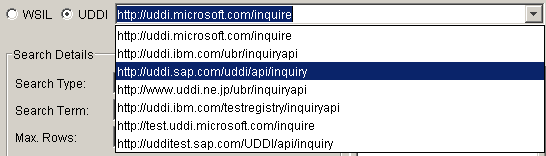
Use the radio buttons at the top of the browser to indicate whether you want to browse a WSIL directory or a UDDI registry. For the selected registry type, you can type in the location of the registry you want to browse in the field adjacent to the radio buttons or you can use this field’s drop down menu to select from a list of popular registries, as shown in Figure 27.
Figure 27 Specifying a UDDI registry
Once you have selected the registry to browse, use the Search Details section to select the type of services you want to browse. The Search Details section has the following fields.
 
In the Search Term field, specify the code for a particular country. For a list of ISO 3166 codes, see http://www.iso.org/iso/en/prods-services/iso3166ma/02iso-3166-code-lists/list-en1.html
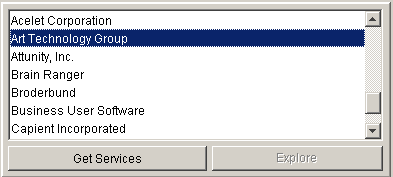
Depending on the Search Type specified in the Search Details, either the Get Services or Explore buttons will become active. The Explore option returns a list of company names matching the search criteria, such as the companies with a particular NAICS or SIC code. (To see the services provided one of the companies on the list, select the company and click Get Services.) The results returned by the Explore button are shown in Figure 28.
Figure 28 Companies returned by the Explore button
The Get Services option displays the WSDL files matching the search criteria in the table below the Search Details section, as shown in Figure 29.
Figure 29 List of returned services
From the list of returned WSDL files, highlight the file you want to copy and click OK. The URL for the service will appear in the Copy From URL field of the Configuration tab of the WSDL resource. Click Copy URL. The definitions from the external file will be copied into your WSDL resource.
External References
WSDL or XSD on an HTTP network location can be imported in a local WSDL without physically importing them into the project repository. These external references are restricted to imports only, that is, <wsdl:import> and <xsd:import> elements from WSDL and XSD namespaces, respectively.
Changes made to the external references are included automatically. This behavior is the same as with any locally imported WSDL or XSD.
The property java.property.com.tibco.xml.tns.parse.ImportSpecialResolution should be set to true in designer.tra to enable external WSDL support.

Copyright © Cloud Software Group, Inc. All Rights Reserved