Copyright © Cloud Software Group, Inc. All Rights Reserved


Chapter 20 XML Activities Palette : Transform XML

Transform XML
Activity
The Transform XML activity allows you to transform an input XML document into the output specified by the given XSLT File shared configuration resource.
Normally, transformation of data occurs by mapping process variables to an activity’s input and applying XPath expressions to perform any transformation. If you have an XSLT file that you are using for transformations, or if an outside source supplies an XSLT file, this activity allows you to use the XSLT file instead of manually creating the mappings.
For more information about creating and editing XSLT files, see the XSLT specification at http://www.w3.org/TR/xslt. For more information about creating an XSLT File shared configuration resource see XSLT File.
See Example of Transforming XML for an example of using the Transform XML activity.
Configuration
The Configuration tab has the following fields.
The XSLT File shared configuration resource to use when transforming the XML. You can also specify an XSLT stylesheet in the stylesheet input element, if desired. Stylesheets specified in the activity input will override the stylesheet specified in this field.
See XSLT File for more information.
TIBCO XML - This is the default XSLT engine provided by TIBCO.
Saxon-B XSLT 2.0 - This engine provides basic conformance to XSLT 2.0. The engine provides all features of the languages except schema-aware processes.
Input
The input for the activity is the following.
Output
The output for the activity is the following.
Error Output
The Error Output tab lists the possible exceptions that can be thrown by this activity. See TIBCO ActiveMatrix BusinessWorks Error Codes for more information about error codes and corrective action to take.
Example of Transforming XML
The following is an example of using the Transform XML activity to change an input XML document into the desired output schema. In this example, books are cataloged and processed. The user enters a book’s information into a web interface, and the web input form supplies a new catalog number and the date it was entered into the catalog. The process definition accepts the incoming web request, transforms the XML and adds the catalog number and date, enters the data into a database, then returns the results to the user. Figure 30 illustrates the process definition for this example.
Figure 30 A process definition using the Transform XML activity
The Transform XML activity uses an XSLT file that accepts two input parameters, catalogNumber and catalogDate. These input parameters are added as elements to the Book schema. The following is the source of the XSLT File shared configuration resource for the example Transform XML activity:
 
<xsl:stylesheet xmlns:xsl="http://www.w3.org/1999/XSL/Transform" version="1.0"
   xmlns:pfx="http://www.books.org">
<xsl:param name="catalogNumber"> <!--type="string"--></xsl:param>
<xsl:param name="catalogDate"> <!--type="string"--></xsl:param>
<xsl:template match="/*">
   <pfx:BookStore>
      <xsl:for-each select="Book">
         <xsl:call-template name="handle-book">
            <xsl:with-param name="inDate" select="$catalogDate"/>
         </xsl:call-template>
      </xsl:for-each>
   </pfx:BookStore>
</xsl:template>
<xsl:template name ="handle-book">
   <xsl:param name="inDate"> <!--type="string"--></xsl:param>
      <pfx:Book>
         <pfx:Title><xsl:value-of select="Title"/></pfx:Title>
         <pfx:Author><xsl:value-of select="Author"/></pfx:Author>
         <pfx:Date><xsl:value-of select="$inDate"/></pfx:Date>
         <pfx:ISBN><xsl:value-of
            select="$catalogNumber"/></pfx:ISBN>
         <pfx:Publisher><xsl:value-of
            select=""Cloud Software Group, Inc./></pfx:Publisher>
      </pfx:Book>
</xsl:template>
</xsl:stylesheet>
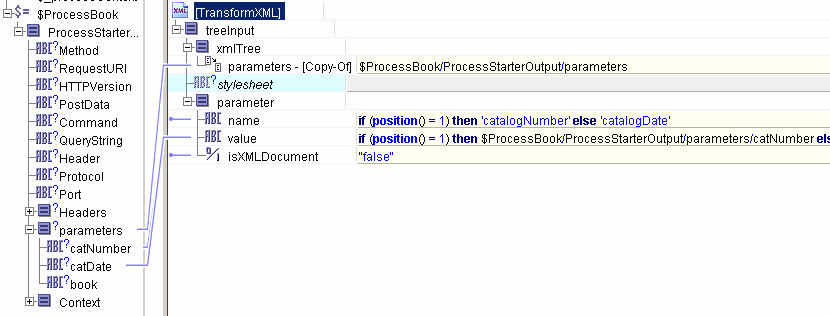
When you configure the Transform XML activity, you specify the incoming XML to transform any input parameters to the schema. Figure 31 illustrates the input for the example Transform XML activity.
Figure 31 Input for the example Transform XML activity
The stylesheet has two input parameters. The XPath if statement is used to place the correct names and values into the correct parameters. Each parameter is specified as a name/value pair. Notice that the name of each parameter corresponds to the name specified for that parameter in the XSLT file.
The output of the Transform XML activity is a text string containing the XML. In our example process definition, we must insert the transformed data into a database table. To map the transformed data into the database UPDATE statement, the data must first be represented as a schema. To do this, we use the Parse XML activity to parse the output of Transform XML into an XML schema.

Copyright © Cloud Software Group, Inc. All Rights Reserved