Copyright © Cloud Software Group, Inc. All Rights Reserved


Chapter 1 Getting Started With TIBCO Designer : TIBCO Designer Administration

TIBCO Designer Administration
When you start TIBCO Designer, the startup panel allows you to open projects (see Startup Options). You can also use the startup panel to perform some TIBCO Designer administrative tasks. When you choose the Administration tab, the panel presents the choices shown in Figure 2:
Figure 2 Startup panel Administration options
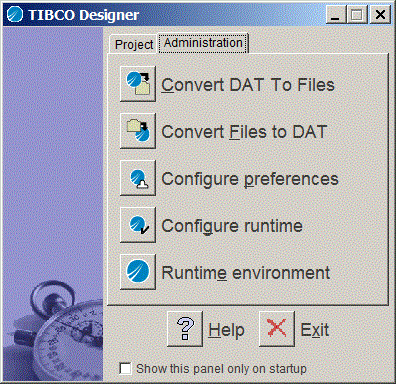
Displays a dialog that lets you specify the .dat file you wish to convert and the folder for the multi-file project. Because .dat files are a legacy format, you must convert to a multi-file project before you can open a project from TIBCO Designer.
Displays a dialog that lets you choose a project directory and a .dat file. When you specify both, TIBCO Designer converts the multi-file project in the directory to the .dat file.
Displays the Preferences dialog. See TIBCO Designer User’s Guide for more information.
Extended Class Path—classpath to be used by TIBCO Designer. Users can specify file names or directories. If they specify directories then all .class, .zip and .jar files will be loaded. The order in which they are loaded depends on the file system.
Use the Export Runtime Settings button to create a file with all pertinent information.

Copyright © Cloud Software Group, Inc. All Rights Reserved