Copyright © Cloud Software Group, Inc. All Rights Reserved


Chapter 1 Getting Started With TIBCO Designer : Customizing the Display

Customizing the Display
You can customize how TIBCO Designer displays panels and palettes. This section gives an overview of the most frequently used display preferences.
Display preferences and other preferences are saved when you exit TIBCO Designer, even if you do not save your project. Display preferences are maintained for each user, even if that user completely uninstalls the product and installs a different version.
To return to the default settings, select Edit > Preferences and click Restore Default Settings.
Choosing Panel Layout
If you prefer to view either the project tree or the palette panel, but not both in the left panel, you can set TIBCO Designer to display the three-panel view shown in Figure 7. The view also uses drop downs, rather then tabs to access the project, global variables or palettes.
Figure 7 The three-panel view
To Choose the Three-Panel View
1.
Choose Edit>Preferences>View.
2.
Under Layout, select the appropriate icon and click OK.
To navigate to palettes in this view, click the Palettes tab on the left (see Figure 8). The next diagram shows the results of this action.
Figure 8 Three-panel view with palettes selected
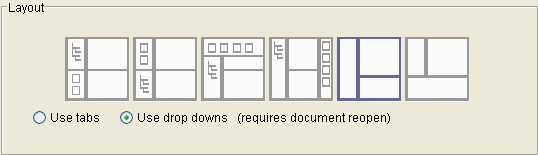
Additional layout options are available when you choose Edit > Preferences > View. If you select the Use tabs or Use drop downs option, you must close and reopen your project to make the change visible.
Figure 9 Layout options
Choosing Palette Mode or Non-palette Mode
TIBCO Designer allows you to change the palette panel display to use palette mode or non-palette mode.
While in palette mode, you can close individual palettes using the close marker (X) on the right. If you don’t see close markers, choose Palettes > Options> Show Close Boxes. To hide close markers, choose Palettes > Options> Hide Close Boxes.
To redisplay a closed palette, choose Palettes > Browse, then locate and select the palette.
Figure 10 illustrates the palette panel in palette mode and non-palette mode.
Figure 10 Palette mode vs. non-palette mode
To Switch Palette Modes
Choose Palettes>Options>Switch Palette Modes
or
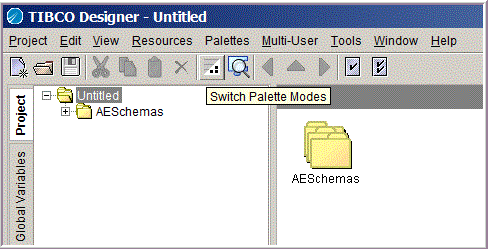
Click the Switch Palette Modes button located in the tool bar.
 
Displaying Palettes in a Separate Window
You can display the palette panel in a separate window by choosing Palettes > Options > Show Palettes in New Window. You can also access this menu command from the right-button menu of any palette in the palette panel.
To restore the palette panel to its location in the main window, close the separate window in which the palette panel is displayed.
Working With User Palettes
User palettes allow you to save a collection of resources to a predefined location and either share it with other users or use it yourself at a later time.
To Create a User Palette
To add a user palette, follow these steps:
1.
Choose Palettes > My Palettes > New Palette.
2.
When you later save your project, the palette is saved to the location specified by the User Palette Directory General Preference.
3.
4.
When you save your project, the custom palette is then saved to the location specified by the User palette directory under the General tab in the Preferences dialog.
To Load a User Palette
1.
Choose Palettes > My Palettes > Reload Palettes.
To Delete a User Palette
1.
2.
Choose Palettes > My Palettes > Delete Palettes.
You are prompted for the palette(s) you wish to delete.

Copyright © Cloud Software Group, Inc. All Rights Reserved