|
| Copyright © Cloud Software Group, Inc. All Rights Reserved |
Activities can use output from previously executed activities by mapping data from the process variable to the activity’s input. See Input for more information about the Input tab and mapping process data to an activity’s input.There are two process variables that are available to all activities that accept input: $_globalVariables and $_processContext. $_globalVariables contains the list of global variables defined on the Global Variables tab of the project. See Global Variables for more information about global variables. $_processContext contains general information about the process, such as the process ID, the project name, whether the process was restarted from a checkpoint, and so on.
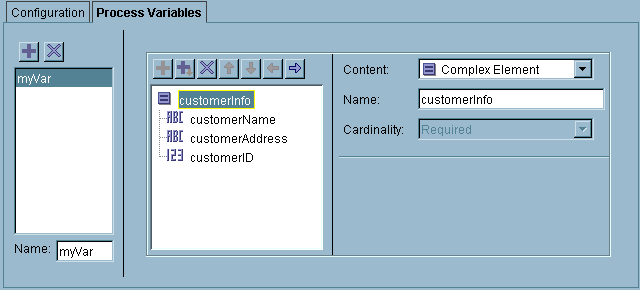
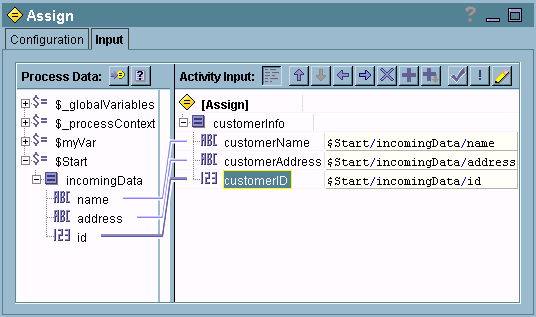
Only global variables that have the Deployment option checked (on the advanced editor dialog) are visible in the $_globalVariables process variable. Also, only global variables with well-formed XML names (for example, names containing a % are not well-formed) appear in the $_globalVariables process variable. However, global variables of the type ’Password’ are not listed under the $_globalVariables process variable.When an error occurs in a process, the data pertaining to the error is placed into process variables. The $_error process variable contains general error information. Activities can also have error process variables named $_error_<activityName>. In the event of an error, the activity’s error variable is populated with the appropriate error schema.See Chapter 10, Error Handling for more information about handling errors and error process variables.You can define your own process variables and assign values to them in your process definition. Process variables are defined on the Process Variables tab of the Process Definition resource. You create a process variable in the same way you create data schemas for activities. See Editor for more information about creating data schemas.Figure 23 illustrates creating a process variable. You add a process variable and give it a name in the left-most panel, then you create its schema in the middle panel.Figure 23 Creating a process variableTo assign a value to a user-defined process variable, use the Assign activity. Assign allows you to specify which process variable you wish to modify. Only user-defined process variables can be modified. You can then specify a new value for the process variable in the Input tab of the Assign activity. Figure 24 illustrates assigning a value to a user-defined process variable.See TIBCO ActiveMatrix BusinessWorks Palette Reference for more information about the Assign activity.Memory saving mode can reduce the memory used by actively running process instances, as well as potentially improve the performance of checkpoints. By default, memory saving mode is disabled, but you can enable memory saving mode for specific process instances by setting the EnableMemorySavingMode.<processname> property to true. You can enable memory saving mode for all process instances by setting the EnableMemorySavingMode property to true.See TIBCO ActiveMatrix BusinessWorks Administration for more information about setting properties.
|
| Copyright © Cloud Software Group, Inc. All Rights Reserved |