|
|
| Copyright © Cloud Software Group, Inc. All Rights Reserved |
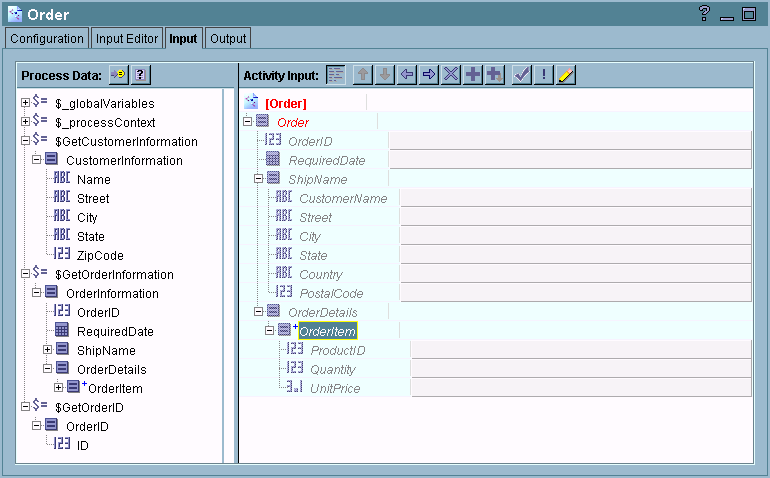
The Input tab of an activity allows you to supply the data that an activity expects as input. On the Input tab, you can see the available process data and the activity’s expected input. The process data and activity input are represented as schema trees. Figure 25 illustrates an activity’s Input tab.Figure 25 An activity’s input tabYou can also use your own XSLT templates to perform transformations instead of using the techniques described in this chapter. You can paste XSLT into your activity input or use the XSLT File shared configuration resource and the Transform XML activity. See TIBCO ActiveMatrix BusinessWorks Palette Reference for more information and examples of using XSLT to perform mapping.When an activity is first dragged from a palette to the design panel, the activity’s input elements are displayed as hints. These hints show you the data the activity expects as input. Each element can be required or optional. Required elements must have a mapping or formula specified. Once a mapping or formula is specified, a hint becomes an XSLT statement. See Statements, Hints, and Errors for more information about hints and statements.Most options in the Mapping Wizard dialog are straightforward. However, there are some complex scenarios that require multiple steps. Many of these situations are described in the section Examples of Mappings. You may also wish to refer to XSLT Statements for a reference of XSLT statements when deciding which XSLT statement can be used to achieve the result you desire.You can specify XPath formulas to transform an element if you need to perform more complex processing. The XPath Formula Builder allows you to easily create XPath formulas. For more advanced use of XPath, see Chapter 9, XPath. There are also a variety of third-party books and resources about XSLT and XPath.Once you specify a statement in the Activity Input panel and apply the change to the activity, it becomes part of the XSLT template used to create the activity’s input data. These statements are saved as part of the activity in the repository. Statements are only deleted if you manually delete them using the delete button, or if you use the Mapper Check and Repair button to automatically fix errors. Therefore, if the input schema for the activity changes, your statements may no longer be valid. See Repairing Incorrect Mappings for more information about using the Mapper Check and Repair button to fix statements in the activity’s input.Any statement or hint that has an error is displayed in red. A hint is only displayed in red if it is a required input element. All required input elements must have statements specified. If a statement is red, you must fix the error before executing this process definition. The Mapper Check and Repair button can help you automatically fix some errors. See Repairing Incorrect Mappings for more information about fixing errors.
|
|
| Copyright © Cloud Software Group, Inc. All Rights Reserved |