|
| Copyright © Cloud Software Group, Inc. All Rights Reserved |
One of the most common uses of XPath is to filter a list for specific elements. XPath expressions have search predicates for performing filtering. In the Activity Input area, when a search predicate is required, it appears as [<< Filter >>] to indicate that you must supply the filter expression. For example, you may wish to select a specific order from a list of orders where the item ordered is itemID #34129. To do this, the XPath expression might be: $RetrieveOrders/Order[itemID=34129].You can use any valid XPath expression in the XSLT statements in the Activity Input area. See Chapter 9, XPath for more information on how to use XPath.
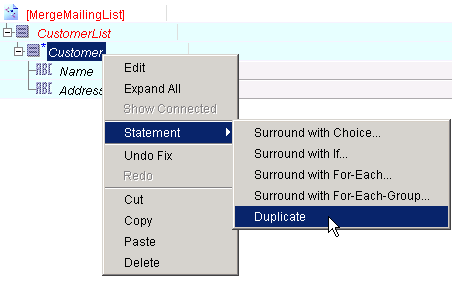
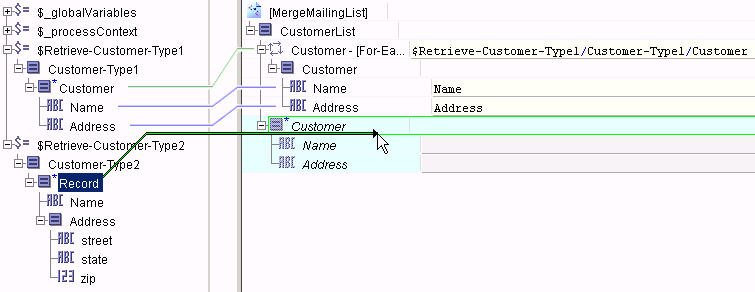
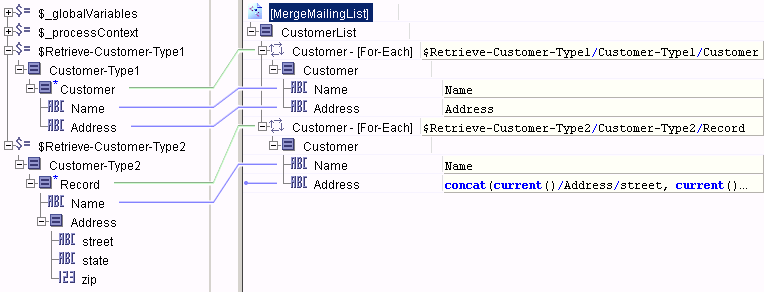
1. Select the repeating element in the Activity Input area, right-click, and select Statement > Duplicate from the popup menu.
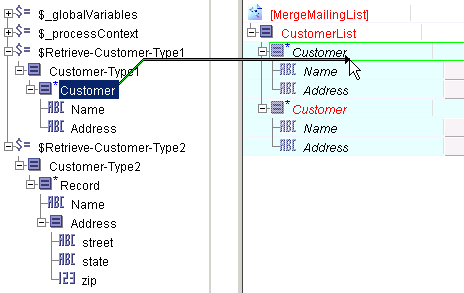
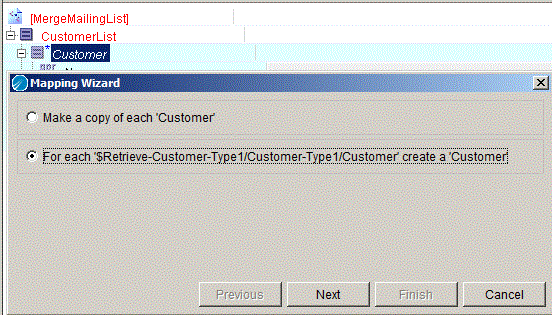
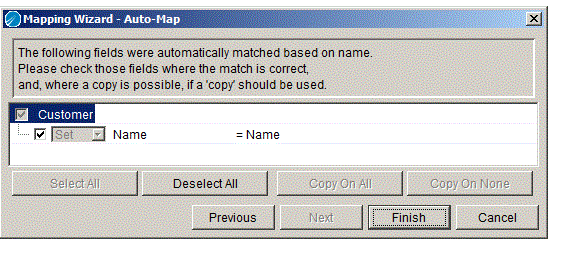
2. Map one of the elements from the Process Data to the first copy of the repeating element in the activity input. For example, map $Retrieve-Customer-Type1/Customer to MergeMailingList/CustomerList/Customer.The mapping wizard asks if you wish to automatically map items with the same names. Click Finish to accept the default mappings.
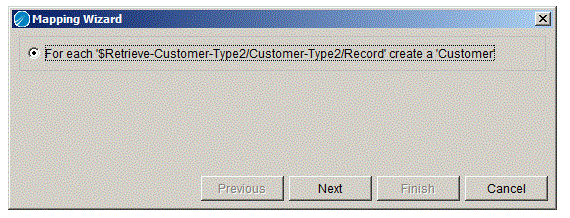
3. Map the other element from the Process Data to the second copy of the repeating element in the activity input. For example, map $Retrieve-Customer-Type2/Record to MergeMailingList/CustomerList/Customer.
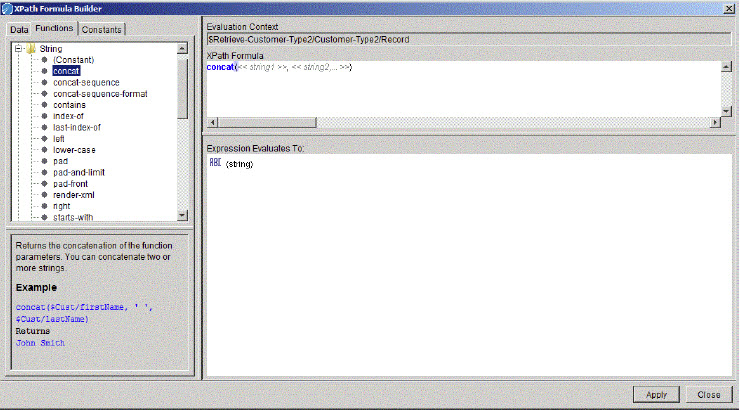
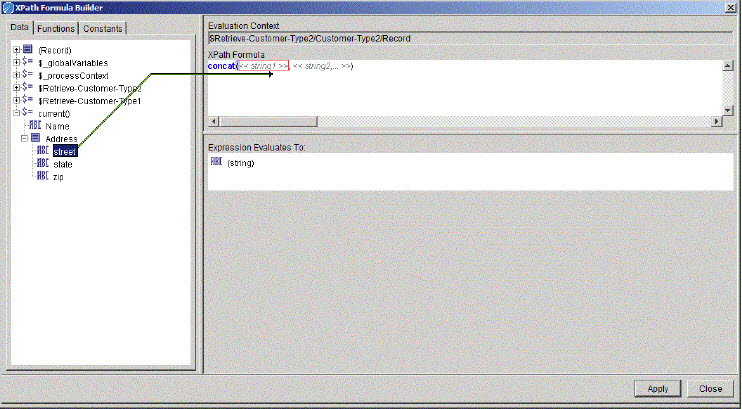
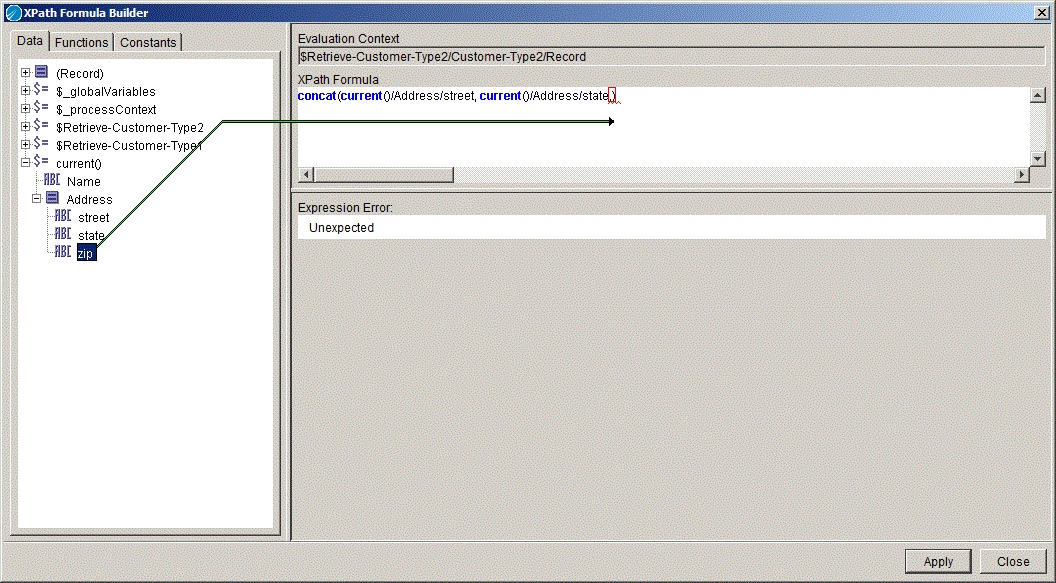
4. Select the Address element and click the XPath Formula Builder icon in the Input tab toolbar. In the XPath Formula Builder, drag a concat() function into the XPath Formula field. This function is used to concatenate the three elements in the Record element in the process data area to one Address element in the activity’s input.Click the Data tab, then drag the $current()/Address/street element into the << string1 >> placeholder in the concat() function.Drag the $current()/Address/state element into the << string2 >> placeholder in the concat() function. Then, add a comma to the end of the function to include a third string to concatenate. Drag the $current()/Address/zip element into the position of the third string in the concat() function.
5.
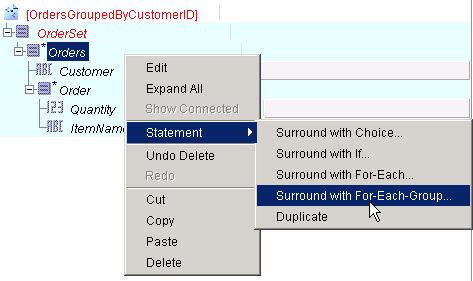
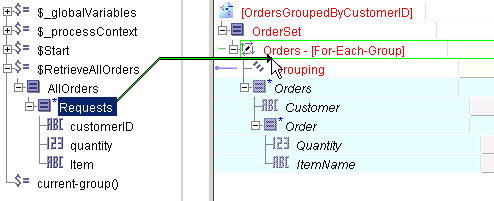
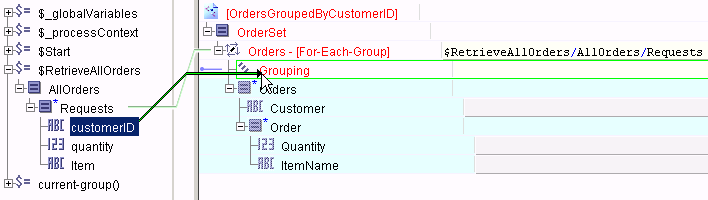
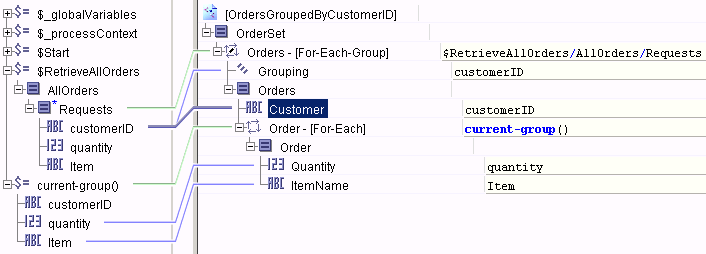
1. Choose the repeating element in the Activity Input schema that holds the grouped data. In this example, that element is Orders. Right-click on this element and choose Statement > Surround with For-Each-Group... from the pop-up menu. This is a shortcut to create a For-Each-Group statement with the Orders element as a child element and a Grouping statement to contain the element you wish to group-by.Adding the Grouping statement creates the $=current-group() element in the Process Data area. The Grouping statement creates the list grouped by the desired element, and the current-group() function allows you to access the items in the Requests repeating element that correspond to the group that is currently being processed.
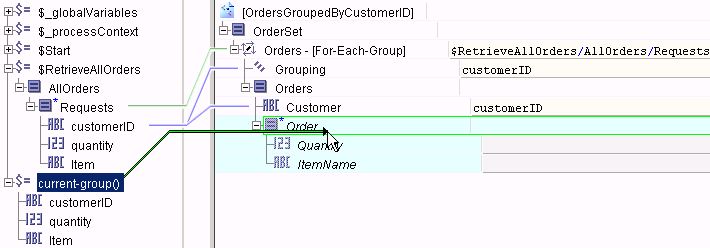
4. Map the current-group() element in the Process Data area to the repeating element Order under the Customer element in the Activity Input area.This creates an item in the Order list for each item in the current customer ID group that is being processed. The mapping wizard asks if you wish to map items with the same name in the current group and the orders group.
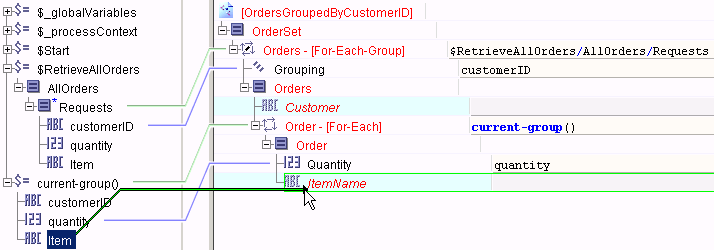
5. Map the remaining element from the current-group() element into the desired element in the For-Each group. In this case, quantity would map to Quantity automatically, and Item must be mapped to ItemName.
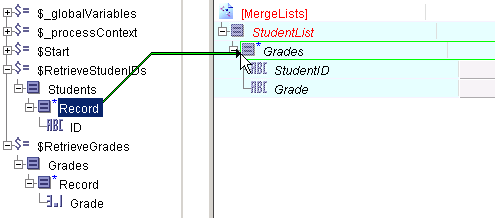
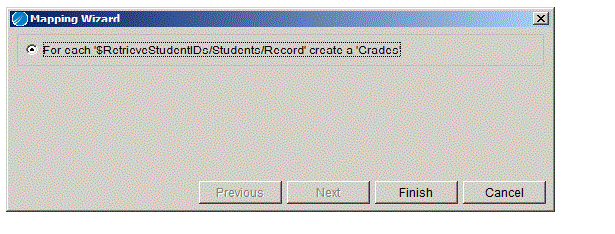
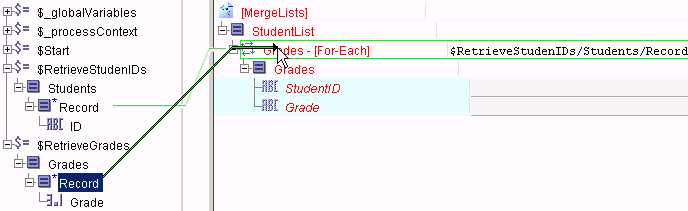
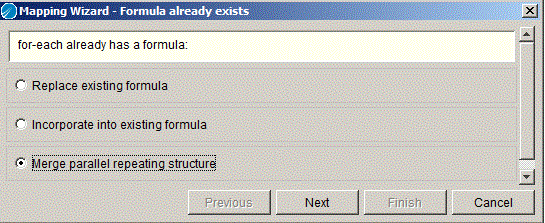
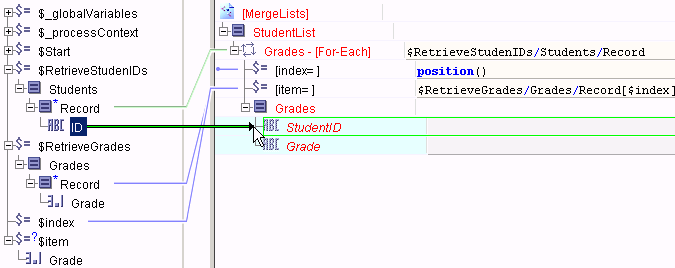
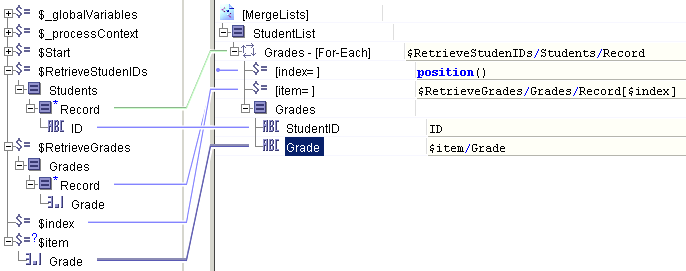
1. Map the first repeating element from the Process Data area into the Grades repeating element in the Activity Input area. In this example, the $RetrieveStudentIDs/Students/Record is the first repeating element.This brings up the mapping wizard with the default choice of creating a For-Each statement. Click Finish in the Mapping Wizard dialog to create the For-Each statement.The $=[index=] element contains the XPath formula position() to set the element with the current position number of the list item being processed. The $=[item=] element contains a statement to retrieve the item in the second repeating element that corresponds to the position of the item in the first list that is currently being processed.
5.
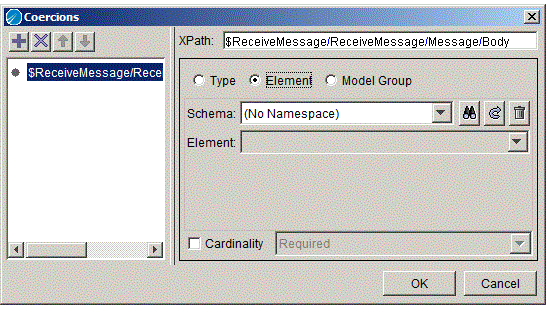
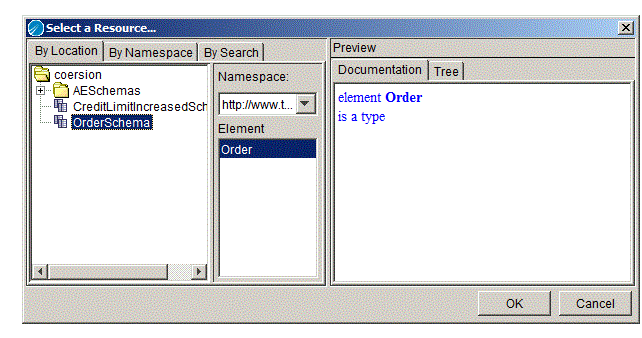
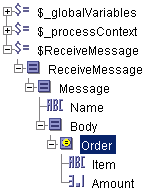
6. The following procedure describes how to coerce the Body element of the incoming message into a specific datatype and map it to a choice element.
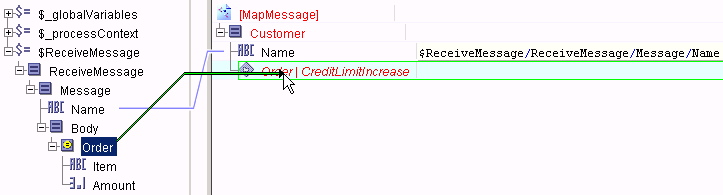
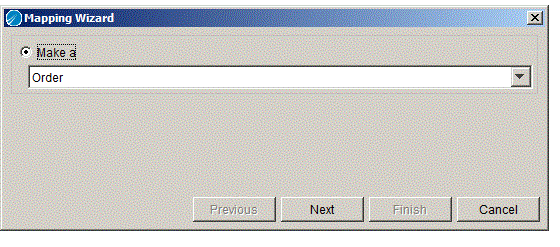
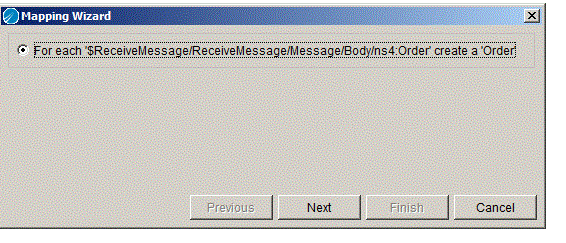
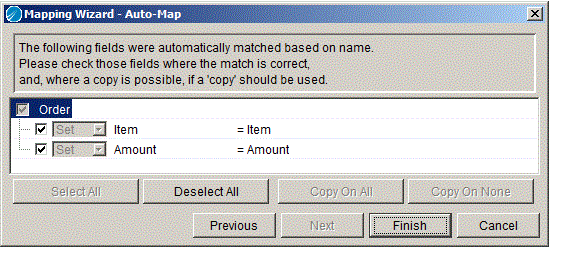
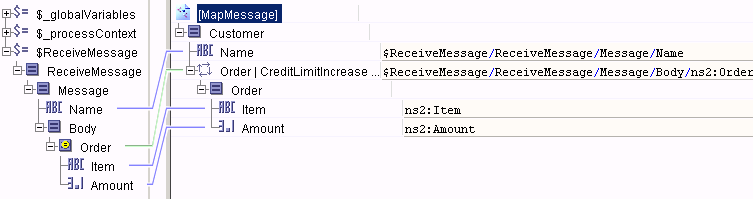
3. Map the Name element to the Name element in the Activity Input area. Then, map the coerced Order element to the choice element in the Activity Input area.The Mapping Wizard dialog appears and asks if you wish to create an Order or a CreditLimitIncrease element. Select Order and click Next.The Mapping Wizard then asks you to create a For Each. Even though there is only one element in the Process Data schema (the Message element is not repeating), a For Each is used because this construct allows you to map the individual items of the Order element. Click Next to continue.
|
| Copyright © Cloud Software Group, Inc. All Rights Reserved |