|
|
| Copyright © Cloud Software Group, Inc. All Rights Reserved |
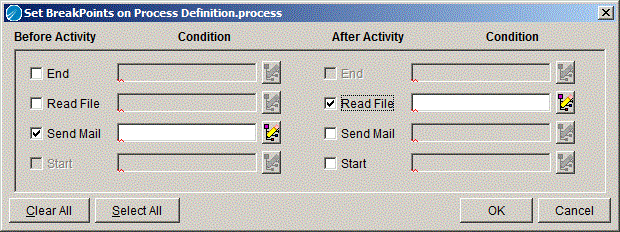
To set a breakpoint, click the Set Breakpoint buttonand the Set Breakpoint dialog appears. The dialog allows you to select where to place a breakpoint relative to any of the activities in the current process definition. Figure 69 illustrates an example of the Set Breakpoint dialog.
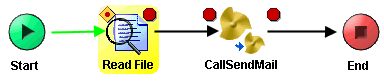
Figure 69 Set BreakPoints dialogWhen a breakpoint is set on an activity, a red octagon (a stop sign) appears next to the task’s icon to indicate the task has a breakpoint. A breakpoint before the activity appears to the top left of the activity. A breakpoint after the activity appears to the top right of the activity. Figure 70 illustrates a process diagram that has breakpoints set before and after two activities.Figure 70 Setting a breakpointWhen a process instance is stopped at a breakpoint, the breakpoint icon becomes a stop sign inside a yellow triangle to indicate where the process instance has stopped. Figure 71 illustrates the example process definition when the process instance is stopped at the breakpoint before the ReadFile activity.Figure 71 Process instance stopped at a breakpoint
|
|
| Copyright © Cloud Software Group, Inc. All Rights Reserved |