Copyright © Cloud Software Group, Inc. All Rights Reserved


Chapter 19 Sharing Common Resources with Other Projects : Creating an Alias

Creating an Alias
Use these steps to create an alias. After creating an alias, it can be used in an AliasLibrary or LibraryBuilder resource.
1.
Click Edit > Preferences.
2.
Click the File Aliases tab.
3.
Click New.
4.
Under the Alias column, double-click and provide an alias name.
5.
Under the File Path column, double-click and navigate to the design-time library location. Select the file name and click Open.
6.
Click OK.
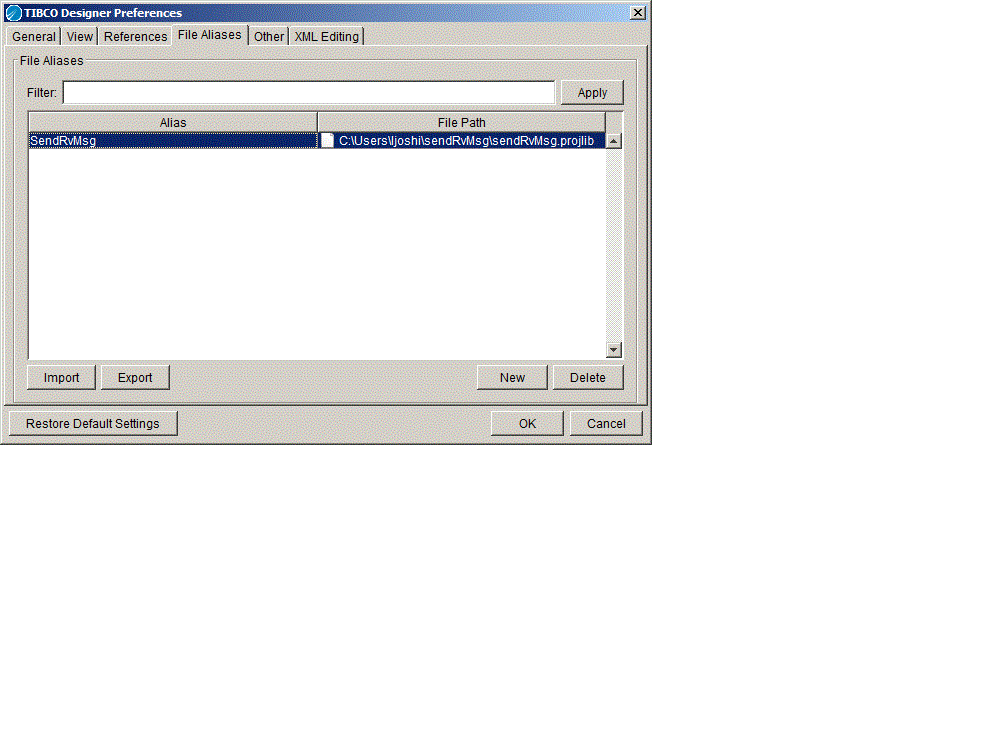
The next diagram shows an alias defined.
Exporting an Alias
1.
Click Edit > Preferences.
2.
Click the File Aliases tab.
3.
Click Export to save the alias list so others can use it.
4.
5.
6.
Click Save.
Importing an Alias
1.
Click Edit > Preferences.
2.
Click the File Aliases tab.
3.
Click Import to add a previously exported alias list to your preferences.
4.
5.
Click Open.
6.

Copyright © Cloud Software Group, Inc. All Rights Reserved