|
| Copyright © Cloud Software Group, Inc. All Rights Reserved |
A LibraryBuilder resource is the basis for a design-time library. Before creating a design-time library, you must have access to a LibraryBuilder resource alias.Aliases are used to manage access to LibraryBuilder resources. The aliases you create are saved in your user profile and available to all projects you create on your machine. Other developers can export aliases to LibraryBuilder resources, so they can be imported into other projects.When you add a LibraryBuilder resource to a project you can create an alias to it when loading the library, or pick an alias and load the corresponding library.
• Clicking New when adding a LibraryBuilder resource allows you to define an alias and load the LibraryBuilder resource in one operation. The alias is then added to your alias list.
• To update a LibraryBuilder resource, delete the alias to it, then add it back.
• To delete a LibraryBuilder resource from a project, delete the alias to it.
1. Open the project to which the LibraryBuilder resource will be added.
2. Click Project > Save.
4. Click the Design Time Libraries tab.
5. Click Pick if you have an alias defined for the library. Select the file alias for the design time library.Click New and navigate to the location of the design-time library. After you click Apply, a new alias for the library is added to your alias list.
6. Click OK.
7. Click Apply.
3. Click the Design Time Libraries tab.
5. Click Delete.
6. Click Apply.
7. Click Pick.
9. Click OK.
10. Click Apply.
3. Click the Design Time Libraries tab.
5. Click Delete.
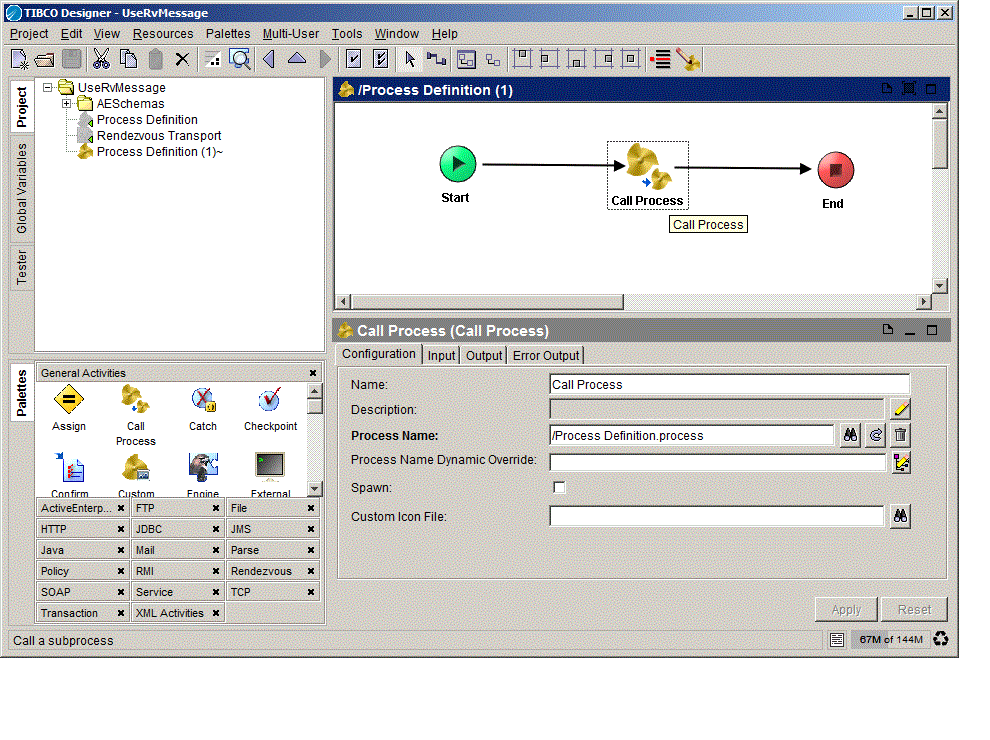
6. Click Apply.After you have added a LibraryBuilder resource to your project, you can use the resources defined in it. The resources display in the project view like other resources but, because they cannot be modified, they are greyed out and not editable.The next diagram shows a process that calls a process definition in the design-time library. The Process Name field points to the process definition in the design-time library.
1. Click Project > Hide Library Resources.
2. Click Project > Show Library Resources.
|
| Copyright © Cloud Software Group, Inc. All Rights Reserved |