Configuring BWAgent for PostgreSQL and TIBCO Enterprise Message Service
The BWAgent can be configured to use the PostgreSQL database with the TIBCO Enterprise Message Service (EMS) for persistence and transport.
Note: The database name must be unique per agent network if multiple networks share the same physical database. BWAgent and BWEngine support sharing the same database, users, and schemas.
Before you begin
- Install the latest TIBCO Enterprise Messaging Server and start the server.
- Install PostgreSQL. The PostgreSQL driver is available by default.
- Ensure you have installed EMS client libraries. For more information, see the "Integrating with TIBCO Enterprise Message Service™" section in the TIBCO ActiveMatrix BusinessWorks™ Installation guide.
- Optional. If you are upgrading to ActiveMatrix BusinessWorks 6.3.2, or later versions of the software, upgrade the database schema. For more information, see the "Updating the Database Schema to Enable BWAgent to Use Database with TIBCO Enterprise Message Service" section in the TIBCO ActiveMatrix BusinessWorks™ Installation guide.
- Procedure
- After installing PostgreSQL, create a database
bwadmindb and the database owner,
bwuser as described in the following steps:
- Run the following commands on the psql terminal:
> psql -p 5432 -c "CREATE USER bwuser WITH CREATEDB PASSWORD 'bwuser';"
> psql -p 5432 -c "CREATE DATABASE bwadmindb WITH OWNER bwuser;"
- To add a password for the database owner, expand Login Roles > bwuser, right-click, and choose Properties. Choose the Definition tab and create and save a password.
- Run the following commands on the psql terminal:
- Stop the BWAgent if it is running.
- Open the bwagent_db.json file in BW_HOME\config (Windows) or ${BW_HOME}/config (Unix).
- Update the following properties for your environment:
Property Name PostgreSQL Value dbtypepostgresqldbdriverorg.postgresql.DriverdbconnectionURLjdbc:postgresql://localhost:5432/bwadmindbdbuserbwuserdbpasswordbwuser - Run the BWAdmin
config command with the
-cf option push the changes from the JSON file to the
bwagent.ini file.
BW_HOME\bin>bwadmin config -cf ../config/bwagent_db.json agent - Restart the BWAgent.
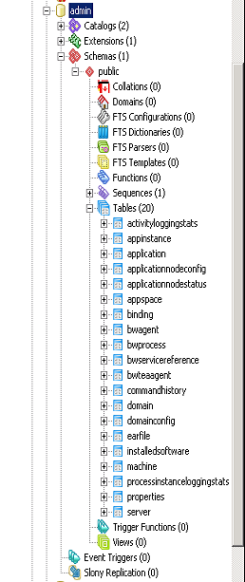
- Open the pgAdmin III utility and expand
in the
Object Browser to view the tables in the database: