Editing Application and Application Instance Properties
Application or application instance properties can be changed after deployment. You can then export a configuration and apply it to another application or application instance.
bwadmin Command Line
The profile for an application is located under the META-INF folder in the application's archive. The profile is the file with the extension .substvar. For more information on how to generate more than the default profile for an application, see Creating an Application with Multiple Profiles.
When the config command is applied to an application, the profile changes are applied to all application instances by default. To apply a profile change to a specific application instance, use the config -appnode option to identify the specific AppNode.
If the archive contains the WindowsProfile.substvar file, use the following command to update the profile:
BW_HOME\bin>bwadmin config -d MyDomain -a MyAppSpace
-n MyAppNode -p WindowsProfile.substvar application
MyApplication
If you want to use an encrypted profiles, make sure to configure your application archive. For more details, see Configuring an Application Archive.
Admin UI
From the Admin UI you can change the profile for all instances of the application, or for a single application instance.
- Procedure
- Select the application you want to configure on the
Applications page.
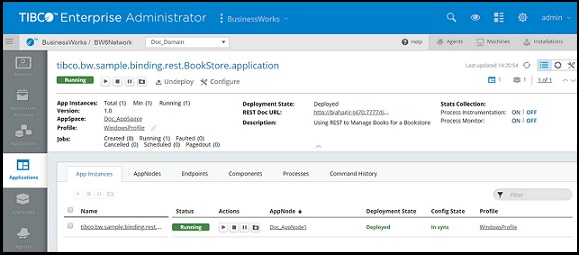
The Application page is opened, where you can view the application instances, the AppNodes each instance is deployed to, the deployment state, and the applied profile file.

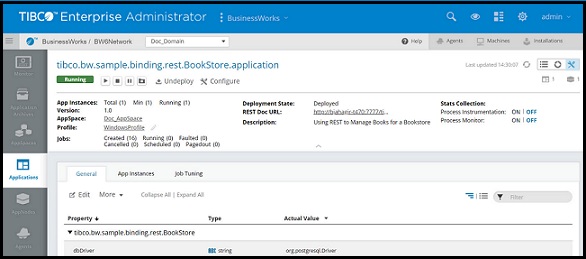
- To edit application or application instance properties, click the
Edit icon
 in the upper right of the
Applications page.
The Application Properties page is displayed.
in the upper right of the
Applications page.
The Application Properties page is displayed.
- Use the General tab to edit application properties and the AppInstances tab to edit application instance properties.
- Click
Edit on the
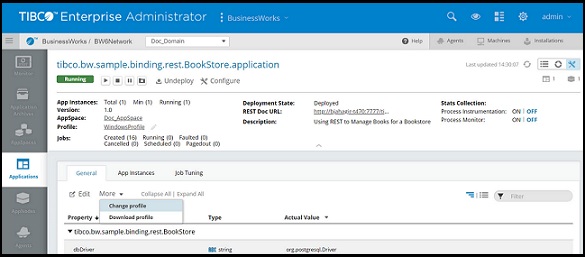
General tab to edit application properties.
- Click Submit to save the property changes and apply them to the application.
- Click
to open the
Change Profile dialog box where you can select a new profile to apply to the application or upload a new profile. Restart the application to apply the new profile.

- Click
Edit on the
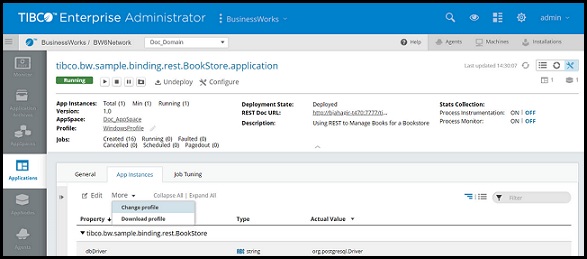
AppInstances tab to edit application instances properties. Select the instance (by AppNode)you want to edit.
- Click Submit to save the property changes and apply them to the application instance.
- Click
to open the
Change Profile dialog box where you can select a new profile to apply to the application instance or upload a new profile. Restart the application to apply the new profile.