Creating an AppNode
An AppNode is created under an AppSpace. The domain and AppSpace name apply to the AppNode.
Multiple AppNodes can be created for an AppSpace.
When creating an AppNode that is on a remote machine, ensure that:
- the remote bwagent is a part of the network.
- the name of bwagent running on the remote machine is specified.
The following characters are allowed in the AppNode name:
A-Za-z0-9-(hyphen)_(underscore)
Illegal characters are stripped from the name.
The maximum length of a runtime entity name is 100 characters. If the maximum length is exceeded, the entity name is shortened to 100 characters.
The appnode_config.ini_template file is available as a template to create a config.ini file for an AppNode. If you want to create an AppNode with some different configuration than the standard configuration, make changes in the appnode_config.ini_template file.
The appnode_config.ini_template is stored at {BW_HOME}\<version>\config location.
bwadmin Command Line
Use the create command to create an AppNode.
The bwagent must be running. Issue the following command to create an AppNode named MyAppNode in domain MyDomain and AppSpace MyAppSpace:
BW_HOME\bin>bwadmin create -d MyDomain -a MyAppSpace -httpPort 2222 appnode MyAppNode
The httpPort option is required for an AppNode. If the specified port is already in use, an error is displayed and the AppNode cannot be created. To get a list of defined AppNodes for a given domain, with port numbers, with the show command: show -d <DomainName> appnodes
The following command creates an AppNode MyAppNodeOnMac in the domain MyDomain and AppSpace MyAppSpace on a remote machine whose agent name is Machine2.
BW_HOME\bin>bwadmin create -d MyDomain -a MyAppSpace -httpPort 2222 -agent Machine2 appnode MyAppNodeOnMac
- To create an AppNode on a remote machine, the member name of the bwagent on the machine where the AppNode is run must be known in advance. Get the member name value by invoking the bwadmin show agents command on the remote machine.
- The validation of the HTTP ports is available by executing the command
validateport [options] port. For example,
bwadmin[admin]> validateport 2233
TIBCO-BW-ADMIN-CLI-300342: HttpPort [2233] is available within BW scope
Orbwadmin[admin]> validateport 344566 TIBCO-BW-ADMIN-CLI-500338: HttpPort is not valid
To know more about validateport command, execute the command validateport --help.
Admin UI
- Procedure
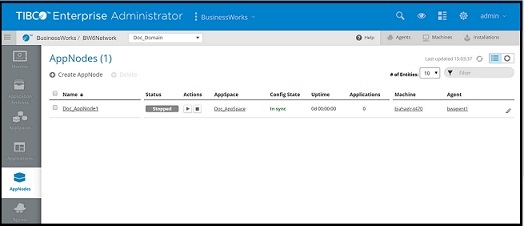
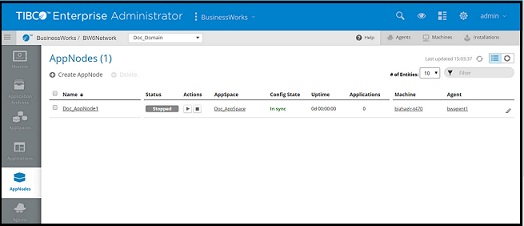
- Click AppNodes on the side bar to open the AppNodes page.
- Click
Create AppNode to open the
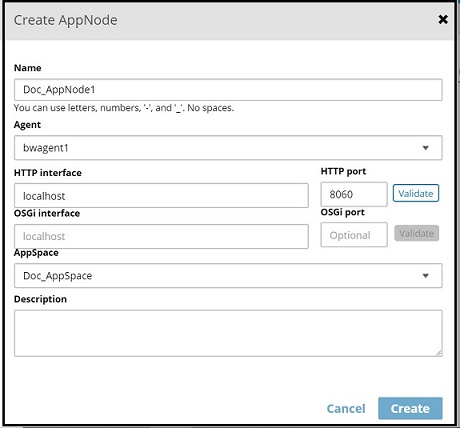
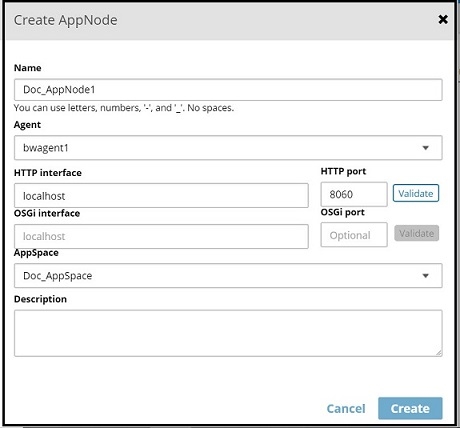
Create AppNode dialog box. Enter the following information:
Name: AppNode name.Agent: The bwagent registered with the TEA server.HTTP interface: The HTTP interface for the AppNode.HTTP port: The HTTP port for the AppNode. Click Validate to see if the port is available.Note: The Validate button validates the HTTP ports within the ActiveMatrix BusinessWorks scope only.OSGi interface: The OSGi interface for the AppNode. Open this port only for debugging sessions.OSGi port: The OSGi port for the AppNode. Open this port only for debugging sessions.AppSpace: The AppSpace for this AppNode.Description: Optional description.
- Click
Create.
The AppNode is created and displayed on the AppNode page. The AppNode status is set to Stopped.