Generating Reports for Engine Data
You can generate various reports under some conditions such as increased memory usage, high CPU usage, more live threads for certain time.
By default, ActiveMatrix BusinessWorks generates reports at . You can change the report location by setting the bw.smartengine.report.path={path_to_report_folder} property . You can also maintain a history or reports.
-
.
bw.smartengine.enabled=true
You can also enable the smart engine feature dynamically by using the following REST API:
http://<host>:<port>/monitor/systemproperties/enableSmartEngine
- Procedure
-
To get the application statistics in reports, set the
bw.smartengine.appStatistics.enabledproperty totrue.You can also enable the application statistics dynamically by using the following REST API:http://<host>:<port>/monitor/systemproperties/enableSmartEngine?bw.smartengine.appStatistics.enabled=true
Warning: You may observe performance degradation after setting the property. -
Optional. To get memory related details of process instances and activity output payload in reports,
For more information on setting the up the analyzer, see Collecting Performance Parameters with respect to Activities and Processes
Warning: You may observe performance degradation after setting the property. -
Based on your requirements to get data in the report, several triggers are available. For more information, see the list of available Triggers.
-
To keep specific number of reports for each type of performance use case at location, :
bw.smartengine.keepRecentReports.enabled=truebw.smartengine.keepRecentReports.size=5By default, smart engine stores previous five reports for each performance use case.
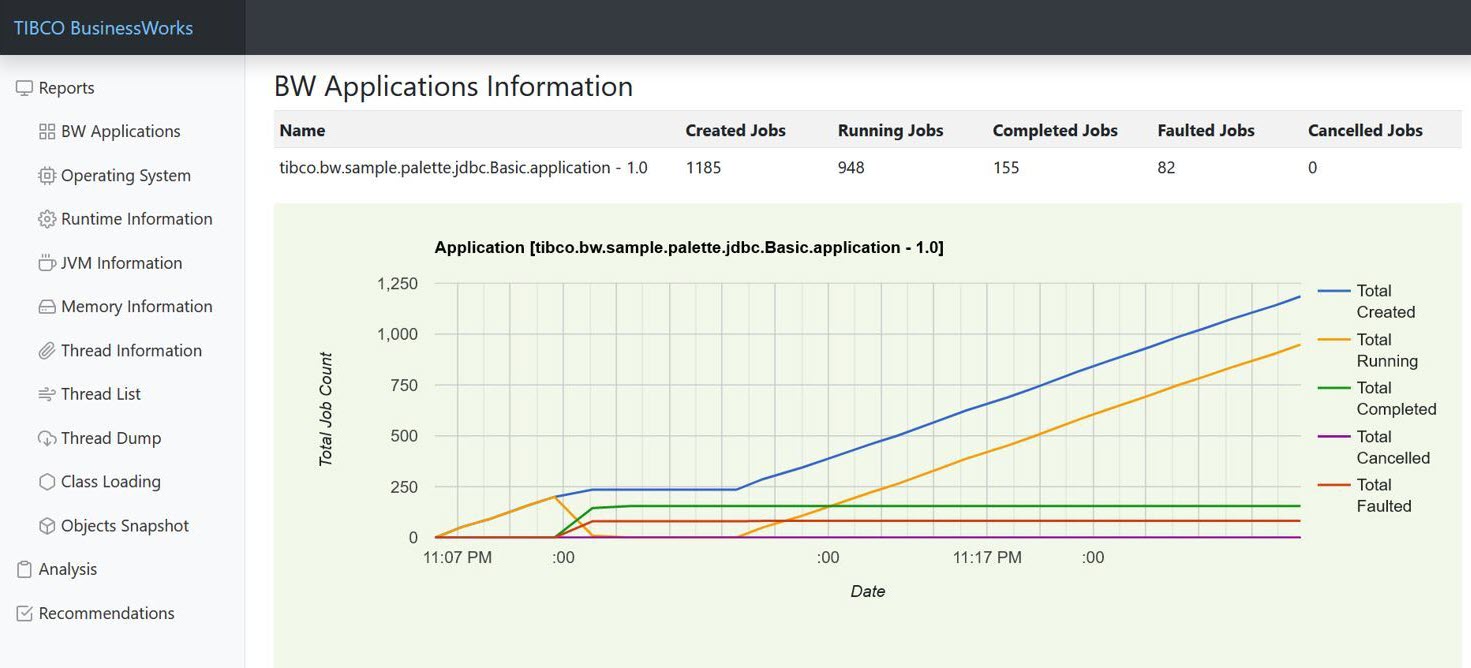
The HTML report has the following sections:
| Section | Description |
|---|---|
| BW Applications |
This section shows the ActiveMatrix BusinessWorks applications in a table. Each row shows the number of jobs for the ActiveMatrix BusinessWorks processes in an application, such as Created Jobs, Running Jobs, Completed Jobs, Faulted Jobs and Canceled Jobs. After the ActiveMatrix BusinessWorks applications table, line charts are shown for each application, such as Total Job Count chart and New Job Count chart. When an application has incoming HTTP requests, Total HTTP Connector Calls chart, and New Http Connector Calls chart are shown. For each ActiveMatrix BusinessWorks application, the ActiveMatrix BusinessWorks processes in the ActiveMatrix BusinessWorks application are shown in a table. Each rows shows the number of jobs for a ActiveMatrix BusinessWorks process, such as Created, Completed, Faulted and Suspended. After the ActiveMatrix BusinessWorks processes table, line charts are shown for each ActiveMatrix BusinessWorks process, such as Total Job Count chart and New Job Count chart. For each ActiveMatrix BusinessWorks process, the ActiveMatrix BusinessWorks activities in the ActiveMatrix BusinessWorks process are shown in a table. Each row shows the runtime information of an activity such as Recent Status, Executed, Faulted, Recent Elapsed Time (ms), Min Elapsed Time (ms), Max Elapsed Time (ms), Total Elapsed Time, Recent Activity Output Memory (bytes), Min Activity Output Memory (bytes) and Max Activity Output Memory (bytes). The processes and activities statistics data is available when the application statistics feature is enabled (e.g. bw.smartengine.appStatistics.enabled=true). The activity output memory data is available when the engine analyzer feature is enabled (bw.engine.analyzer.subscriber.enabled=true) |
| Operating System |
This section shows the operating system information in a table, such as OS Name, OS Version, OS Architecture, Available Processors, Committed Virtual Memory, Free Physical Memory, Total Physical Memory, Free Swap Space, Total Swap Space, JVM Process CPU Time, JVM CPU Load, System CPU Load, and System Load Average. After this table, line charts are shown, such as Free Physical Memory and Free Swap Space chart, JVM CPU Load and System CPU Load chart, and System Load Average chart. |
| Runtime Information | This section shows the runtime JVM information in a table, such as Process Name, Spec Name, Spec Vender, Spec Version, VM Name, VM Version, VM Vender, Management Spec Version, Start Time, Up Time, Class Path, Library Path, Input Arguments, and System Properties. |
| JVM Information |
This section shows the overall JVM information in a table such as PID, Java Vender, Java Name, Java Version, OS User, CPU Load, Up Time, GC Time, GC Count, GC Load, Max Heap, Used Heap, Used Non-Heap, Total Loaded Class Count, Thread Count, Peak Thread Count, and Total Started Thread Count. After this table, Top Threads information is shown in a table. Each row shows the data of a thread, such as TID, Name, State, Thread CPU Usage(%), Thread Total CPU Usage(%) and Blocked Thread. After that, Top Methods information is shown in a table. Each row shows the data of a method, such as Class Name, Method Name, and Total CPU Time(ms). |
| Memory Information |
This section shows the JVM memory information in a table, such as Max Heap Size, Committed Heap Size, Init Heap Size, Used Heap Size, Max Non-Heap Size, Committed Non-Heap Size, Init Non-Heap Size, and Used Non-Heap Size. After the table, line charts are shown, such as Heap Memory Usage chart and Non-Heap Memory Usage chart. |
| Thread Information |
This section shows the overall JVM threads information in a table, such as Thread Count, Daemon Thread Count, Peak Thread Count, Total Started Thread Count, Current Thread CPU Time, and Current Thread User Time. After this table, a Thread State Count table is shown. Each row shows the number of threads in a thread state, such New, Runnable, Blocked, Waiting, and Timed Waiting. After that, line charts are shown, such as JVM Thread Count chart and JVM Thread State Count chart. |
| Thread List | This section shows the JVM threads in a table. Each row shows the data of a thread, such as TID, Name, State, CPU Time(ms), and Allocated Heap Size. |
| Thread Dump | This section shows the JVM threads dump in a table. Each row shows the thread dump of a thread, such as TID, Thread Name, Thread State, Thread Allocated Heap, and Stack Trace. |
| Class Loading |
This section shows the JVM class loading information in a table, such as Loaded Class Count, Total Loaded Class Count, and Unloaded Class Count. After the table, a line chart of Classes Count is shown. |
| Objects Snapshot | This section shows the JVM objects in a table. Each row shows the data of an object, such as number of Instances, Allocated Heap Size, and Class name. |
| Analysis | This section shows the analysis of various performance use cases. When the triggers are evaluated, if a trigger condition is met for a performance use case, a corresponding analysis is provided and shown in the report. |
| Recommendations | This section shows the recommendations for various performance use cases. When the triggers are evaluated, if a trigger condition is met for a performance use case, related recommendations are provided by corresponding recommendation providers and shown in the report. |