Prerequisites
Before using the bulk insert error handling feature, make sure that the following two conditions are met already:
| • | Adding a Parameter |
| • | Configuring Bulk Insert Error Handling |
Adding a Parameter
Add the adb.<subscriber_service_name>.bulkInsertErrorHandling <on/off> property in the adbagent.tra file in the adapter installation bin directory: TIB_ADADB_HOME\bin.
This property indicates whether the bulk insert error handling feature in Subscription Service is enabled or not. Its default value is off. You can refer to the adbagent.tra file for the parameter format.scriber_Parameter for Enabling Bulk Insert Error Handling
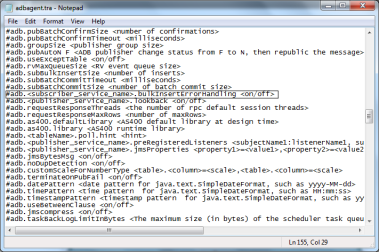
To enable the bulk insert error handling feature, change the <subscriber_service_name>to the Subscription Service name you created, and turn this parameter to on.
For example: adb.ADBSubscriber.bulkInsertErrorHandling on
After the adb.<subscriber_service_name>.bulkInsertErrorHandling property is set to on, all correct data is inserted into the destination table, error data is inserted into the exception table or opaque exception table, and all the data is confirmed. However, if the adb.useExceptTable property is set to off in the adbagent.tra file and no opaque exception table is specified, error data cannot be inserted into the exception table or opaque exception table. As a result, the adapter does not confirm the error data. Instead, the adapter inserts all the correct data into the destination table and just confirms the correct data.
Configuring Bulk Insert Error Handling
After creating an adapter instance and adding Subscription Service, you can configure Subscription Service with bulk insert error handling.
If you want to use separate sessions, perform the following steps:
Procedure
| 1. | Select the Subscription Service you created in the Project panel, and click the Configuration tab. Select the Use Separate Session check box in the Configuration tab and then click Apply. |
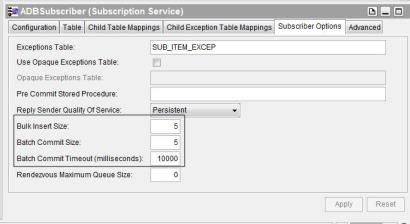
| 2. | Click the Subscriber Options tab and enter values in the Bulk Insert Size, Batch Commit Size, and Batch Commit Timeout (milliseconds) fields. Then click Apply. |
adb.subBatchCommitTimeout and adb.subBatchCommitSize properties in the adbagent.tra file. For details about these two properties, see Adapter Properties.Figure 208: Configuring Bulk Insert Error Handling
If you do not want to use separate sessions, perform the following steps:
Procedure
| 1. | Select the Subscription Service you created in the Project panel, and click the Subscriber Options tab and enter a value in the Bulk Insert Size field. |
| 2. | Set either of the following properties in the adbagent.tra file to configure batch commit: |
| — | adb.subBatchCommitTimeout and adb.subBatchCommitSize (with precedence) |
| — | adb.<default session name>.subBatchCommitTimeout and adb.<default session name>.subBatchCommitSize |
For details on how to configure batch commit without using separate sessions, see Configuring Batch Commit for Subscription Service.