Copyright © Cloud Software Group, Inc. All Rights Reserved


Chapter 10 Using TIBCO ActiveMatrix BusinessWorks Plug-in for SWIFTNet - FIN : BICPlusIBAN Generator

BICPlusIBAN Generator
The SWIFTNet BICPlusIBAN Generator allows you generate the IBAN. The inputs to the generator are country code and BBAN, and the output is the IBAN.
IBAN (International Bank Account Number) is an international standard for identifying bank accounts across national borders with a minimal risk of propagating transcription errors. IBAN imposes a flexible but regular format sufficient for account identification, and contains validation information to avoid errors of transcription.
The SWIFTNet BICPlusIBAN Generator is a TIBCO ActiveMatrix BusinessWorks activity and is enabled only after you select a process.
From Table 30, you can get the following information:
The BBAN (Basic Bank Account Number)  consists of the IBAN national ID and account number. The IBAN national ID itself includes a bank identifier and a branch identifier. Based on the international standards, the length of the bank identifier and the branch identifier are different with different countries.
Bank identifier - a standardized and unique code that is used to identify a specific bank. For example, the length of the bank identifier for Greece is 3-character, which is 060 in the Table 30.
Branch identifier - part of the branch prediction system that gives and address to indicate if there is a branch at that address, and possibly what type of branch (conditional, call, return, indirect, and so on.) it is. For example, the length of the branch identifier for Greece is 4-character, which is 1095 in the Table 30.
Generating the IBAN
Before processing the BICPlusIBAN Generation activity, you need to set the heap size to 1024 M in case the memory outbound error occurs.
Assume that you are required to generate the IBAN for Germany, then you must complete the following tasks.
Task A File Download
The BICPlusIBAN files are available as download packages. You can download BICPlusIBAN:
From the SWIFTNet Portal, over SWIFTNet (using Browse, and Alliance WebStation or Starter Set): for more information about SWIFTNet Portal, see the SWIFTNet Portal User Guide, available on www.swift.com > Support > Documentation.
SWIFT now supports the automated download of BICPlusIBAN files from www.swift.com. BICPlusIBAN files are also distributed over FileAct.
Task B Configuring the BICPlusIBAN Generator
Before generating the IBAN, go through the following steps to configure the BICPlusIBAN generator:
1.
Start TIBCO Designer, and click the New Empty Project button. The Save Project dialog appears.
2.
Click the Browse button in the Save Project dialog. Create a directory to store the project: C:\tibco\projects\IBANGeneration. Then click the OK button, the project files will be saved in the IBANGeneration folder.
3.
Drag the Process icon from the Palettes panel to the Design panel, then double-click the Process icon in the Design panel.
4.
Drag the SWIFTNet BICPlusIBAN Generator icon from the Palettes panel to the Design panel. In the Configuration tab, browse to the directory where the BICPlusIBAN files is saved and select it.
Within one project, the value of the BICPlusIBAN directory in BICPlusIBAN generator must be consistent with the one in BICPlusIBAN validator.
When you are working with two different projects and setting the same value for the BICPlusIBAN directory. You must finish processing the first project, then start to process the second project.
5.
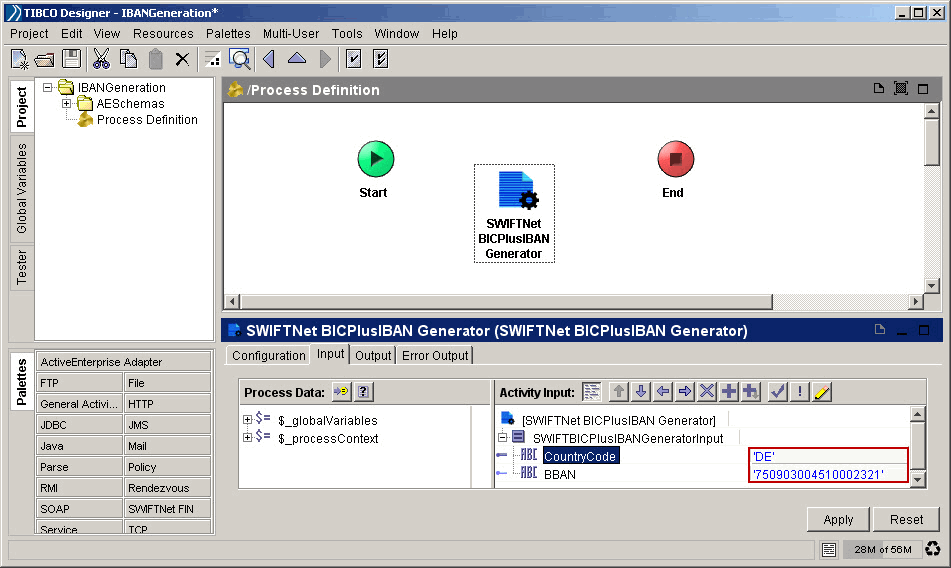
Click the Input tab, expend the SWIFTBICPlusIBANGeneratorInput item in the Activity Input panel, then enter the values in the CountryCode and the BBAN fields. See Figure 23.
6.
Click the Apply button. Select Project > Save from the Menu.
Figure 23 Input of the SWIFTNet BICPlusIBAN Generator
Task C Generating the IBAN
1.
In the Design panel, make the transition connection for the SWIFTNet BICPlusIBAN Generator, then click the Tester panel, and click the Start Testing Viewed Process button.
2.
In the Process Selection dialog that appears, the process checkbox is checked by default. Click the Load Selected button. When the process executes, you will find the black arrows that point to each activity have turned to green.
3.
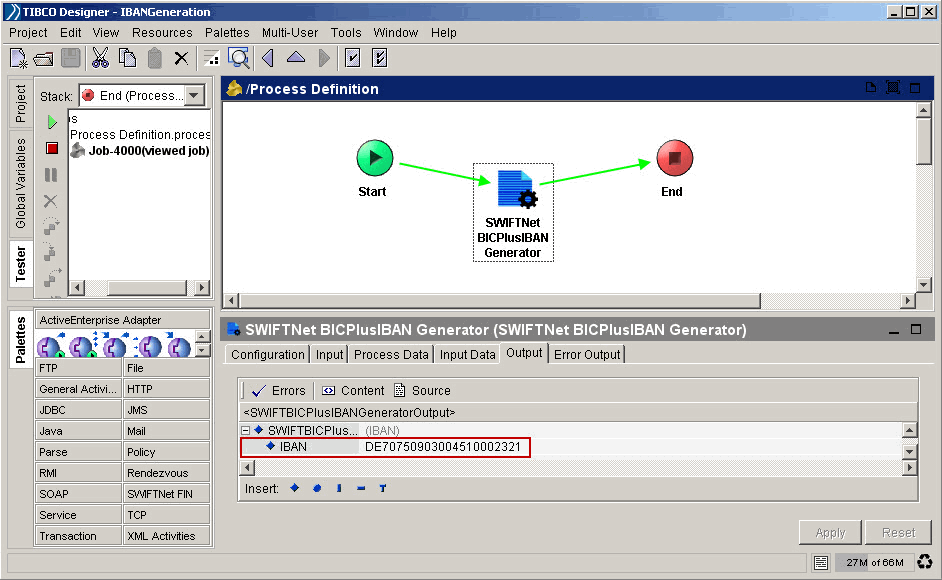
Click the Stop Testing icon to return to design mode. Then click the SWIFTNet BICPlusIBAN Generator icon, and click the Output tab, the generated IBAN is displayed in the IBAN filed. See Figure 24.
Generate Check Digit - the check digit enables the sending bank (or its customer) to perform a sanity check of the routing destination and account number from a single string of data at the time of data entry. It is guaranteed to detect any instances where a single character has been omitted, duplicated, mistyped, or where two characters have been transposed. Thus routing and account number errors are virtually eliminated.
Figure 24 Output of the SWIFTNet BICPlusIBAN Generator

Copyright © Cloud Software Group, Inc. All Rights Reserved