
Configuring TIBCO ActiveMatrix BPM to Use Integrated Windows Authentication With SQL Server
You can configure the communication between TIBCO ActiveMatrix BPM and the database to use Integrated Windows Authentication (IWA) rather than the database user account.
- Connect to SQL Server Management Studio 2008 as an administrator of the SQL Server Instance.
- Right-click your SQL Server instance and select Properties. The dialog for your SQL Server Instance displays.
- Select Security and make sure that SQL Server and Windows Authentication mode is selected.
- Click OK to close the Server Properties dialog.
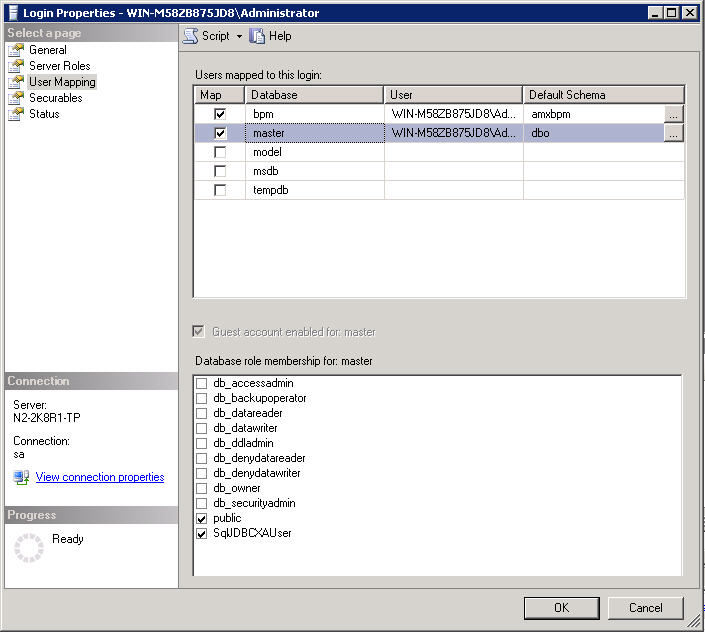
- Drill down to SQL_server_instance and right-click on the username of the login that TIBCO ActiveMatrix BPM runs as. By default this user is machinename/Administrator where machinename is the name of the machine where you have installed TIBCO ActiveMatrix BPM. The Login Properties dialog for the username displays.
- Select User Mapping.
- From the Users mapped to this login box, select BPM to add the current username as a user in the bpm database.
- From the Default Schema box, click Browse. The Select Schema dialog displays.
- Click Browse and select the amxbpm schema. Click OK twice to close the dialogs.
- In the Database role membership for: BPM box, select the following memberships:
- From the login Properties dialog, click Server Roles. Deselect all the server roles except public.
- From the login Properties dialog, click User Mapping.
- From the Users mapped to this login box, select Master to add the current username as a user in the Master database.
- From the Default Schema box, click Browse. The Select Schema dialog displays.
- Click Browse and select the dbo schema. Click OK twice to close the dialogs.
- In the Database role membership for: BPM box, select the following memberships:
- Login into TIBCO Administrator.
- Click .
- From the Nodes box, select your BPM node and click Stop.
- Click . From the Resource Templates box, select DataSource. The DataSource box is displayed.
- Click Advanced Configuration. Click Add to add a new Datasource property.
- In the Name box, type integratedSecurity.
- In the Value box, type true.
- Click Save to save your changes.
- Click .
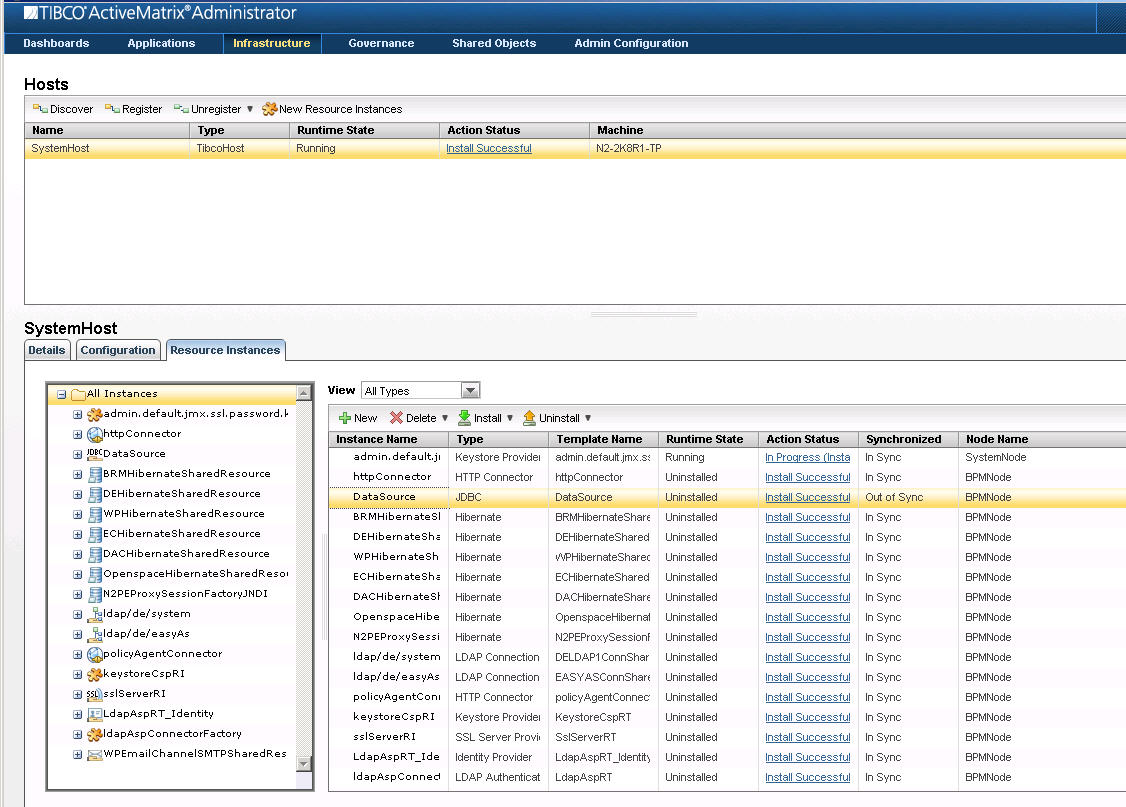
- From the Hosts box, click systemhost. The systemhost box is displayed.
- Click Resource Instances.
- Click the All Instances folder and the list of instances displays on the right. Select DataSource. In the Synchronised column, the value is Out of Sync.
- Click Install. Once the new datasource is installed, the Action Status should change to Install Successful.
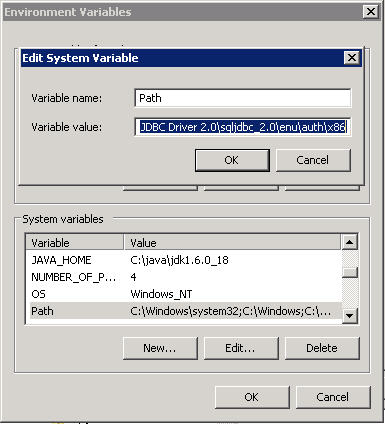
- Add the location of the sqljdbc_auth.dll from the folder where you installed your JDBC 2.0 drivers to your PATH system variable, as shown below
- From TIBCO Administrator, click .
- From the Nodes box, select your BPM node and click Start.


Copyright © Cloud Software Group, Inc. All rights reserved.