Configuring Private Processes in TIBCO Designer
To configure private processes in TIBCO Designer:
-
Opening the TIBCO ActiveMatrix BusinessWorks Project.
-
Configuring Connections to BusinessConnect.
Opening the TIBCO ActiveMatrix BusinessWorks Project
To open the example TIBCO ActiveMatrix BusinessWorks project in TIBCO Designer, perform the following steps:
-
Start TIBCO Designer.
-
Click New empty project.
-
In the Save Project dialog, click Cancel.
-
Select Project > Import Full Project.
-
Click the ZIP Archive tab.
-
Navigate to BC_HOME\protocols\tibedi\samples\bw\Gateway_Text
-
Select Gateway_Text.zip and click Open.
-
Click OK.
The Import - Options dialog is displayed.
-
In the Options tab, click Try rename in case of name conflict.
-
Click Apply.
-
Select Project > Save As.
-
In the Project Directory file chooser, navigate to
BC_HOME\protocols\tibedi\samples\bw\Gateway_Text.
-
Click OK twice.
-
When a dialog is displayed asking to use the directory as a project directory, click Yes.
The zip archive file is deleted.
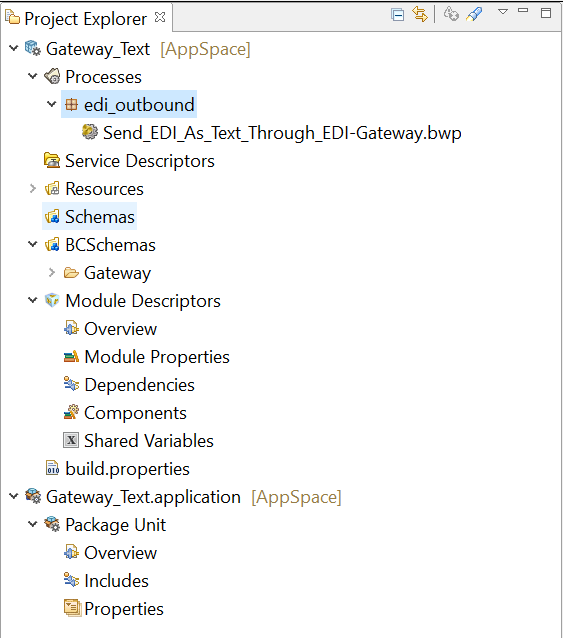
The window shown in the following figure is displayed.
Figure 65: TIBCO ActiveMatrix BusinessWorks Project
-
Click the Global Variables tab.
-
Verify that the global variable BCHome is set to your TIBCO BusinessConnect installation directory.
-
If you made any changes, save the project but do not exit TIBCO Designer.
Configuring Connections to BusinessConnect
To configure connections to BusinessConnect, perform the following steps:
-
Click the Project tab.
-
In the EDI Server Connections folder, double-click BCServerConfigGateway.
-
Click the BusinessConnect Server Access tab.
-
Select the JDBC driver you use to communicate with the BusinessConnect configuration store from the JDBC Driver Type list.
-
Type the URL for the configuration store in the JDBC URL field.
-
Type the configuration store user name and password in the DB User and DB Password fields.
-
Click the Apply button.
-
-
Click the Configuration tab.
-
Click the Update from Configuration Store button.
-
Select Gateway from the Protocol Name list.
-
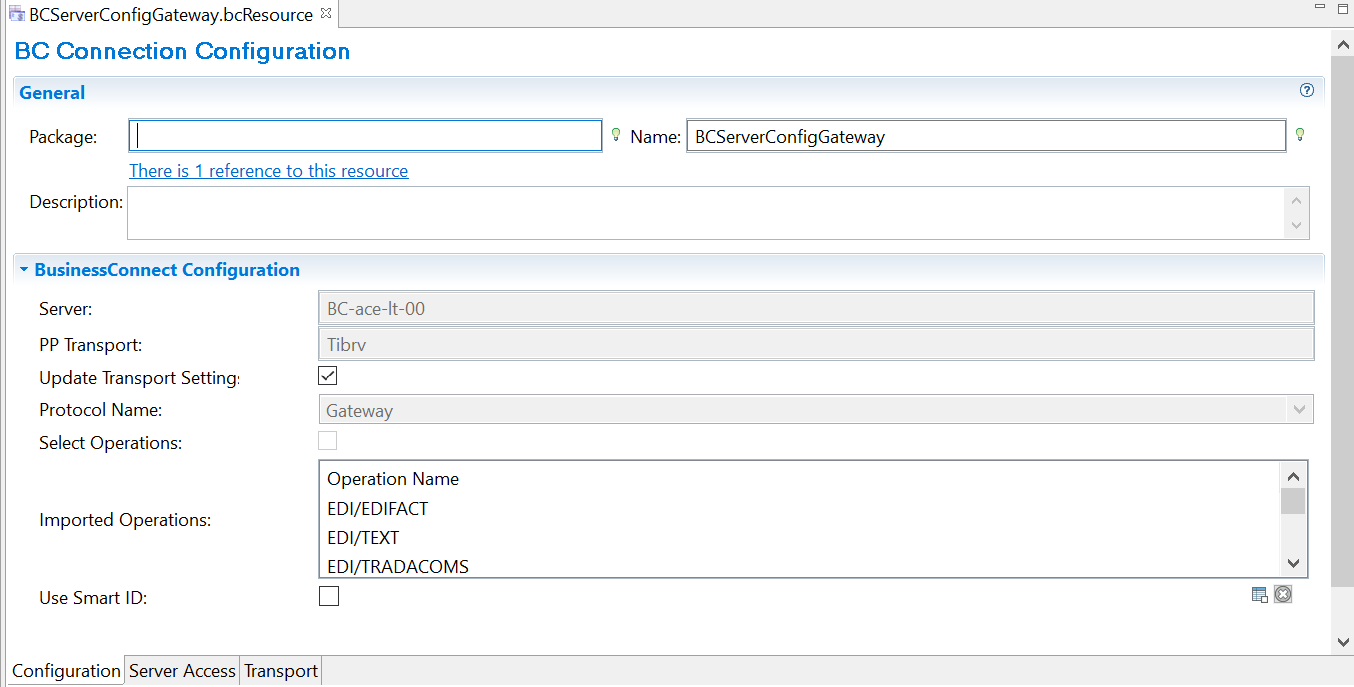
Click the Import Selected Business Protocol button. When you import the protocol, TIBCO ActiveMatrix BusinessWorks retrieves schema information from the TIBCO BusinessConnect configuration store and puts it in the BCSchemas project folder.
Figure 66: BusinessConnect Server Access
-
Click Apply.
-
Click the Save icon to save the project.