Creating a Pageflow Process
A pageflow is a sequence of tasks that defines the flow of form pages which, a user must work through before submitting a work item.
You can create a Process and its containing package and Project in one operation or create a pageflow process.
- Procedure
- Before creating a pageflow process, you must create a project and a package to contain your process.
- In the Project Explorer, select the package you created, right-click and select .
- The
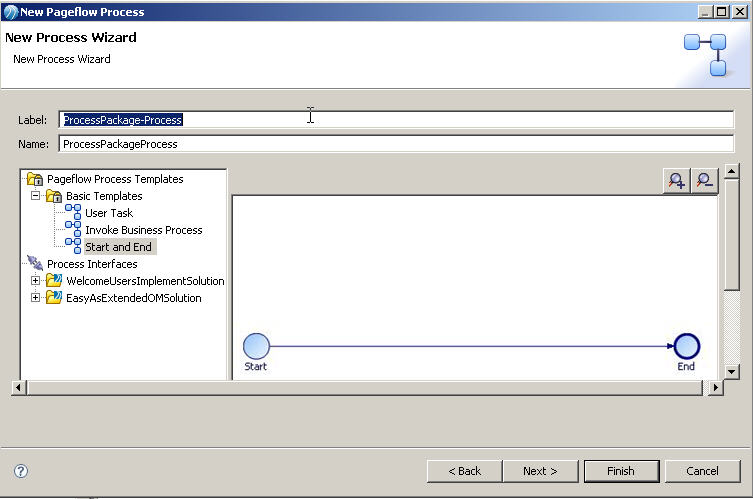
New Pageflow Process wizard is displayed.
Note: If you start this wizard from the menu, the first dialog box is the Project and Package dialog box, where you must specify a valid project and package. This dialog box is not displayed if you right-click at the package level to start the dialog box. However, you can click Back to display it if necessary.
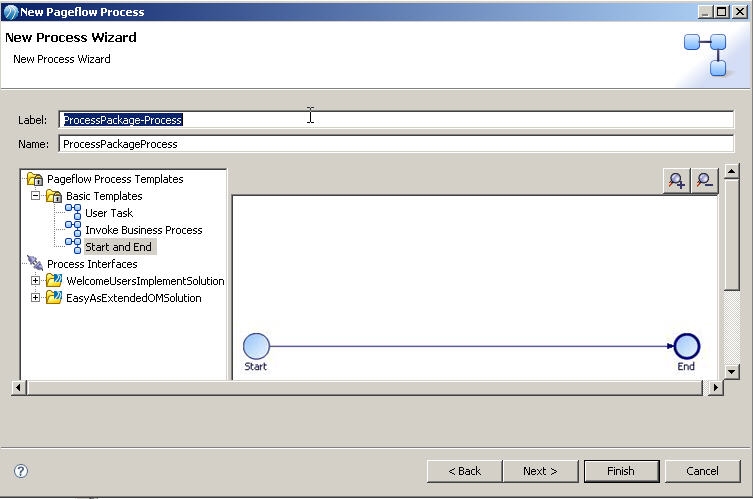
Enter the Label of the process. If you want to use a template to create the process, select the template and click Next.
In addition to the process templates, you can select a process interface as the basis for your new pageflow process. This creates a process with events and parameters that are specified in the process interface.
- In the
Description dialog box, add optional text that describes the process, an optional URL that links to documentation about the process, and click
Next.
Note: The Documentation URL field is intended for design-time collaboration; it is not displayed in the runtime environment.
- The Extended dialog box is displayed. This allows you to add optional supplemental information to the XPDL for the process.
- Click Finish.
- The process that you created is displayed in the Process Editor:

When you first start the Process Editor, the palette (on the right side of the diagram) might be collapsed; if so, expand it. You can expand this window to fill your screen by double-clicking the title bar. A pageflow process has a different default color scheme from a business process.
Note: Pageflows do not contain pools or lanes.