Creating Reusable Script Functions
You can save a script function in a library and reuse it in multiple processes and projects. Script functions are saved in a process script library (PSL) file under Process Script Libraries > *.psl > Script Functions.
- Procedure
-
Click File > New > BPM Process Scripts Project.
-
In the Project name field, enter a project name.
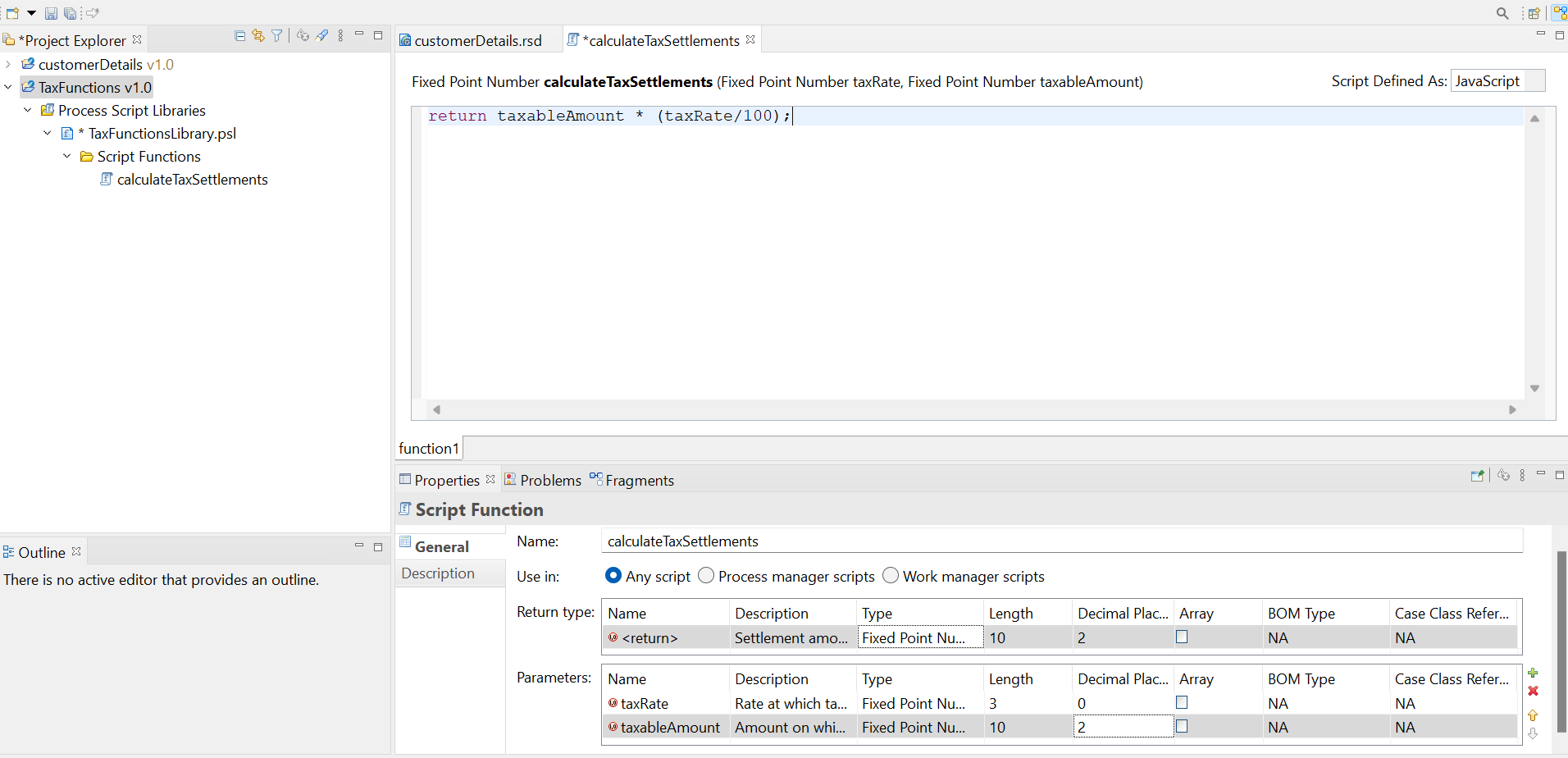
For example, you want to create a script function library to store all functions involved with Tax Calculations, enter the nameTaxFunctions. -
Click Next and then click Finish.
-
In the Name field, enter a meaningful name for the function.
For example,calculateTaxSettlementfor claim settlements.
When you are editing JavaScript scripts, the name of the project and the PSL files within it are used as the names of the JavaScript class hierarchy in the bpmScripts object. -
Based on where you want to use the function, in the Use in field, select one of the following options:
-
Process manager scripts: To use in process manager scripts only. It enables the bpm.process class in the script function.
-
Work manager scripts: To use in work manager scripts only. It enables the bpm.workManager class in the script function.
-
Any script: To use in both process and work manager scripts because it does not allow the use of utilities that are specific to an execution environment. This option is selected by default.
-
-
In the Return Type field, enter the details about the field that the function returns.
You can use the data type Void if your function has no return value. As a best practice, add a description to the parameters. The description is displayed as help in the Content Assist for the script function. -
In the Parameters field, enter the details about the function parameters that you want to use in the function.
As a best practice, add a description to the parameters. The description is displayed as help in the Content Assist for the script function. -
In the Description tab, enter the function description that helps you select the correct function in the calling script.
As a best practice, add description to the functions. The description is displayed as help in the Content Assist. -
In the script function editor, enter the script function details and save it.