Merging Input from Multiple Sources
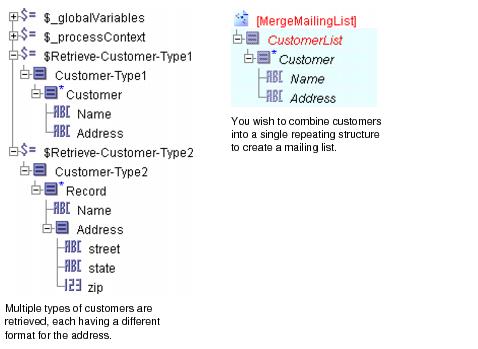
You may have multiple items in the Scope Variables that you wish to map to one repeating element in the Function panel.
For example, you may have multiple formats for customer records and you wish to create a single, merged mailing list containing all customers in one format.
- Procedure
- Select the repeating element in the Function panel, right-click, and select
from the menu.
Because you are creating two different formulas for mapping, you need two copies of the repeating element, one for each format. The resulting output contains only one repeating customer element, but the two copies in the Function panel make it simpler to perform two different mappings.
- Map one of the elements from the Scope Variables to the first copy of the repeating element in the Function. For example, map
$Retrieve-Customer-Type1/CustomertoMergeMailingList/CustomerList/Customer.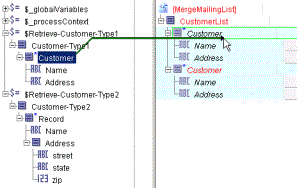
The Mapping Wizard dialog appears and presents choices for what you would like to accomplish. Choose the For Each option and click Next.
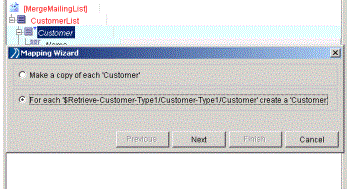
The mapping wizard asks if you wish to automatically map items with the same names. Click Finish to accept the default mappings.
- Map the other element from the Scope Variables to the second copy of the repeating element in the Function. For example, map
$Retrieve-Customer-Type2/RecordtoMergeMailingList/CustomerList/Customer.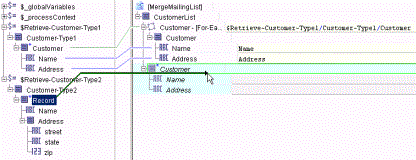
In the Mapping Wizard dialog, choose the For Each option and click Next.
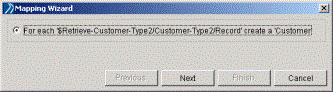
The mapping wizard presents you with an option to automatically map elements with the same name. Click Finish to accept the default mappings.
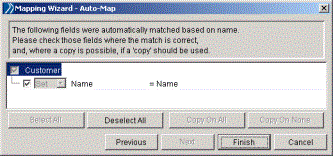
- Select the
Addresselement and click the XPath Formula Builder icon in the Input tab toolbar. In the XPath Formula Builder, drag aconcat()function into the XPath Formula field. This function is used to concatenate the three elements in theRecordelement in the Scope Variables area to oneAddresselement in the function’s input.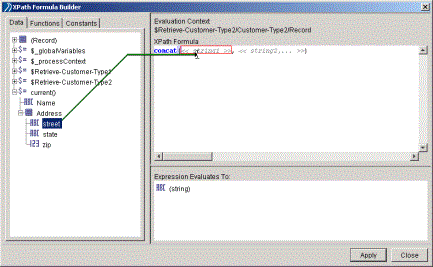
Click the Data tab, then drag the
$current()/Address/streetelement into the<<string1>>placeholder in theconcat()function.Drag the
$current()/Address/stateelement into the<<string2>>placeholder in theconcat()function. Then, add a comma to the end of the function to include a third string to concatenate. Drag the$current()/Address/zipelement into the position of the third string in theconcat()function.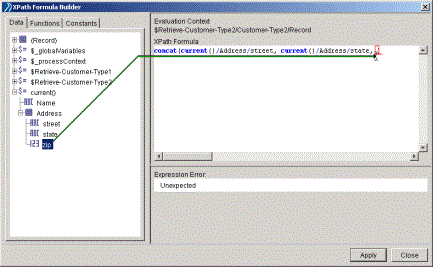
- Click Apply, then click Close to dismiss the XPath Formula Builder dialog.
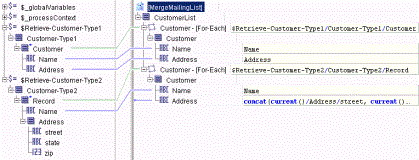
- This results in the following mapping: