
Configuring the Login Page

The login page allows business users to access TIBCO BusinessEvents Views Dashboard. It is the first page that Dashboard users see.

The login page displays an image, a title, and a text area. You configure these items as desired, one per project. For example, you could use a company logo in the image, the dashboard name in the title, and describe the purpose of the dashboard in the text area (description field).

Each project can have only one login page.

You must first copy the appropriate image file into the TIBCO BusinessEvents Studio project and then you can select it in the editor. You can use JPEG, GIF or PNG file formats. The image can be up to 100x100 pixels in size and is centrally aligned in the image container.

Procedure
  1. In TIBCO BusinessEvents Studio, select File > Import > File System, use the Eclipse dialog to locate the image file or files you want to use, and import them into a project folder.
    The recommended location is /Dashboards/Images.
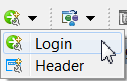
  2. In TIBCO BusinessEvents Studio Explorer, select the folder where you want to store the login page, and click the Login toolbar button in the Global Configurations drop-down list. (Or just click the Global Configurations drop-down list button. By default it opens the New Login wizard.)
  3. In the New Login wizard, name the login component, and optionally, provide a description (which appears on the login page), then click Finish to exit the wizard. You see the Login editor.
  4. In the Image URL field, browse to the project folder where the imported graphic is located and select it.
  5. In the Title field, type a title for the login page.
  6. Save the resource.