Using the Wizard to Create a REST Service
A REST service provider exposes the resources in a process definition that can be invoked by clients using one of the following operations: POST, GET, PUT, PATCH, DELETE, OPTIONS, HEAD, and custom.
Before you begin If a schema definition does not exist, create (or import) a schema definition in the process to which you want to add the REST service. To import an existing XSD file, drag and drop the
.xsd file from the File Explorer to the
Schemas folder of your project.
Important: To generate Swagger 3.0 compliant services, in
TIBCO Business Studio for BusinessWorks select
. Select the
Swagger Version as
3.0 from the drop-down list.
By default, the Swagger Version is 1.2.
To create a new schema file in TIBCO Business Studio for BusinessWorks:
- In Project Explorer, right-click the Schemas folder.
- Select .
- In the Schema Editor, right-click in the respective box to add a directive, element, type, attribute, or group.
Note: When you create a REST service, make sure to edit the
Default Host field in the
HTTP Connector Resource to reflect the actual host name. By default, the
Default Host field is set to
localhost.
- Procedure
- In the
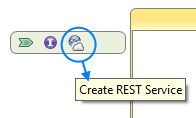
Project Explorer view, select the process to which you want to add the REST service. There are multiple ways to invoke the wizard to create a REST service.
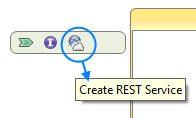
From the main menu, select .Right-click the menu, select .Click on Create REST Service in the process editor area.
- In the
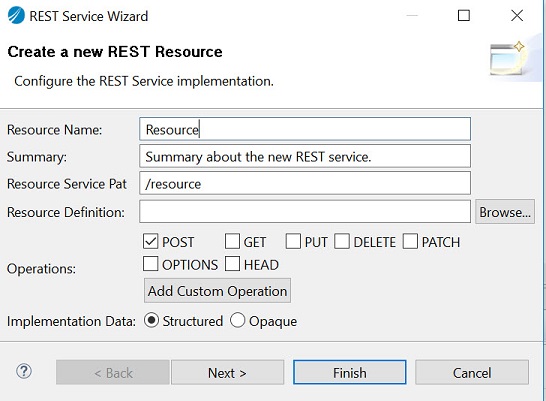
REST Service Wizard window, configure the REST service implementation by specifying the values for
Resource Service Path,
Type of Resource,
Operations, and
Implementation Data.
REST Service Wizard
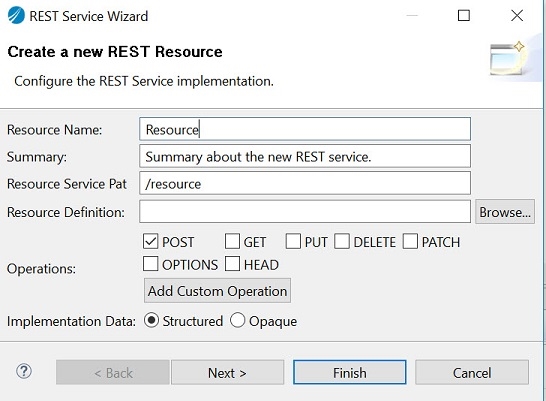
REST Service Wizard fields Field Description Resource Name The name for the new REST service Summary Summary about the new REST service Resource Service Path Specifies the URI that is used to access the REST service Resource Definition Select a resource schema for the REST service, if needed Operations By default, the POST operation is selected. Select or deselect the operations as needed. Note: You can add custom operations by clicking on the Add Custom Operation button.Implementation Data Choose between structured and opaque implementation data - Optionally, click Next to configure the selected operations individually to specify the nickname for the operation (the default nickname is of the format <operation><resource_name>), summary, and the request and response elements and their data types.
- Click
Finish.
The wizard adds the REST service and the selected operations, and also creates a process definition with the multiple operations. It generates a .json file in the Service Descriptors folder of your project when it creates the service.Note: The REST service always implements the constructor operator.
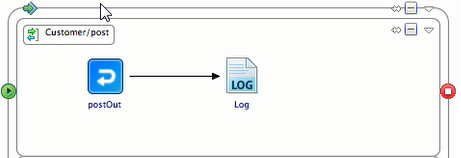
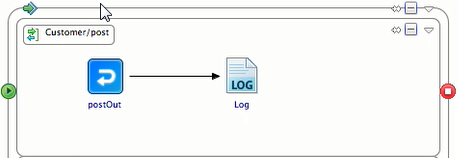
- Add activities to the process and configure them appropriately. For example, update the POST process to add a
Log activity to log the requests and connect the
postOut activity to
Log activity.
- Configure the input and output properties for the activities. For example, select postOut activity and select
. Expand the data tree in the
Data Source tab and map the post element from the left to the post Response element on the right to echo the element. Similarly, for
Log activity, map the post element on the left to the
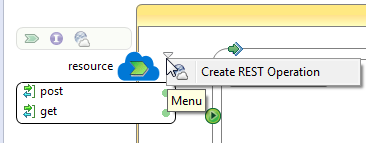
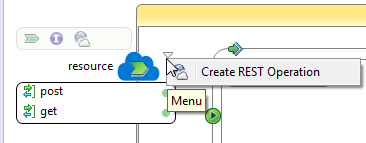
ActivityInputmessage element on the right. - You can optionally add an operation to the service using the
Create REST Operation wizard. To open this wizard, click on the down arrow and click
Create REST Operation to open the wizard.
- Save your changes.
ResultThe REST service is built and can be tested using the built-in tester Swagger UI.
For more information about the Swagger UI, see "Testing the REST Service" in TIBCO BusinessWorks™ Container Edition Getting Started.