API Explorer
Displays a connected view of the TIBCO Cloud™ Integration API Modeler residing in the cloud. This view shows an abstract APIs that is created in API Modeler. You can also view the APIs residing on your local machine from the API Explorer.
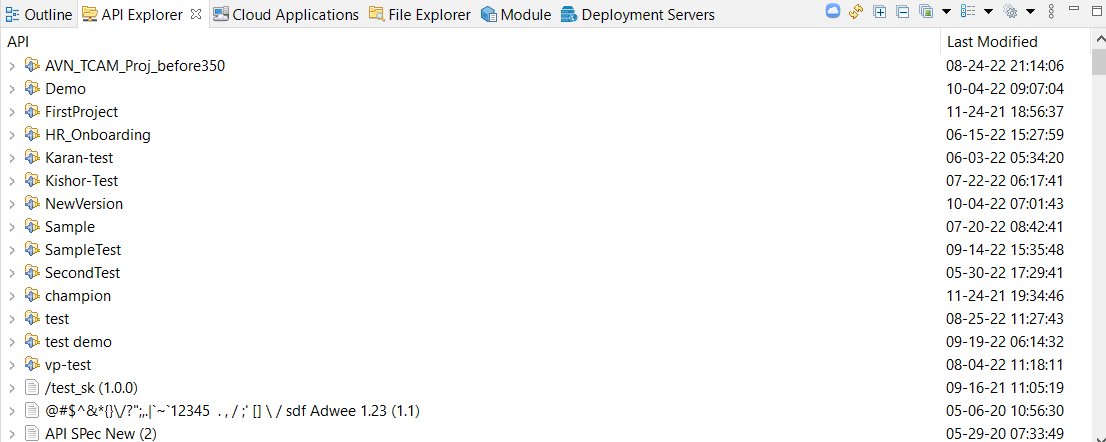
When you open TIBCO Business Studio for BusinessWorks for the very first time, select the API Explorer tab that displays a login view.
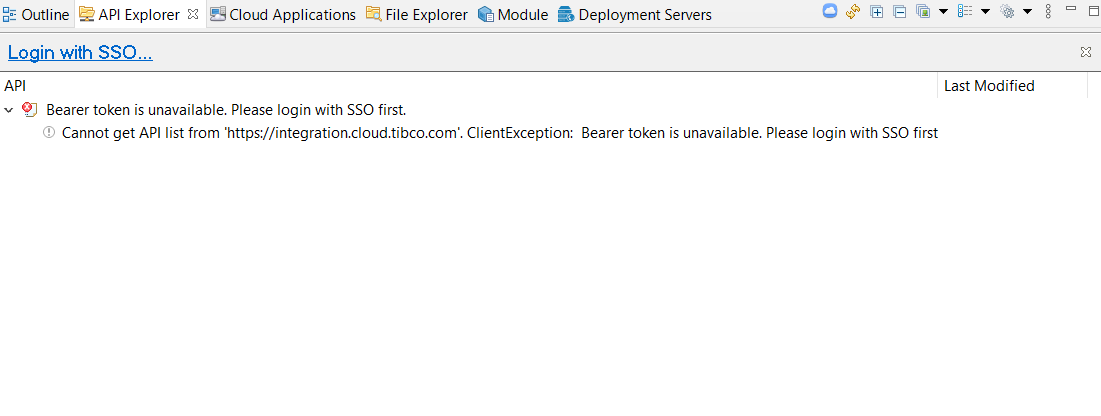
Click the SSO Login hyperlink (  ) or SSO Login icon (
 ) and enter your credentials to Authorize the default selected Region.
Adding a new registry to the API Explorer view
Use the
Settings dialog in the
API Explorer to add a new registry (location) from where you want to view the APIs. To open the
Settings dialog, click the ( ) button on the upper right corner of the
API Explorer view, and click
Settings.
) button on the upper right corner of the
API Explorer view, and click
Settings.
By default, the Settings dialog is configured with a Cloud registry, which is set to the URL for the API Modeler.
To create a new registry:
- Open the SSO Settings dialog.
- Select the appropriate Registry/Region from the dropdown list and click Add.
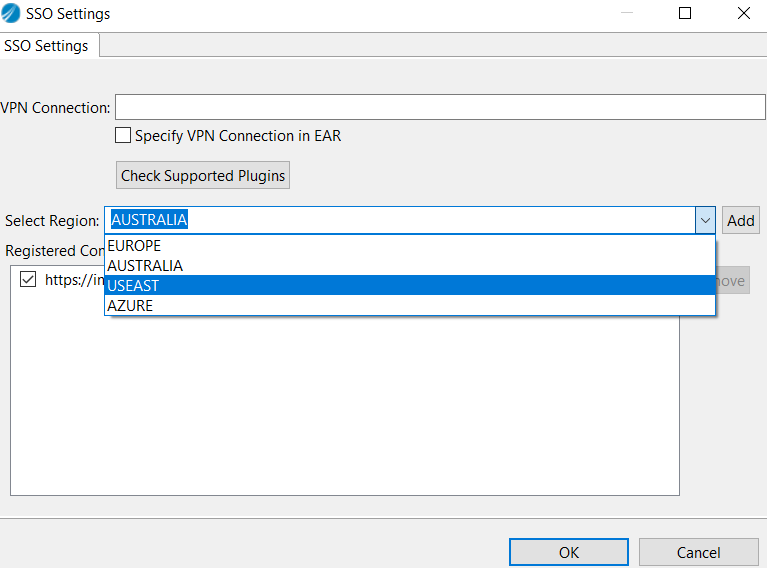
Select the specific Registered Configuration(s) (Registry/Region) checkbox.
- Click OK.
Setting the presentation of the APIs in the API Explorer view
In this dialog, you can specify how the discovered APIs appear in the API Explorer view:
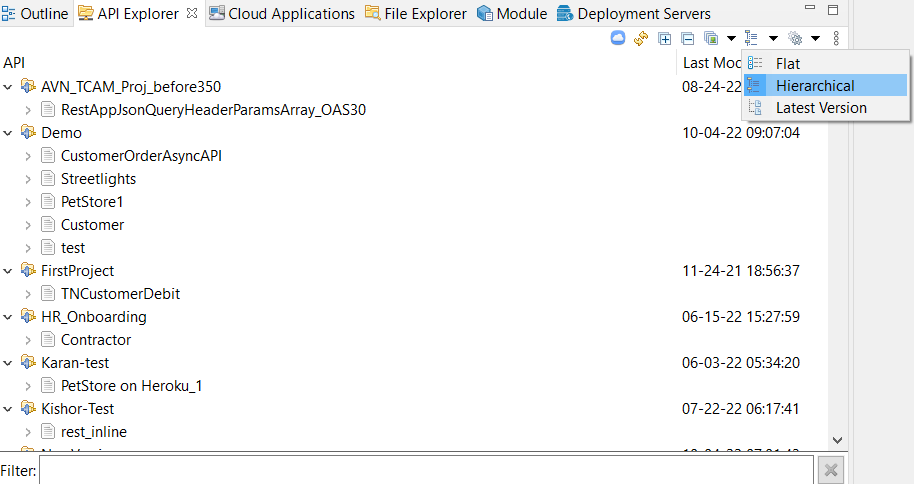
API Presentation - specifies how the APIs appear in the API Explorer view.
Flat - displays the APIs as a flat list with each API's version number displayed next to its name in parenthesis. If there are multiple versions of the same API, each version is shown as a separate API, hence multiple APIs are displayed with the same name but different version numbers.
Hierarchical - displays every API as a hierarchy of API name label with version number folder under it and the actual API under the version folder. If there are multiple versions for an API, each version is listed in its own separate folder under the API name label.
Latest Version - displays only the latest version of the API, even though there might be multiple versions available.
The API Explorer view has the following quick-access buttons that you can use to format the way the APIs are listed:
- SSO Login
 Refresh
  Expand All
 Collapse All
 API Presentation
- View Menu