Setting Up TIBCO ActiveMatrix BusinessWorks
After setting up the IBM MQ queue manager, you can configure TIBCO ActiveMatrix BusinessWorks to use the secure channel.
- Procedure
- In TIBCO Business Studio, open an existing project or create a new one.
- Create an IBM MQ connection.
- Configure the shared resource.
- In the General panel, type a name in the Name field.
- In the Queue Manager Connection Configuration panel, click Remote in the Binding area.
- Enter remote connection values in the Host Name, Port, User Name, Password, and Server Channel Name fields.
- In the Pooling Configuration panel, select the Pooling Enabled checkbox.
See IBM MQ Connection for more information about the configuration.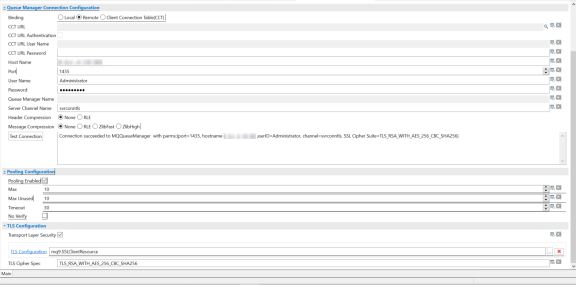
- Start the IBM Key Manager tool using the
strmqikmprogram.This program is located in themqm/bindirectory in the IBM MQ server installation. - Using the IBM Key Manager, open the client keystore created by the script during the
Setting Up IBM MQ Queue Manager.
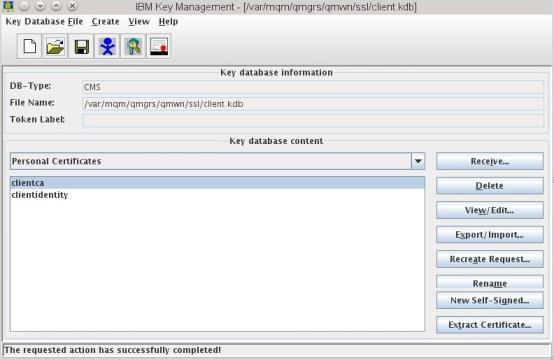
- Create a Java keystore from the contents of the IBM keystore.
- Select the client identity alias, and click Save As from the File menu.
- Change the keystore type to
JKS and enter a new name for the client keystore in the
Save As dialog.
This is the file that you reference from the connection resource, as pictured previously.
- Set the Key file type to JKS.
- Click Save.
- At the prompt, enter a password to be used with the keystore.
- Specify the IBM MQ connection shared resource created in
Step 2.
- Select the Transport Layer Security checkbox in the TLS Configuration panel.
- Click
 next to the
TLS Configuration field.
You can create an SSL Client Configuration resource in the pop-up window.
next to the
TLS Configuration field.
You can create an SSL Client Configuration resource in the pop-up window.
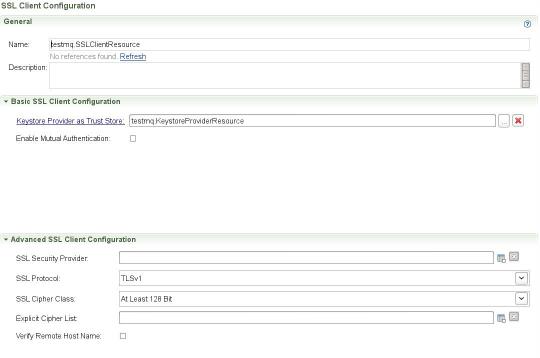
- Configure the SSL Client Configuration resource.
- In the General panel, type a name in the Name field.
- In the
Basic SSL Client Configuration panel, click
next to the
Keystore Provider as Trust Store field.
You can create a Keystore Provider resource in the pop-up window.
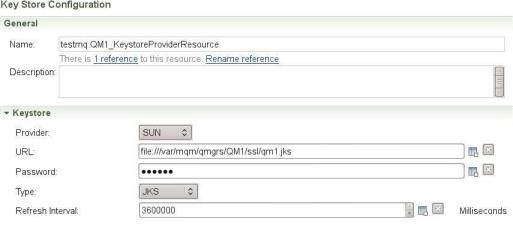
- Configure the Keystore Provider resource.
- In the General panel, type a name in the Name field.
- Select SUN from the Provider list.
- In the URL field, specify the java keystore used for the credentials of this connection.
- Specify the value in the Password field.
- Select JKS from the Type list.
- In the created SSL Client Configuration resource, select
TLSv1 from the
SSL Protocol list.
See TIBCO ActiveMatrix BusinessWorks Bindings and Palettes Reference for more information about the configuration.