Migrating a Project Created in TIBCO Designer
You can migrate a project from TIBCO ActiveMatrix BusinessWorks 5.x with TIBCO ActiveMatrix BusinessWorks Plug-in for ActiveSpaces 2.2 to TIBCO ActiveMatrix BusinessWorks 6.x with TIBCO ActiveMatrix BusinessWorks Plug-in for ActiveSpaces 6.3 by using the migration tool in TIBCO Business Studio.
For related information, see the TIBCO ActiveMatrix BusinessWorks documentation.
Note: When you migrate a project in TIBCO Designer, note the following conditions:
- You can migrate a project from TIBCO Designer with TIBCO ActiveMatrix BusinessWorks 5.x to TIBCO Business Studio with TIBCO ActiveMatrix BusinessWorks 6.x, but not in reverse.
- The name of a project migrated to TIBCO Business Studio cannot contain any of the following characters:
(space) ! $ % & + . / @ \ ~
Before you beginThe project to be migrated is already validated in TIBCO Designer.
Note: TIBCO Designer includes reference-checking and other validation facilities that you can use to ensure that a project is internally consistent. For details, see "Validating Projects" in
TIBCO Designer User’s Guide.
- Procedure
- Open TIBCO Business Studio.
- Use one of the following ways to open the
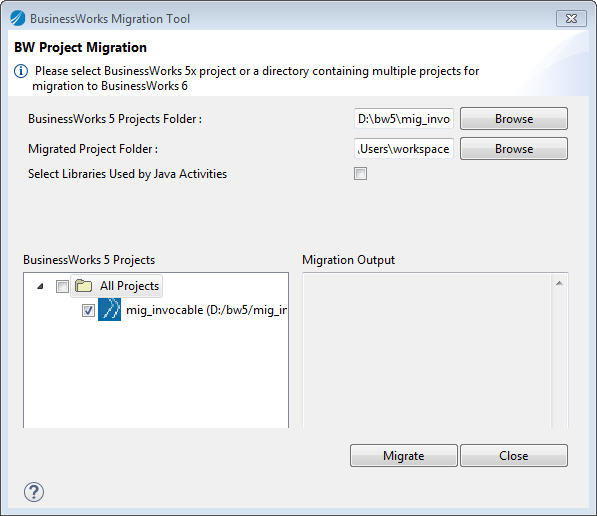
BusinessWorks Migration Tool window:
From the main menu, click .From the main menu, click . In the opened dialog, expand the Migrate BW Projects node, and select Migrate BW Projects. Click Next.
- In the
BusinessWorks Migration Tool window, specify the following fields:
BusinessWorks 5 Projects Folder: the source location of the project to be migrated.Migrated Project Folder: the target location of the migrated projects.
- After you specify the BusinessWorks 5 project folder, in the displayed project tree, select the project you want to migrate.
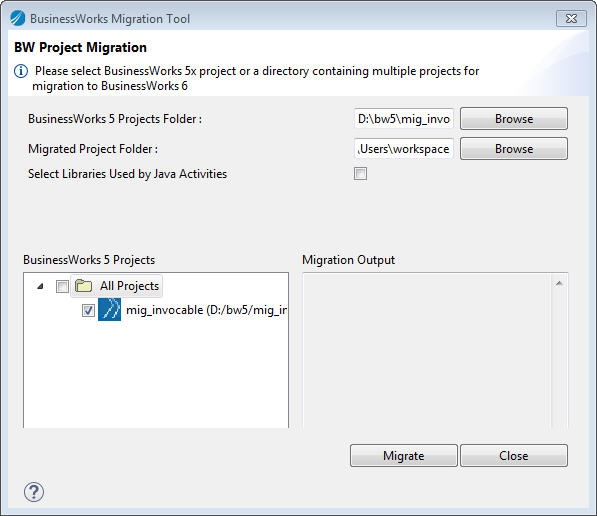
- Click Migrate.
- When the migration is complete, click
Close.
The migrated project is displayed in the Project Explorer view.