
Adding a Table
In the Getting Started tutorial, the third task you must do using the plug-in is to add a table.
A Table shared resource represents a table. The Table shared resource is embedded in the DataGrid shared resource. To use the ActiveSpaces DataGrid activities, you must create a DataGrid connection and then add a table to the DataGrid.
Prerequisites
You must create a DataGrid connection as described in Creating a DataGrid Connection in the project.
Procedure
-
In the
Table panel,
-
Click
Add Table to add a table and related fields in the datagrid.
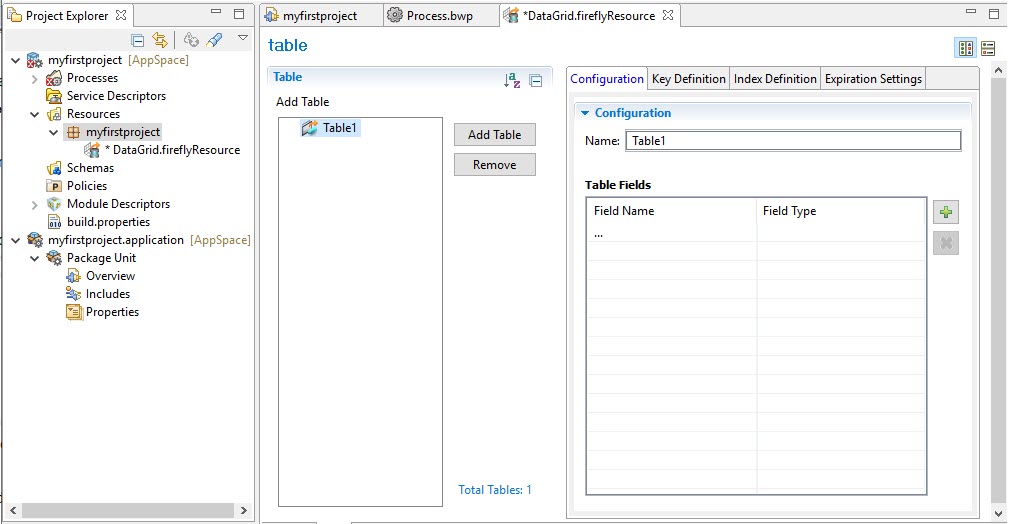
The table parameters that you can specify for configuration are displayed in the right panel. See Table Connection Parameters.
-
Click
Add Table to add a table and related fields in the datagrid.
- Click the Key Definition tab. In the Key Definition panel, provide the following details where required.
-
Optional: Click the
Index Definition tab. In the
Index Definition panel, provide the following details as required.
You can manage the tables, by using Add Table to add a table or Remove to remove a table.
 . In the
What to do next
After you have added a table, the next task is to configure a process. See the Getting Started tutorial.
Copyright © 2021. Cloud Software Group, Inc. All Rights Reserved.