Resource Operations API Activity
The Resource Operations API activity is used to create, read, update, or delete an FHIR resource on the specified FHIR server via the Business Works REST resource.
General
The General tab contains the following fields:
| Field | Literal Value/Module Property/Process Property? | Description |
|---|---|---|
| Name | No | Enter the name to be displayed as a label for the activity in the process. |
| FHIR Context | No | Points to the desired FHIR server |
Display existing FHIRContextPropertiesDisplays

If multiple properties are created, select one from the list. |
||
| Create a new process property
|
||
| Set default property values
To select the Default Value Set for the property, click
|
||
| Select FHIR Resource
To create or choose a FHIR resource, click,
Choose/Create Default Resource Value For more information about creating a FHIR resource, see Select FHIR Resource Template. |
||
| Edit Default Resource
To edit the default resource, click
Edit Default Resource |
||
| Clear Value
To clear the current value from the existing FHIRContextProperties display, click
Clear Value |

 :
:

 .
.
 .
.
Description
The Description tab is used to provide a short description of the activity.
Input
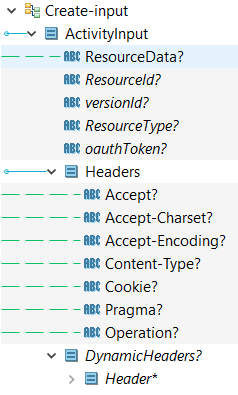
The Input tab is auto populated. The values from the DataSource tab are required to map to the input fields based on the required operation type.
| Field | Datatype | Description |
|---|---|---|
| Headers | - | Any additional information with an HTTP request or response can be passed through the headers. These are standard HTTP headers. |
| DynamicHeaders | - | Any customized header apart from the standard header can be passed through dynamic headers. |
For more information about the supported resource types, see the FHIR R4 and FHIR STU3 documentation.
Output
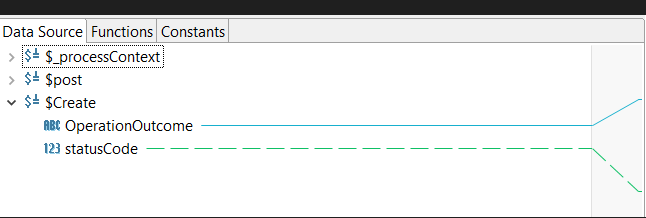
The Output tab is auto populated and the output fields are to be mapped to the REST resource output.
| Output Item | Datatype | Description |
|---|---|---|
| OperationOutcome | element |
Collection of success, error, warning, or information messages that result from a system action. |
| Status Code | Element | The HTTP response codes for the operation. This code is to the REST Client as a response status code. |
For more information about the supported resource types, see the FHIR R4 and FHIR STU3 documentation.
Creating Business Works CRUD API Operations
To create Business Works CRUD API operations, perform the following steps:
-
Go to Business Works Studio and expand Processes.
-
Right-click your process, and then click New > BusinessWorks REST Resource.
-
In the Create Rest resource wizard, enter the name of the process and select the required CRUD operations and then click Next.
-
As per the operation type, enter the Nickname, Summary, and Notes fields.
Note: It is not mandatory to change the Request and Respond fields. -
Go to Modular Descriptions > Components and then select Process.
-
Open the Properties tab and perform the following steps:
Note: You can edit resource operations on the Operations tab. You can edit the operations on the Operation Details tab. -
Under the FHIR Client palette of all four operations, double-click FHIRService.bwp and add the Resource Operations API activity.
-
Go to Properties > General, enter the name of each activity to the respective Operation and select R4 under FHIR Context.
Note: This activity supports only FHIR R4 resource type. -
Map the input tab with all the operations.
Note:- Input mappings for
postOut,getOut,putOutanddeleteOutis same.
- Map to item object as shown in the image.
deleteOuthas message object.
- Input mappings for
-
Map the
statusCodeof each operation to thestatusCodeunder status object.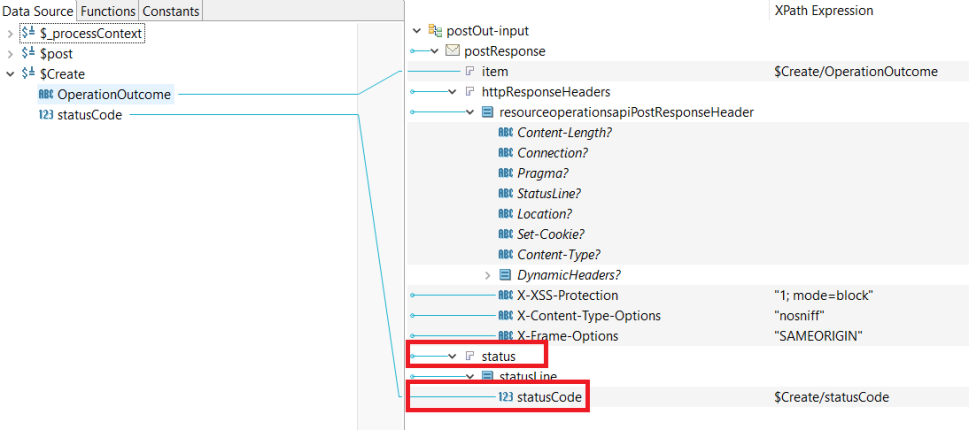
-
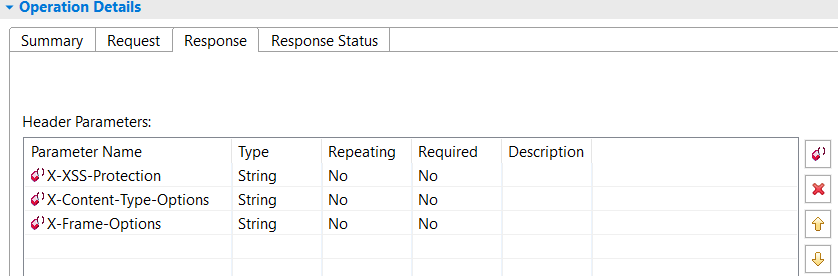
Add the following values to the security headers added in the Response tab.

-
After the application starts, run the Business Works Rest Resource process and enter the
lrestdoccommand in the console. -
To open the Swagger documentation in a browser, use the discovery URL.
You can use Swagger to make the resource operations API calls with any client.
When you open the Swagger website on a browser. The definition of each operation is present in the Swagger website under each section.
Creating Post (Create) Operation
To create a POST (Create) operation, perform the following steps:
-
From the Request dropdown list, Select the Form Data - Multipart (application/form-data) option. Then, add ResourceData as a Form Parameter and operation to Query and Header Parameters.
-
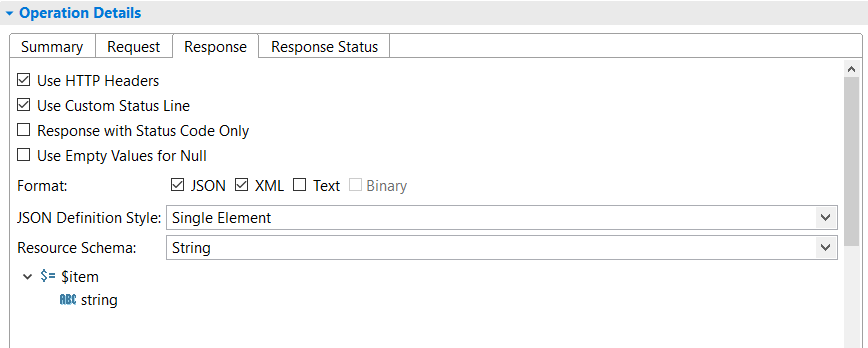
Select the Use HTTP Header and Use Custom Status Line checkboxes on the Response tab and then select the
JSONandXMLformat checkboxes. -
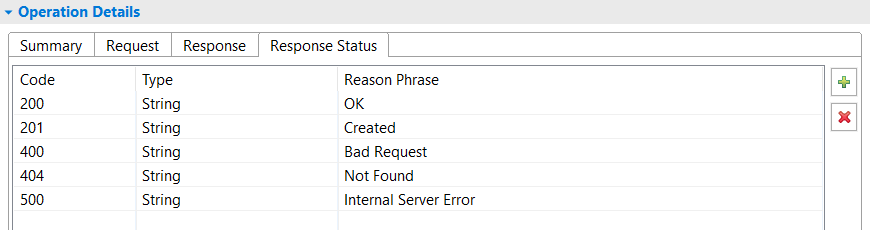
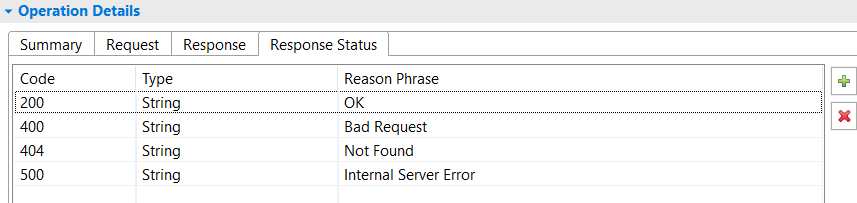
On the Response Status tab, add the HTTP status codes as shown in the following image.
Creating Read (Get) Operation
To create a Read(GET) operation, follow these steps:
-
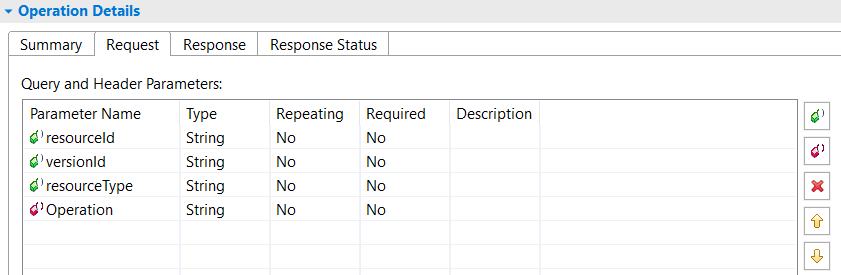
Add
resourceId,versionId,resourceTypeto Query Parameters and add Operation as a Header Parameter. -
Select the Use HTTP Header and Use Custom Status Line checkboxes on the Response tab, and then select the
JSONandXMLformat checkboxes. -
On the Response Status tab, add the HTTP status codes as shown in the following image.
-
Select form data - Multipart (application/form-data) from the Request drop-down list and add ResourceData as a Form Parameter and Operation to Query and Header Parameters.
-
Select the Use HTTP Header and Use Custom Status Line checkboxes on the Response tab and then select the JSON and XML format checkboxes.
-
Now add the following HTTP status codes to the Response Status tab.
resourceType is case-sensitive and must start with a capital letter.
Creating Update (PUT) Operation
To Create a Update(PUT) operation, follow these steps:
Creating Delete (Delete) Operation
To Create a Delete (Delete) operation, follow these steps:
-
Add
resourceId,resourceTypeto the Query Parameters and add Operation as a Header Parameter. -
Select the Use HTTP Header and Use Custom Status Line checkboxes on the Response tab, and then select the
JSONandXMLformat checkboxes. -
Now add the HTTP status codes to the Response Status tab.
resourceType is case-sensitive and must start with a capital letter. resourceType is case-sensitive and must start with a capital letter.