Creating a Project
The first task using the plug-in is creating a project. After creating a project, you can add resources and processes.
An Eclipse project is an application module configured for TIBCO ActiveMatrix BusinessWorks. An application module is the smallest unit of resources that is named, versioned, and packaged as part of an application.
Note:
When you import an existing project to the current workspace of TIBCO Business Studio, if you click Select root directory in the Import Projects dialog, you must select the Copy projects into workspace checkbox.
- Procedure
-
Depending on the platform applicable to your plug-in, start TIBCO Business Studio for BusinessWorks:
Platform Step Microsoft Windows Click Start > All Programs > TIBCO > TIBCO_HOME > TIBCO Business Studio <studio_version> > Studio for Designers Linux or macOS Run the TIBCO Business Studio for BusinessWorks executable file in the TIBCO_HOME/studio/<studio_version>/eclipse directory. For the list of platforms supported by your plug-in, see the Readme file.
- In the Workspace Launcher dialog, select a workspace using the Browse button. Alternatively, you can also proceed with the workspace that is selected by default. Click OK.
- From the menu, click to open the BusinessWorks Resource Wizard.
- In the "Select a wizard" dialog, click BusinessWorks Application Module and click Next to open a New BusinessWorks Application Module wizard.
- In the
Project dialog, configure the project that you want to create:
- In the Project name field, enter a project name.
- By default, the created project is located in the workspace currently in use. If you do not want to use the default location for the project, clear the Use default location checkbox and click Browse to select a new location.
- Use the default version of the application module, or enter a new version in the Version field.
- Keep the Create Empty Process and Create Application checkboxes selected to automatically create an empty process and an application when creating the project.
- Select the
Use Java Configuration checkbox if you want to create a Java module.
A Java module provides Java tooling capabilities.
- Click Finish.
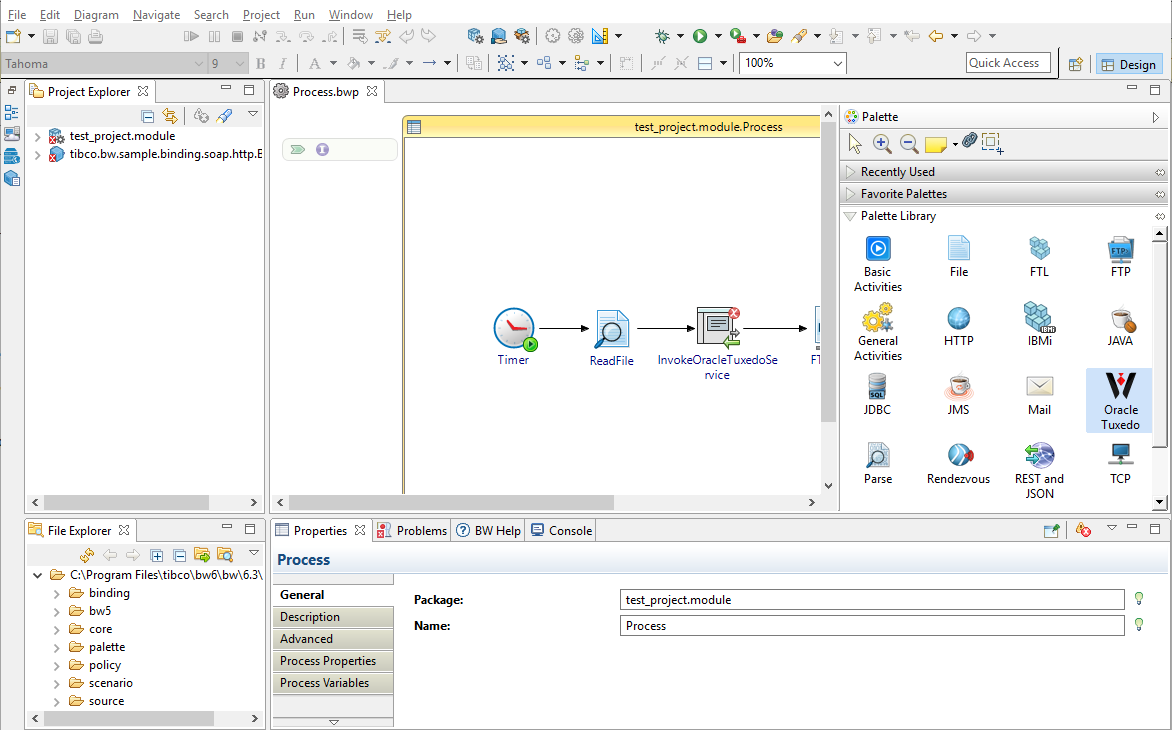
ResultThe project with the specified settings is displayed in the Project Explorer view.