Creating an SMPP Connection
After creating a project, you must create an SMPP Connection shared resource to connect to the SMPP server. You must have a third-party server hosted with SMPP services.
Before you beginThe SMPP Connection shared resource is available at the
Resources level. Create the project as described in
Creating a Project.
- Procedure
- Expand the created project in the Project Explorer view.
- Right-click the Resources folder and click to open the SMPP Connection wizard. The resource folder, package name, and resource name of the SMPP connection are provided by default, which can be customized.
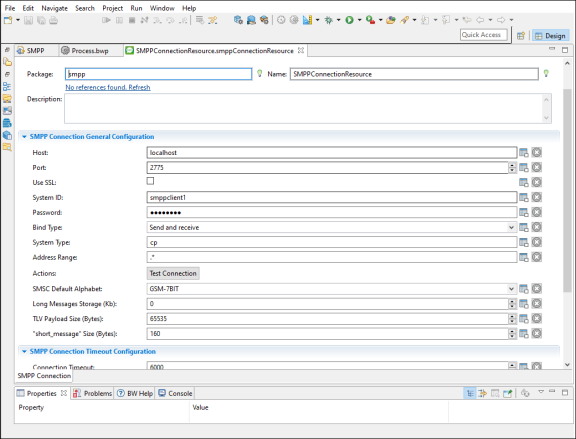
- Click Finish to open the SMPP Connection editor.
- Configure the SMPP Connection shared resource in the SMPP Connection editor. For information about the configuration fields, see SMPP Connection.
- Click
Test Connection to validate the connection.