Creating a Look-Up Table
A look-up table defines a set of key/value pairs. You can transform your project data according to a predefined look-up data.
- Procedure
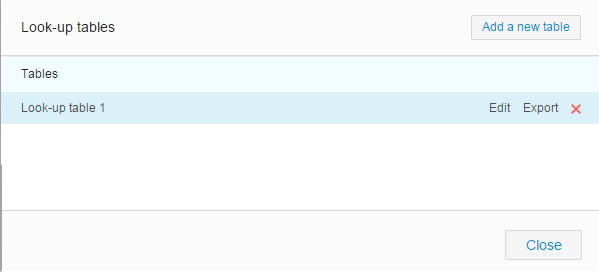
- From the Settings menu, click Look-up tables.
- In the "Look-up tables" dialog , click Add a new table.
- To rename the table to be created, move your mouse pointer over Look-up table N, and click Rename to enter a table name.
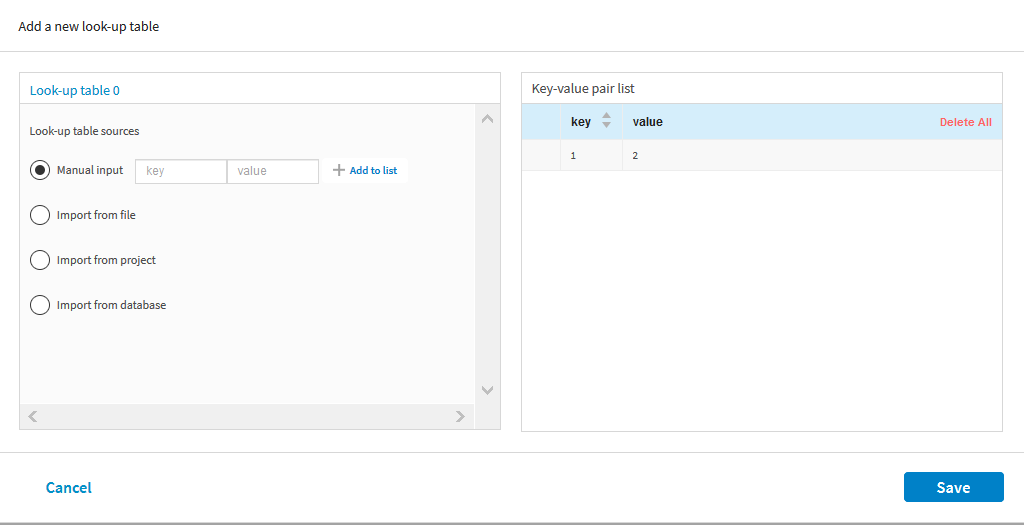
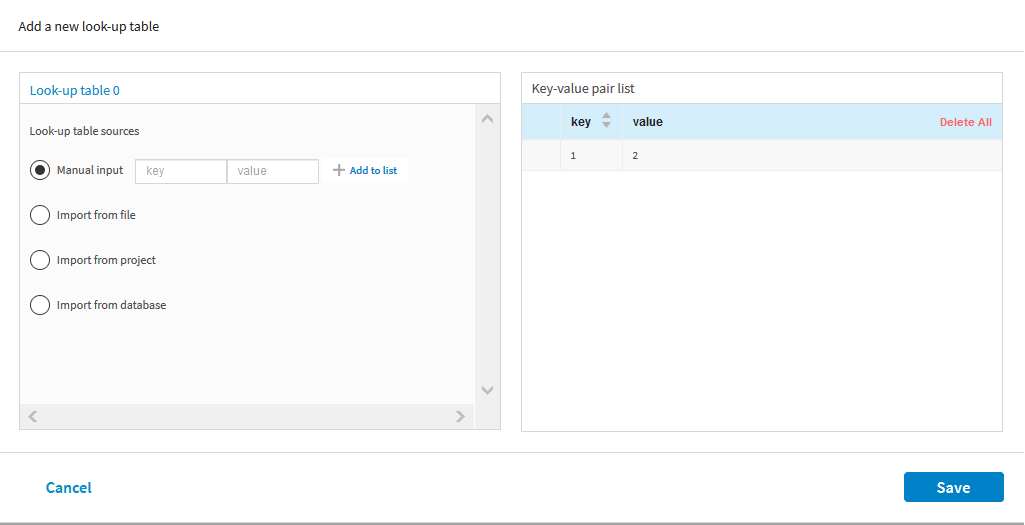
- Select a way to create the look-up table:
Manual input: manually add key/value pairs to the look-up table that you want to create.
Type a key in the Key field and a value in the Value field, and then click Add to list. Repeat this operation to add more keys and values to the table.
Import from file: import a look-up table from a CSV file.By default, UTF-8 is used to encode data. If you want to use another encoding method, click Character encoding to change. Click Choose file to select the file that contains key/value pairs that you want to add to the look-up table. Next, click Add to list.
Note: The data in the selected file must be in the key/value format.Import from project: import a look-up table from a project.Select a dataset and project, and then select a key column and a value column from the project. Next, click Add to list to load the source to the table.
- Click
Save.