|
| Copyright © Cloud Software Group, Inc. All Rights Reserved |

Table 38 Schema Elements Figure 70 Add Attribute
5.
6. Tab across to the Attributes column and type in name. Here you can define attributes for an element. When entering multiple attributes, commas should separate them.
7. To create the next element, move your cursor to the row below manufacturer and type date.issued. Tab to the Content column and select “Text” by clicking on the Content Type button and selecting “Text” from the drop down menu.Now, go back and specify a content model for manufacturer to ensure that the manufacturer element always includes the date.issued element.
8. Move to the Content column on the manufacturer row and select “Elements” from the Content Type menu. This restricts the content model for manufacturer to elements only.
10. Type date.issued into the Content Model column to restrict the contents of manufacturer to one and only one date.issued element. Since name is an attribute, it does not need to be within the manufacturer element.Figure 71 Add Element
11. Move to the empty line below date.issued and type product then press tab. Select “Elements” from the Content Type menu and press tab.
12. Move to the content model column for product, position your cursor inside the “()” and type sku, product.name, price, description, promotion
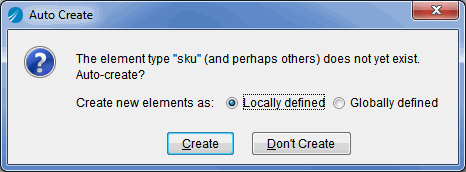
Figure 72 Auto Create Dialog BoxAs it is currently defined, all elements are required. In some instances, you may want an element to be optional. For the purposes of this exercise, description will be made an optional element.
14. Go back to the product content model and highlight description. Once highlighted, click the “optional” button on the tool bar that appears. Notice the '?' that was appended to description.
15. A promotion is a discounted price over some period of time. This will be represented using a combination of elements and attributes. Make a content model for promotion by specifying “Elements” in the Content column and then entering price into the Content Model column.
16.
17. XML schemas typically have a single root element that contains all other elements. In this instance, our root element will be called price.list. Below promotion, type in price.list, press tab, and specify “Elements” content.
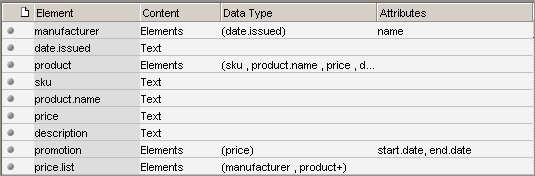
18. Enter manufacturer, product+ as the content model. (The plus sign designates the product element as required and repeatable.) Tab out of the field to update the schema.Figure 73 Schema Elements
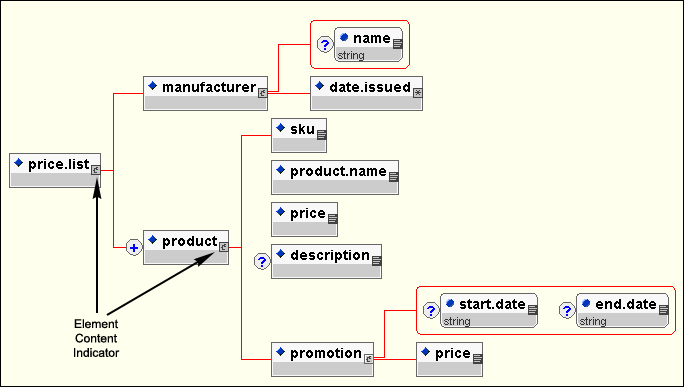
By defining content models, a structure for the document is established. This structure can be thought of as a tree where the root is the encompassing element and its branches are the elements and attributes that may be contained within it (as defined by the content model). In turn each branch may have branches defined by their content model. The diagram at the top of the element panel provides a graphical view of these relationships. Explore the content model by clicking on the elements to expand and collapse their content. (Specifically, click on the Element Content Indicator icon, labeled in Figure 74.) Note that only elements that define a content model can be expanded. Within the diagram, double clicking on the root element, in this case price.list, will produce a graphical view of the entire schema, shown in Figure 74.Figure 74 Graphical View of the SchemaYou have completed the DTD Quick Tour. Notice that the elements and attributes were not constrained by data typing beyond text, because types such as integer, decimal and date are not available in a DTD. To see how these types could be implemented in a price list schema, see XML Schema Exercises
|
| Copyright © Cloud Software Group, Inc. All Rights Reserved |