Copyright © Cloud Software Group, Inc. All Rights Reserved


Chapter 4 Adapter Schema Palette : Understanding Schema Management

Understanding Schema Management
TIBCO Designer is used for configuration of adapters and TIBCO ActiveMatrix BusinessWorks integration projects. TIBCO Designer is used by integration specialists who may be business analysts or programmers that know about the source or target system to which the adapter connects.
Business analysts use TIBCO Designer to configure adapters to get data into and out of another system. The source or destination of the data could be, for example, SAP R/3, PeopleSoft, Siebel or any of the many systems for which TIBCO provides adapters.
How schema management differs depending on the adapter:
Managing Schema for Standard Adapters With Custom Palettes
Many adapters are shipped with custom palettes for the adapter. In that case, the configuration process is as follows:
1.
2.
Documentation for the adapter becomes available via the Help menu.
3.
Managing Schema for Adapters that Are Loaded Into GAC
If no custom palette is available for an adapter, you can still load that adapter into TIBCO Designer. When the adapter is loaded, a Generic Adapter Configuration (GAC) instance is created and endpoints and sessions are defined.
You can then use the Generic Adapter Configuration with the associated Adapter Resources palette to configure the adapter. You configure the schema for the adapter using the AESchemas folder and associated Adapter Schemas palette, as discussed in this chapter.
Managing Schema for Custom Adapters Created with the SDK
If you are writing a custom adapter using the TIBCO Adapter SDK, you must define the schema that describe the data the adapter publishes and subscribes to, as discussed in this chapter.
How TIBCO Applications Use Schema Data
TIBCO applications use schema data to describe or constrain data or operations used by the application. For example, you can specify that an adapter only subscribes to data of a prespecified type. The data could be restricted to a predefined type, for example an integer or string, or a custom type represented by a class. You could also restrict the operations used by client-server interactions. For operations, you can specify the number of required parameters, their type, the return type, and the exceptions.
Schema data effectively isolate the data description from the application data itself. TIBCO Designer is used to define schema data for a project. The schema can then be used by all resources in the project. For example, assume you want to restrict the data a publisher sends. You can define a schema resource, then point to that resource from the publisher. The program will then use the schema to check whether outgoing data meet the requirements. For client/server operations, you can also define schema that describe operations, their parameters, return types, and exceptions.
Schema Basics
The TIBCO schema resources form the basis for model-driven computing with your adapter. Applications use schema to describe the data a particular subscriber or publisher receives from or publishes to TIBCO Messaging. That means that the schema data describe the data inside the TIBCO messages the adapter deals with.
Configuring Standard Adapters
When you configure a standard adapter for which a TIBCO Designer palette exists, you do not define schema data. Instead, you configure the publishers, subscribers, clients, or servers your adapter uses. During that configuration, TIBCO Designer lets you choose the data with which the publisher, subscriber, etc. should work. TIBCO Designer automatically creates the schema objects corresponding to the data you choose. For an example, see Configuring Standard Adapter Endpoints and Schema.
Working With Legacy and Custom Adapters
You use the Adapter Schema Resources palette in these situations:
See Defining Custom Adapter Schema.
Default Schema Resources
A number of schema resources are included in the AESchemas folder by default. These resources represent schema that are recognized by the TIBCO Adapter SDK. They include:
To use any of these resources, you should always first drag an AESchema resource into the Design panel, then add your own resources to the folders that are created.
corba—CORBA schema data
java—java schema data
sql—SQL schema data
Configuring Standard Adapter Endpoints and Schema
This example illustrates how you choose the schema information in a standard adapter and how TIBCO Designer creates the corresponding resources.
This example configures a PeopleSoft adapter subscriber which retrieves data from a PeopleSoft application.
Follow these steps:
1.
With the project displayed in the Design panel, drag a PeopleSoft Adapter Configuration resource from the palette panel into the design panel.
2.
A number of services become available in the palette panel.
3.
In the configuration panel, the configuration tab changes to allow you to specify configuration information.
4.
Click Fetch Component Interface Name.
TIBCO Designer displays a window in which you can select the component interface to which you want to subscribe.
5.
Choose Product, click OK, then click Apply in the configuration panel.
You can now save your project with the new adapter including the subscriber and the schema for the subscriber.
How TIBCO Designer Works With the Schema Data
When you are setting up the PeopleSoft subscriber, TIBCO Designer performs a number of operations:
Defining Custom Adapter Schema
If you are configuring an adapter for which no palette is available, or if you are creating an SDK-based adapter, you can configure Schema resources using the AESchemas folder.
Defining Schema—Overview
This section gives an overview of the schema definition steps, pointing to other sections as appropriate.
To define schema for your adapter, follow these steps:
1.
In the project tree panel, select the AESchemas folder and double-click the ae folder.
2.
From the palette panel, select a Folder resource (General palette) and drag it into the design panel.
3.
It is highly recommended you use a separate Folder inside AESchemas for each adapter. It can be very helpful, for example, if you limit the data initially loaded by specifying a Metadata URL. See Metadata URLs Folder.
4.
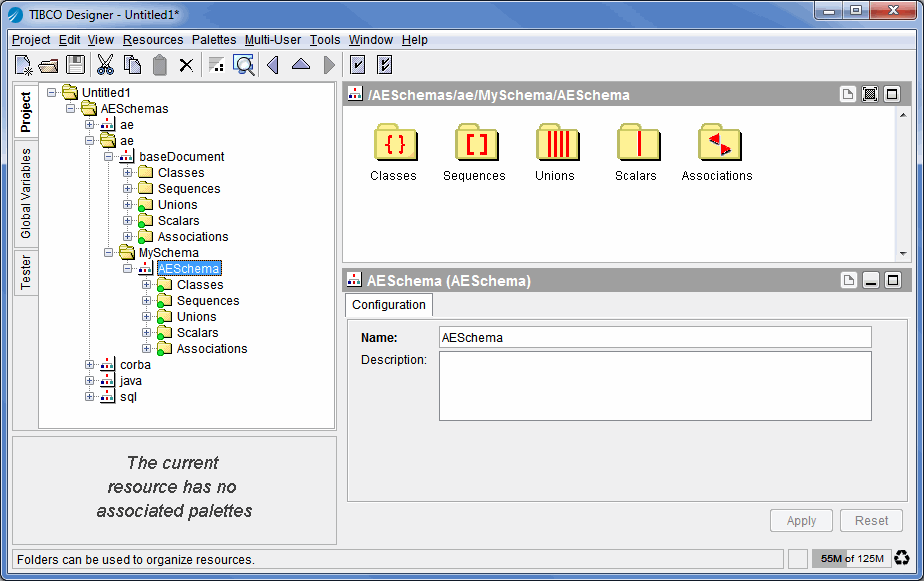
From the palette panel, select an AESchema resource (Adapter Schemas palette) and drag it into the design panel.
The AESchema resource contains folders for the classes, sequences, etc. to be used by the adapter. Click the + below the resource in the project tree to see the folder hierarchy.
Figure 107 Folders in AESchema Resource
5.
When you are configuring a service, you can then add the schema to the service by clicking the Browse icon in the Schemas tab.
To add the schema object to an endpoint (for example, a publisher) explicitly, follow these steps:
1.
2.
TIBCO Designer creates a reference to the schema object and includes it below the endpoint in the hierarchy.

Copyright © Cloud Software Group, Inc. All Rights Reserved