|
| Copyright © Cloud Software Group, Inc. All Rights Reserved |
Exporting and importing repositories is discussed in Introduction. It usually involves making changes to the XML file that results from the export.In most circumstances, you do not create repository instances using the Repository Finder, but instead create a project and save it to the project repository. See TIBCO Designer User’s Guide, available via Help > Designer Help for more information.
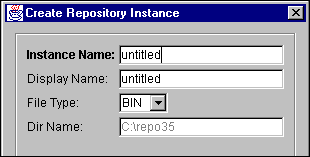
2. Figure 116 Create Repository Instance
4.
− Selecting Local File Repositories.
2. In the Repository Finder configuration panel, click Search Remotely, specify the search parameters for the server, and click Rediscover.
3. From the right-button menu of the server, choose Create Repository Instance.TIBCO Repository creates the repository instance in the remoteRepos directory associated with that server.If you like, you can specify additional information. See Specifying Additional Repository Information.
2. In the configuration panel (with the General tab selected), specify the following information:
Warning: There can be only one default repository within a repository network. That is then the repository to which the server connects when you search for repositories. The option should almost always be left unchecked.
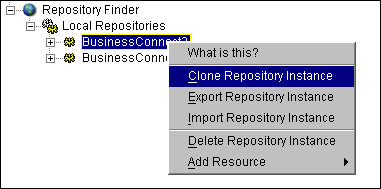
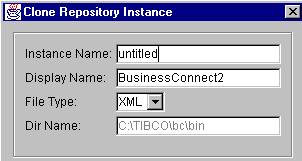
Figure 117 Cloning Repository Instances
2. Select Clone Repository Instance.
2. From the right-button menu, choose Delete Repository Instance.
4.
2. From the right-button menu, click Stop Repository Server.As an alternative, you can also click Stop Repository Server in the configuration panel’s General tab with the server selected.
2. From the right-button menu, choose Stop Repository Instance.
2. From the right-button menu, choose Start Repository Instance.
|
| Copyright © Cloud Software Group, Inc. All Rights Reserved |