|
| Copyright © Cloud Software Group, Inc. All Rights Reserved |
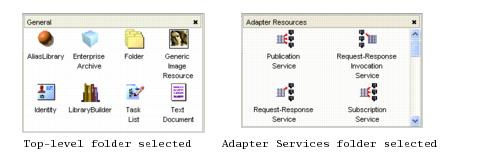
When the default view is set as your view preference, the current selection in the project tree determines which palettes are displayed in the palette panel. You can change your view preferences to change what’s displayed in the palette panel. See Customizing the Display for more information about how TIBCO Designer functions in palette mode.
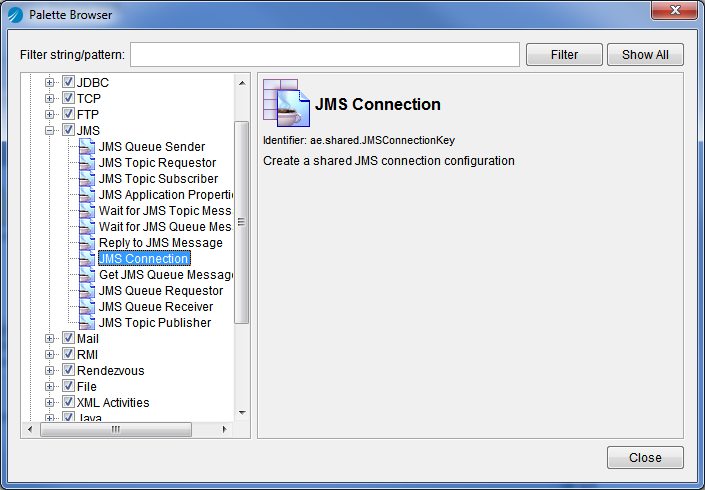
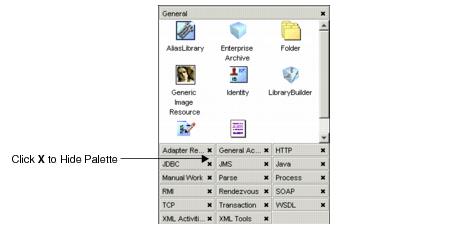
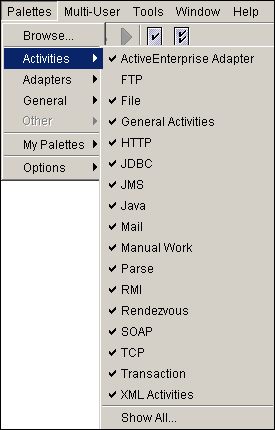
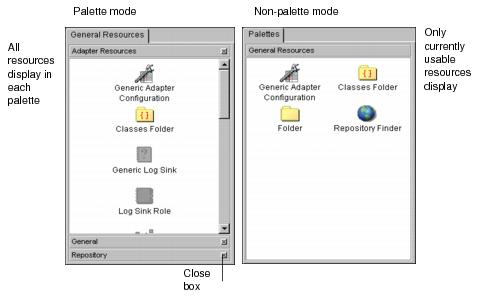
• Select the Adapter Services folder of an adapter in the project tree to see a palette of service resources. Drag any service resource into the design panel to add that resource to that adapter.The palette browser allows you to manage palettes easily. You can explore palette groups, palettes and resource types, and enable or disable specific palettes to display in the palette panel. The browser includes a search filter that allows you to display only palettes that match a specific string. Click Palettes > Browse to display the palette browser.Figure 7 Palette BrowserBy default, all palettes are visible in the palette browser. You can provide a filter in the Filter string/pattern field to limit the display. The filter uses regular expression matching. That is, if you enter JMS in the field, only palettes that have JMS in their name, description or containing palette are displayed. Matching is case insensitive. Entering a new expression and clicking Filter again performs a new search on all resource types and will not refine the current search.To clear the filter expression and display all palettes either click Show all or remove the expression from the entry box and click Filter again.Palettes can be hidden by clicking the X icon next to the palette name. For example, the following diagram shows the palette panel with a large number of palettes displayed. You can disappear a palette by clicking the X icon.Figure 8 Hiding PalettesFigure 9 To Redisplay PaletteWhile in palette mode, you can close individual palettes using the close marker (X) on the right. If you don’t see close markers, choose Palettes > Options> Show Close Boxes. To hide close markers, choose Palettes > Options> Hide Close Boxes.To redisplay a closed palette, choose Palettes > Browse, then locate and select the palette.Figure 10 Palette Mode vs. Non-Palette Mode
•
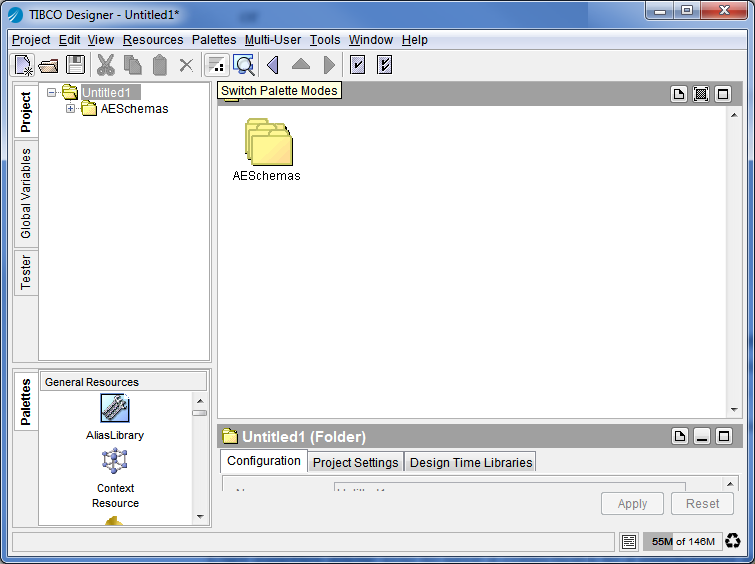
• Click the Switch Palette Modes button located in the tool bar.Figure 11 Switch Palette ModeYou can display the palette panel in a separate window by choosing Palettes > Options > Show Palettes in New Window. You can also access this menu command from the right-button menu of any palette in the palette panel.
1. Choose Palettes > My Palettes > New Palette.When you later save your project, the palette is saved to the location specified by the User Palette Directory General Preference.
4. When you save your project, the custom palette is then saved to the location specified by the User palette directory under the General tab in the Preferences dialog.
1. Choose Palettes > My Palettes > Reload Palettes.
2. Choose Palettes > My Palettes > Delete Palettes.
|
| Copyright © Cloud Software Group, Inc. All Rights Reserved |