Copyright © Cloud Software Group, Inc. All Rights Reserved


Chapter 2 Managing Projects and Resources : Adding Resources To Your Project

Adding Resources To Your Project
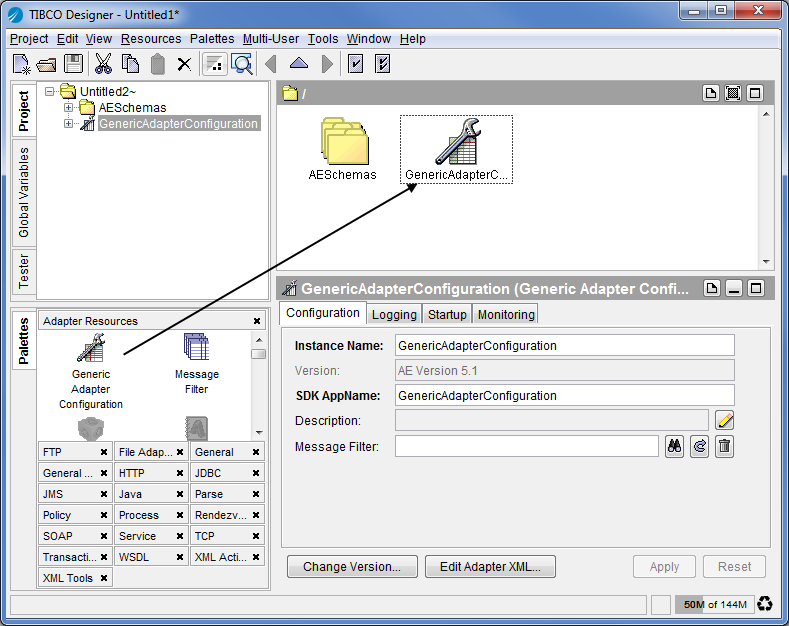
Once you have created or opened a project, you can add resources to your project. To add a resource, you first select it in the palette panel, then drag and drop it into the design panel.
To Add a Resource to Your Project
1.
If the palettes are not visible in your palette panel, click the Switch Palette Modes icon.
 
2.
The resource instance is displayed in the design panel and also added to your project tree. The configuration panel allows you to specify configuration information for the resource.
Figure 15 illustrates adding a resource to a project.
Figure 15 Adding a Resource to a Project
 
In the palette panel, select the resource and choose Add This To The Project from the right-button menu.
In the design panel, right click on an empty area (not on a resource) and select Add Resource from the right-button menu, then choose the appropriate submenu.
You can enable resources to be added using double-clicks. Go to Edit > Preferences and select the View tab. Under Palettes, select Initiate drag-n-drop through double-clicks.
Adding a Resource Results in an Error
Whether adding a resource is possible depends on what is currently displayed in the design panel.
If you try to add a resource that cannot be added to the current resource, an error results.
For example, if the root folder is displayed in the design panel, you can add an adapter instance. If any other resource is displayed, you cannot add the adapter instance.
Preventing Certain File Types From Appearing in Projects
You can prevent certain file types from appearing within a TIBCO Designer project by adding the file type extension to the filteredfiles.txt file. File types listed in filteredfiles.txt will not be visible in TIBCO Designer projects. This is useful in building an ignore list for file types you don’t want displayed in your projects. If you are using a revision control system, adding an ignore list for unwanted file types prevents you from accidentally adding these to the repository during a commit.
Each line in filteredfiles.txt must start with a token, which is an arbitrary name. The token must not be repeated in the line. Each entry must be separated by a colon. An entry can use * as a wildcard. For example, for the following line, sfs.rcs.adapter.tool is the token and *.lck indicates that any file with the .lck file type extension will not be displayed in a TIBCO Designer project.
sfs.rcs.adapter.tool:*.lck
To add a file type extension to filteredfiles.txt:
1.
Changed directory to TIBCO_HOME\tra\n.n\lib.
2.
3.
4.
5.

Copyright © Cloud Software Group, Inc. All Rights Reserved