Copyright © Cloud Software Group, Inc. All Rights Reserved


Appendix A Menu Reference : Resources Menu

Resources Menu
The Resources menu allows you to manipulate resources.
Add Resource
When you select this command, a submenu displays each available palette. For each palette, a submenu displays each resource.
Validate Resource
Validates that resource. Each resource has its own validation behavior. Validate Project for Deployment lists the validation behavior of resources included with TIBCO Designer by default.
To validate broken references to or from that resource you need to choose Project > Validate Project for Deployment.
Inspect Resource
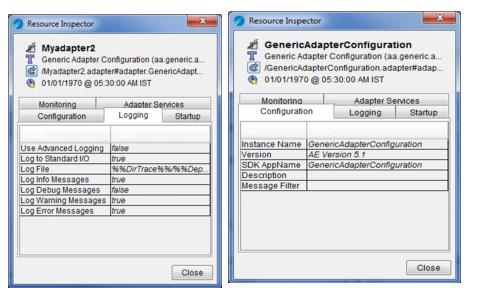
Allows you to view information about the selected resource in a separate small window. Using this command is especially useful if you want to compare the settings in two resources. For example, you could compare the Logging parameters set for two different adapters.
Edit Extended Properties
Allows you to edit extended properties of a resource.
Resources can have both attributes and extended properties. Attributes are displayed in the configuration panel and can be set from there. Extended properties can be added to resources, their attributes, and their properties.
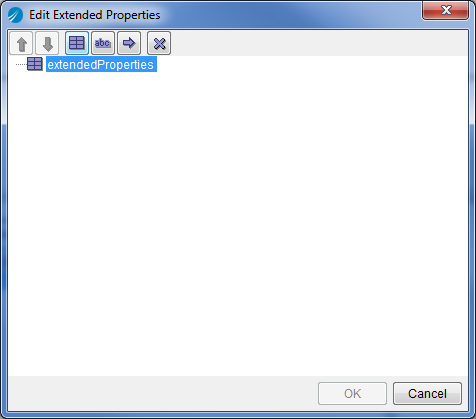
When you choose Edit Extended Properties, the following dialog is displayed:
Figure 50 Edit Extended Properties Dialog
Use the buttons at the bottom of the dialog to add nodes, strings, or string references.
Refresh
TIBCO Designer does not change the display when a change is made to a file on disk in another application, or when files are added to a folder after the folder was displayed. Choose Refresh to redisplay the file/folder associated with the selected resource.
Find References In
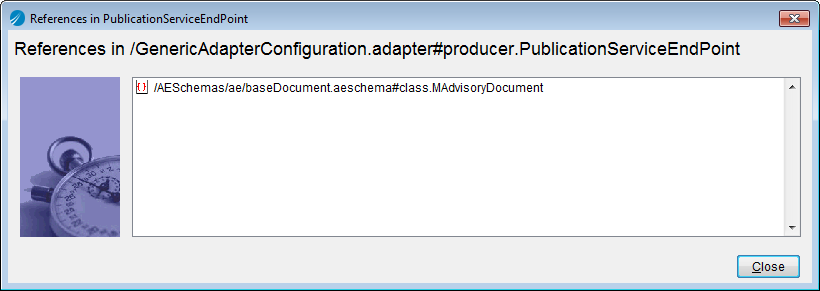
For a selected resource, displays all resources it references. For example, assume you’ve defined a schema resource and reference it in the Class Reference field of an adapter’s publisher service. When you choose Find References In for that adapter, the schema resource is listed.
Figure 51 Find Reference In Dialog
This menu item helps you avoid deleting a resource that still points to other resources.
Find References To
For a selected resource, displays all resources that reference that resource. For example, assume you’ve defined a schema resource and reference it in the Class Reference field of an adapter’s publisher service. When you choose Find References To for that schema resource, the publisher service (and associated publisher) are listed.
This menu item helps you avoid deleting a resource that another resource points to.
View Library Conflicts
This option is enabled when you are using design-time libraries. If your local project contains a resource that conflicts with a resource in the design-time library, use this menu option to find it. You must first select the library that contains the conflicts. The library displays the icon to indicate that it contains a resource that conflicts with another resource.

Copyright © Cloud Software Group, Inc. All Rights Reserved