Copyright © Cloud Software Group, Inc. All Rights Reserved


Appendix D Working With Legacy Projects : Exporting Resources

Exporting Resources
You can export a resource from a project and import that resource into a different project. This functionality is useful if you wish to share resources among people working on a project.
To Perform a Simple Export
1.
2.
Choose Project > Export Resources to File.
3.
To Perform a Customized Export
1.
2.
Choose Project > Export Resources to File.
3.
4.
In the Export Resources dialog
a.
Click Browse to select a location.
b.
Click the Customize Export checkbox.
c.
Click OK.
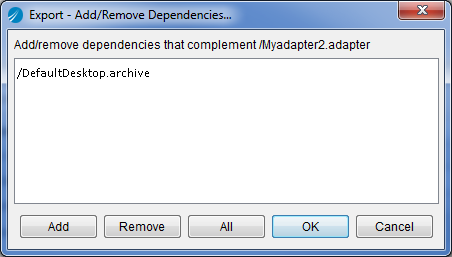
TIBCO Designer displays a dialog that allows you to add or remove dependencies. TIBCO Designer checks for dependent resources when the resource is imported.
Remove an existing dependency of the current resource if you expect the dependent resource will not be required upon reload. For example, the resource being exported above is dependent on the MyBusinessDocument resource. If you remove that dependency, the resource is not expected when the file is imported. If you leave that dependency, the resource is expected.
Add a dependency if you know the current resource needs to be used in conjunction with another currently loaded resource and you want for TIBCO Designer to check that resource.
Click All to highlight and select all dependencies. Then you can Add or Remove all the dependencies.
5.
Click OK.

Copyright © Cloud Software Group, Inc. All Rights Reserved