Copyright © Cloud Software Group, Inc. All Rights Reserved


Chapter 5 Repository Palette : Introduction

Introduction
TIBCO Designer offers two paradigms for manipulating data: projects and repositories. In most cases, you use the project paradigm. In some cases, you want to look at or work with the underlying paradigm, the repository. You can locate, manage, and monitor repositories using the repository palette.
This chapter first compares the two paradigms. It then explains how to display the repository palette, and how to use TIBCO Designer to locate repository instances. It also gives a reference to all icons in the Repository palette.
This chapter gives an introduction to projects and repositories and how they interact.
Projects and Repositories
TIBCO Designer allows you to view and manipulate your data using two different paradigms:
A project is a collection of information you are currently working on. A project represents the work you have done. You can save projects, share them with others, and open them again.
A project could contain, for example, several adapter instances used by your integration and folders to organize the adapters.
A repository is a data store, that is, a collection of information stored in one place. Repositories can be simple, for example, contain data used by an application, or more complex, for example, contain the definitions for several adapters.
You can view and manipulate any repository using Repository Finder. This includes repositories saved as projects from TIBCO Designer and legacy repositories created by other tools. You can also view and manipulate currently loaded projects as repositories.
Warning: In almost all cases, it is appropriate to work with your data using the project’s folders, resources, and configuration information. One reason for this is that TIBCO Designer makes sure the public and private repository areas are in sync when you edit a project. Inconsistencies may result if you change a repository using Repository Finder.
Showing the Repository Palette
By default, the Repository palette is not displayed in the palette panel because its functionality is for repository management only.
To display the Repository palette, choose Palettes > General > Repository. That makes the Repository palette available from the palette panel when the top-level folder is selected.
Repository Finder Tool
The Repository Finder tool lets you locate and manage repositories.
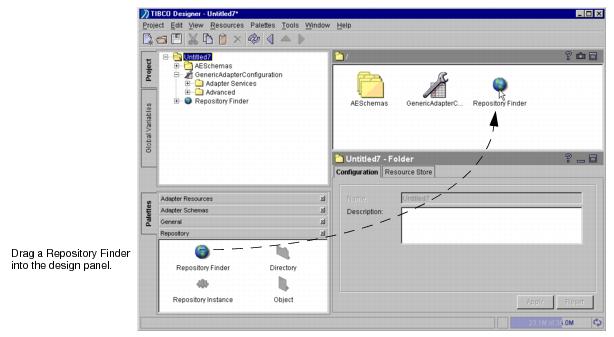
When you add a Repository Finder to your project, the Finder is later saved as part of your project. However, the search information is not saved.
Using Repository Finder to Locate Repositories
Repository Finder lets you locate both local and server-based repositories.
You can only locate repositories that have been saved in .dat format. You cannot locate repositories for multi-file projects.
To locate a repository, follow these steps:
1.
2.
A Repository Finder is added to your project and displayed in the design panel and the project tree. The configuration panel lets you specify discovery criteria.
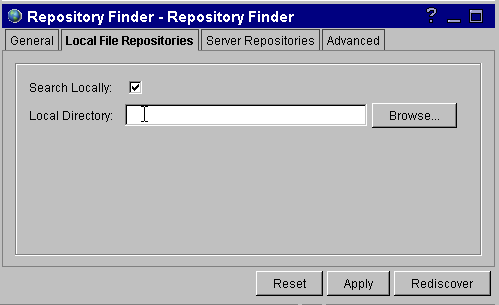
Local File Repositories
3.
a.
b.
Click the Search Locally check box.
c.
Click Browse and select the directory in which the repository is located.
d.
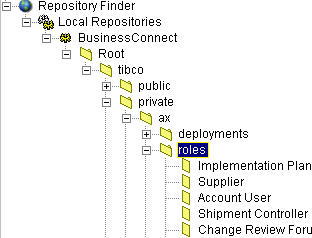
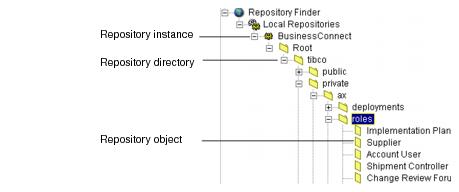
TIBCO Designer looks for repositories in the specified directory and displays them in the project tree panel under a Local Repositories entry. Here’s an example of part of a repository hierarchy for a TIBCO BusinessConnect for RosettaNet application.
e.
Servers and Instances
4.
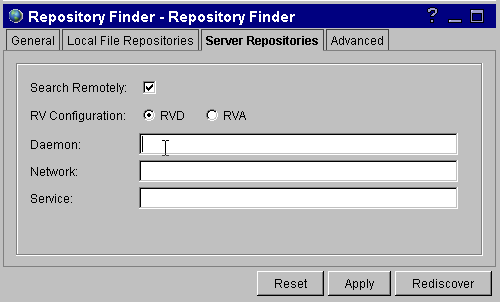
Click Server Repositories if you want to find repository servers and their instances.
a.
Click the Search Remotely check box.
b.
c.
If you are using RVA, click the RVA button and specify the host and port.
d.
Click Rediscover (unless you intend to specify advanced settings).
TIBCO Designer finds any remote repositories for the specified TIBCO Rendezvous settings and displays them in the project tree.
5.
6.

Copyright © Cloud Software Group, Inc. All Rights Reserved