New user interface preview
Overview
This chapter helps you understand and use the new user interface (UI) that is available as a preview. Use this guide to learn how to navigate the UI, complete common tasks, and understand key terms. This content is written for business users (data consumers, data stewards, and contributors). Administrative configuration is documented in the Administration Guide > New user interface preview.
The new UI is designed to support faster navigation, better context preservation, and more flexible ways of working with data, especially when moving between tables, records, and in-progress work.
Note
Use of the new UI is optional. It can be evaluated alongside the existing UI, which remains the recommended interface for production use.
About the preview
The new UI is provided as a preview to gather feedback and allow early adoption. Preview features may change before general availability.
Preview features can change between releases. Some features from the current UI may be missing or behave differently. Performance and accessibility are still being tuned.
Use the preview:
To become familiar with upcoming navigation and interaction patterns.
To perform day-to-day tasks if your administrator has enabled access.
Do not to use the preview:
For critical operations that require stable, production-ready behavior.
If your role depends on features not yet available in the preview.
Note
Your administrator controls availability of the preview UI.
Submitting feedback
Feedback on any aspect of EBX® is always welcome. This is especially true for the UI preview. Use the special UI > UI Preview category in the EBX® Ideas Portal to submit any feedback.
Accessing the new UI
Your administrator controls the availability of the preview UI. After they have deployed and enabled the UI, you can access it:
From the Perspectives menu, using the Homepage option. Note that if the new UI's artifacts are not deployed, the Homepage option takes you to the default homepage.
By appending the following to your EBX® URL:
/ebx-hub.
Navigation basics
The new UI is composed of three primary components: the Dock, Workspace, and Cards. These components give you access to navigation and data operations.
The following image is a simplified illustration of the new UI and is intended to highlight the aforementioned components along with their descriptions in the list below:
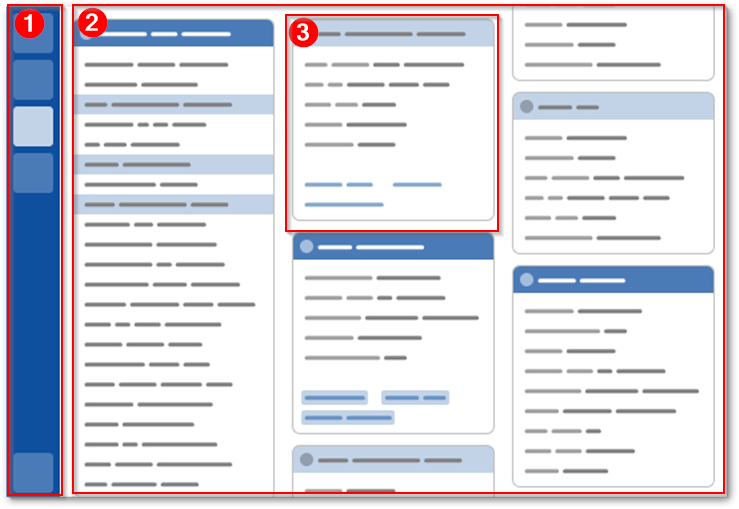
1) Dock | The resizeable Dock is the persistent vertical area on the left side of the screen. Its main purpose is to enable navigation between Home, available perspectives, in-progress data operations, and open tables and records. |
2) Workspace | The Workspace is the primary area displayed to the right of the Dock. When accessing the new UI, the Workspace defaults to Home. When you navigate using the Dock, the Workspace focus automatically updates to the selected view or component. |
3) Cards | Cards are the individual units of content shown in the Workspace. They present information, actions, or shortcuts related to your work and provide a consistent way to interact with data and functionality throughout the new UI. As you use cards to navigate deeper, new columns of cards open to the right, showing more specific or detailed views related to your selection. This allows you to progressively explore data while keeping the previous context visible. The content of some of the cards that display on Home is configurable. After navigating away from Home, the content shown in cards is determined by the perspective configuration. |
Using the new UI
The following topics in this section introduce some of the ways in which you can interact with the new UI:
Home configuration: describes how to personalize your Home.
Understanding view tuning: highlights the consolidation of data view access, filtering, and search capabilities.
Becoming familiar with drafts: outlines the new concept of drafts when creating or editing data.
Configuring Home
Home is your personalized landing area in the new UI. You can configure it to surface the data, recent items, and components that matter to you the most.
When you edit Home, you can:
Add or remove cards that provide the following features:
Shortcuts to frequently visited tables
Display open drafts
View record ratings
Show your workflow inbox
View your recently created and modified records
Count the number of records in specified tables
Rearrange, resize, and configure cards.
Change the layout of the Dock. This layout persists when navigating away from Home.
To configure Home:
If this is your first time accessing the new UI, click Edit Home. Alternatively click the Edit icon in the upper-right of the screen.
Once in edit mode, expand either Dock or Home, depending on the changes you want to make.
Edit the Dock by reordering display components.
Edit Home display by:
Dragging the desired cards to the grid.
Once cards are on the grid, you can resize and rearrange them. The information displayed on some cards is set by default, and others require configuration. See the next step for cards that require configuration.
Click a card's Edit icon to provide information required by the card.
After making changes, save and close.
Understanding view tuning
In the new UI, you can tune the view of a table by clicking the gear icon at the top of the card. View tuning aims to help you locate data by providing the following capabilities:
Select and display any configured table views, including hierarchical views.
Perform a search on the table data.
Sort the records using one or more fields.
Becoming familiar with drafts
The new UI introduces the concept of drafts to create and edit data before committing to the database.
How drafts work:
When you add a new record or edit an existing record, a new draft is created.
Changes are saved to the draft as you make them.
Drafts allow you to pause work, navigate elsewhere, or return later without committing partial changes.
Note that draft records do not display on a table's card since the changes have not yet been propagated to the database. To access in progress drafts, you can:
Go to Home and use the Drafts card.
Select an open draft when creating or editing a record.
Glossary
This section provides definitions for terms used in this document.
Dock | The persistent vertical bar on the left side of the screen that provides navigation to Home, configured perspectives, current data operations, open tables and records. |
Workspace | The primary area displayed to the right of the dock. This is where users view, interact with, and manage data to complete their tasks. |
Card | A card is a structured container in the workspace that presents information, actions, or tools. Cards provide a consistent way to view and interact with data across the product. Depending on permissions, cards may be editable, configurable, or read-only. |
Draft | A draft represents a set of uncommitted changes that you can work on incrementally before saving them to the database. Drafts are created automatically when you add or edit data. |
Home | Your personalized landing area in the new UI. Home displays cards such as shortcuts, drafts, and recent activity, and can be customized to highlight the information most relevant to your work. |
Drafts card | A Home card that shows your in-progress drafts and allows you to return to unfinished data edits. |
View tuning | Tools that allow you to adjust how data is displayed in a table, including selecting views, searching, and sorting records. |