Setting Branch Conditions
You can set conditions on a branch such that only if the condition is met the branch executes.
To set conditions on a branch, follow these steps:
- Procedure
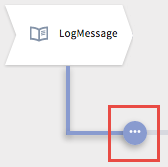
- Hover your mouse cursor to the end of the branch until you see a button with three dots placed horizontally.
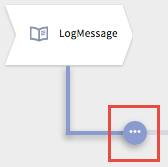
- Click the button to expose the following options:

- Click (
 ).
The Branch Mapping Settings dialog opens.
).
The Branch Mapping Settings dialog opens. - Select a branch condition:
Success,
Success with condition, or
Error. If you already have a
Success with condition branch present, you see
Success with no matching condition.
See the section, Types of Branch Conditions, for details on the three conditions.
- Click Save.
- If you selected
Success with condition, the mapper opens for you to set the condition. Click
condition.
The mapper is exposed to the right of the dialog. The functions that you can use to form the condition are shown under Functions.
- Enter an expression with the condition or click a field from the output of a preceding activity to use it. The output from preceding activities appears under the left
Upstream Output in a tree format.
Important: The condition must resolve to a boolean type.
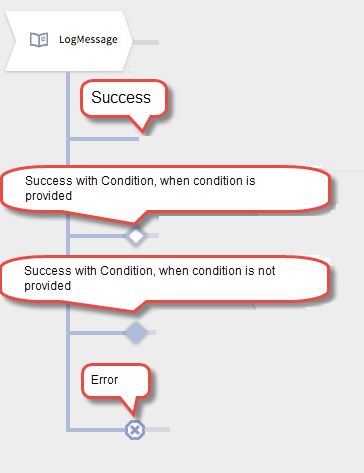
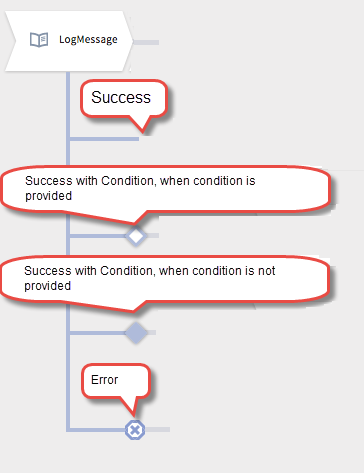
The following image shows how the branches appear based on the branch condition: