App File Persistence
Your Flogo app files get persisted to the directory that you specify on your local machine. You can use an external source control system such as Git or SVN to store your apps. You can then check in and check out your apps locally from the remote repository. This makes it possible for you to implement the Continuous Integration/Continuous Deployment (CI/CD) pipeline by leveraging any tool available in the market to integrate your app development with the app deployment.
When you start the Flogo Web UI, you are prompted to point to the directory where you have checked out your apps. If you do not provide any path, the apps are stored in the default directory which is:
<FLOGO_HOME>/data/localstack/apps.
If you restart your Web UI, at the Web UI restart, if you want to continue using the same directory that you had specified, click Enter on your keyboard when it prompts you to set the path. It stores your path preference that you set the last time.
After the UI starts, you should be able to see all your apps on the app list page in the UI. From this point on, when you create a new app or make a change to an existing app, the changes are saved to the directory location that you provided when starting Flogo Enterprise.
Each app that you store on your local machine has its own folder and the folder name must be identical to the app name. If another user makes changes to your app, you must sync your local repository with the remote repository (do a pull) in order to get the changes made by that user.
- The app file name must be called
flogo.json. - The folder name containing the app must be identical to the app name appearing in the
flogo.jsonfile for the app.
Loading new apps from the disk - When a new app is added to the directory, refreshing the browser loads the app into the Web UI. You do not need to restart the Web UI.
Loading updated app from the disk - In case the
flogo.json on the disk is updated (due to minor changes or checkout newer version from the source control system), click the
Reload from Disk to load updated app into the Web UI. Be aware that this action overrides existing changes in the app.
Reload from Disk option is available under the shortcut menu that is next to the other buttons on the app page.
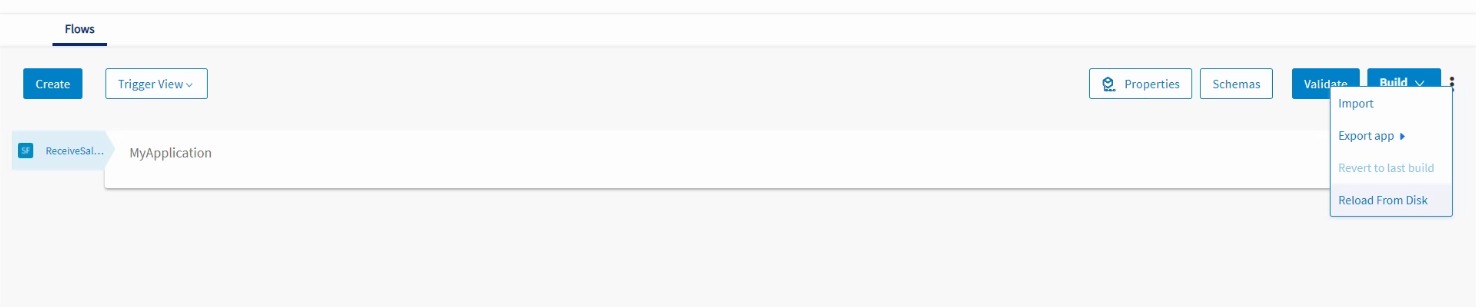
If another user adds a new app to your remote repository, the app gets downloaded to your local repository when you do a pull from the remote repository. For the new app to display in your Flogo Enterprise Web UI, you must refresh your browser. You do not need to restart either the browser or Flogo Enterprise.
You can import any exported app to
Flogo Enterprise. To do so, create a folder with an identical name as the app name in your local repository, then copy the
flogo.json file for the app to the folder. For apps that are created in the Web UI,
Flogo Enterprise automatically generates a unique ID for each app. But, if you load an existing
flogo.json file, the app may or may not have an app ID defined in it.
Flogo Enterprise checks to see if an ID exists in the
flogo.json file for the app. If an ID does not exist for the app,
Flogo Enterprise generates a unique ID and adds an ID attribute in the
flogo.json file before loading the app.
Note the following:
- If you change the ID of the app in your
flogo.jsonfile, you see a duplicate app in the Web UI. Refresh your browser to fix this issue. If you continue to work on the app with old app ID, your changes are lost when you restart the Web UI. - All apps that exist in the path that you provided during Flogo Enterprise installation get loaded in the Web UI. You cannot selectively choose the apps to be loaded in the Web UI.
- Any Launch Configurations (containing your test data for the app) associated with the app are stored in the
folder along with the
flogo.jsonfile for the app. - File permissions - You must have "write" permission for the app directory on your local machine. Otherwise, the app is not loaded and displayed in the UI. An error is displayed in the log located in
<FLOGO_HOME>/<FLOGO_VERSION>/logs/studio.logs. - When importing an app, if any extensions are missing, a broken plug-in icon is displayed on the missing activity.
- If the app has any missing extension or if a connector uses the associated connection, you see the connection post installation of the missing extension or connector.
- If you add an app to your local application repository, if that app has any missing extension, after uploading the missing extension, the connection in the extension maintains the secrets and passwords that were already configured in the connection for the app. Refer to Resolving Missing Extensions section for details on how to resolve missing extensions in an app.
- You may notice change in secret encrypted values in flogo.json after opening the apps in Web UI. This does not affect the run time.
- We recommend that you do not modify
flogo.jsonmanually to avoid any mishaps. - When upgrading to Flogo Enterprise the current version from an older Flogo Enterprise version, the existing apps automatically get migrated to the directory that you have created on your local disk. You do not need to migrate them manually.
- If your application repository gets deleted while in use, you must restart the Flogo Web UI and set a new application repository. Do not continue to work with the deleted repository. Also keep in mind that even if you recreate a directory with the same name, your changes do not take effect until you restart the Web UI.