Creating a Group
You can create one or more standalone app properties or group app properties such that they show up in a hierarchy. A group (or hierarchy) consists of a parent node, which is just a label and does not have a data type associated with it. You must create properties within the parent. You can do so in the Application Properties dialog. When creating a group you must add the parent first then create the app properties under the parent.
Note:
- Once you create an app property either as a standalone property or under a group, you cannot move the property to another location in the properties list.
- Group names within an app must be unique. Also, property names within a group must be unique.
- You cannot create a group and an app property with the same name in the same hierarchy.
- Procedure
- Open the app details page and click App Properties.
- Click Add on the upper right corner to add the group.
- Enter a meaningful name for the group and click
Add group.
The group gets created. The group is simply a label and cannot be used by itself. So, you must add properties within the group.
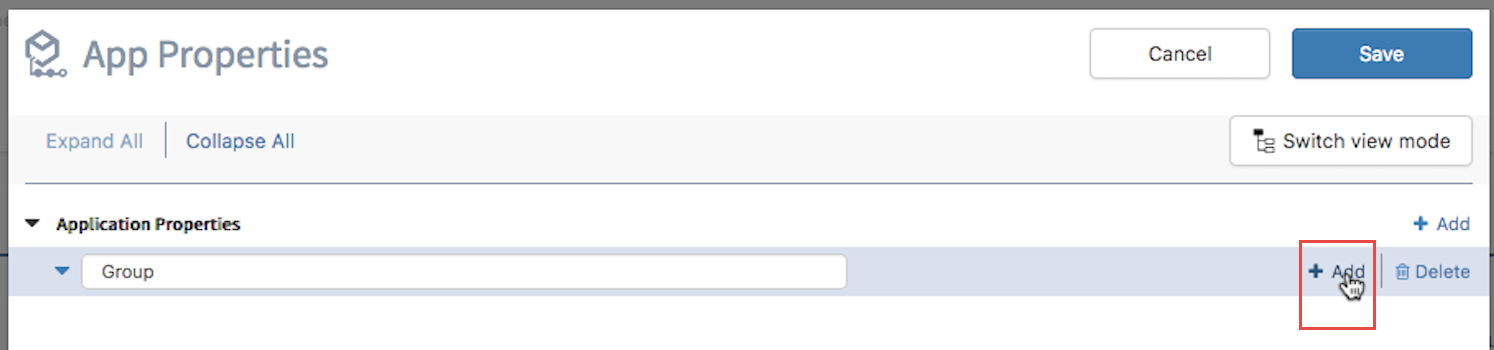
- To add a property within the group, hover your mouse cursor to the extreme right of the group until the
Add button appears in the group row.
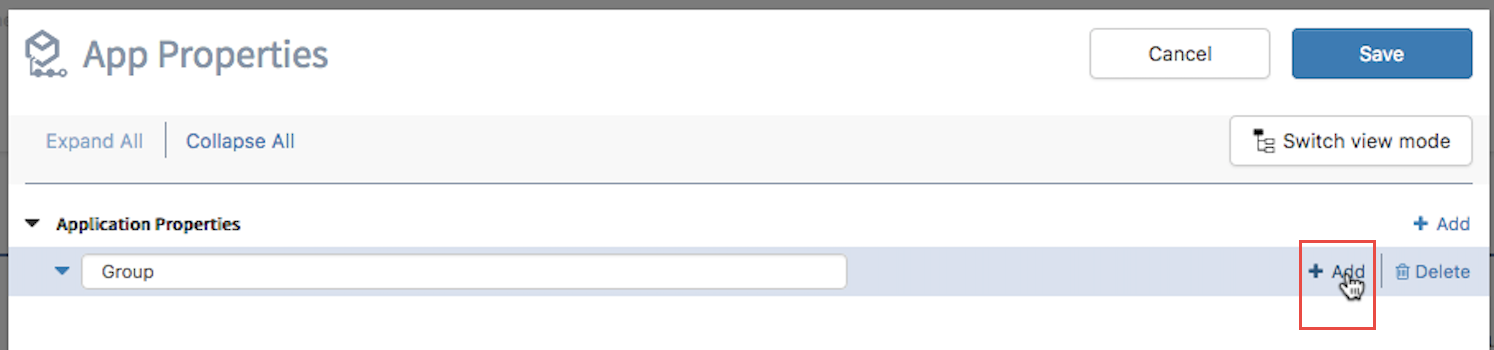
- Click the Add button and enter a name for the property and click Add property.
- Select a data type for the property and enter a value. Entering a value and selecting a data type are mandatory. The Save button remains disabled without them.
- Click
Save.
The property gets created under the parent.